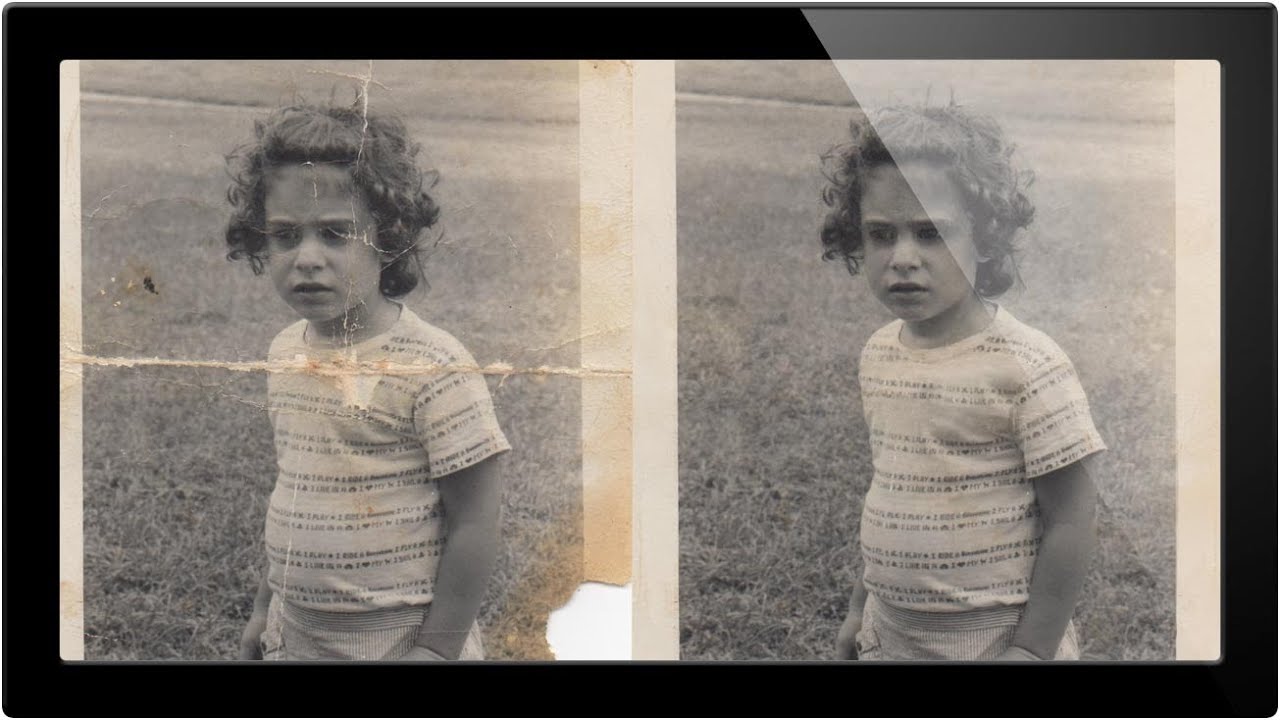
How to Rescue a Damaged Old Photo in Photoshop: Plan First, Clone Second

How to Rescue a Damaged Old Photo in Photoshop: Plan First, Clone Second

Client work will humble you fast. Early in my freelance run, someone handed me a scanned family photo that looked like it had survived a move, a flood, and a toddler with a crayon. I opened it in Photoshop and immediately started clone-stamping like a maniac, no plan, no structure, just vibes. Two hours later I had a mess that somehow looked worse than the original. That experience stuck with me, mostly because I invoiced for it anyway, but also because it taught me that photo restoration has a correct order of operations and I had been ignoring it.

Quick Fill vs. Full Control: Getting the Most Out of Content-Aware Fill in Photoshop

Quick Fill vs. Full Control: Getting the Most Out of Content-Aware Fill in Photoshop

There’s a specific kind of freelance panic that hits when a client photo has a distracting element right in the middle of an otherwise perfect shot. A shadow cutting across a clean background. A trash can lurking at the edge of a landscape. Some random blob that your eye keeps getting snagged on. You need it gone, and you need it gone without spending 45 minutes cloning pixels by hand like it’s 2009.

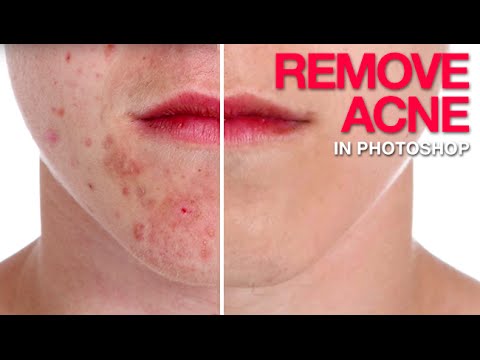
Bye-Bye Blemishes: A Practical Photoshop Guide to Removing Acne Without Destroying Skin

Bye-Bye Blemishes: A Practical Photoshop Guide to Removing Acne Without Destroying Skin

I do a lot of freelance portrait work. Not high-fashion editorial stuff, just real people who want to look their best in headshots, event photos, and the occasional engagement shoot. And one request comes up constantly: “Can you clean up my skin a little?” That’s polite for “I had a breakout and I hate this photo of myself.” For years, my go-to was just hammering the Spot Healing Brush until something resembling a face appeared.

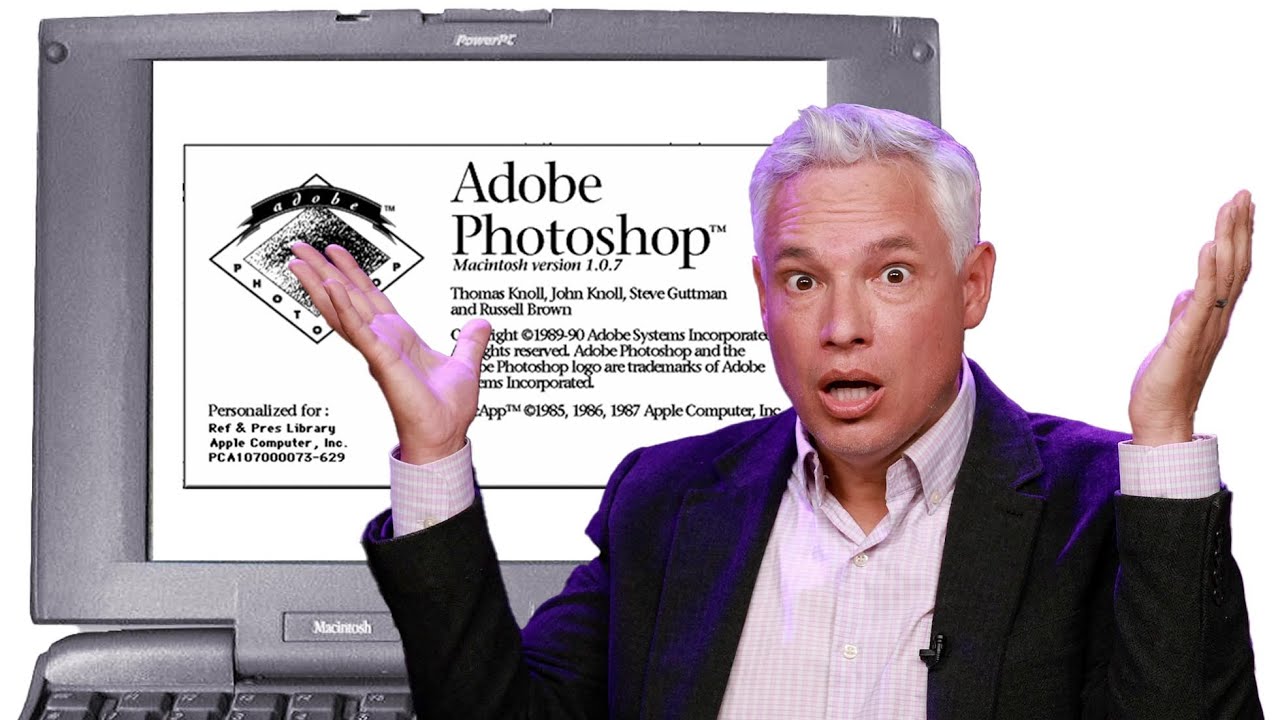
Photoshop at 35: What Happens When You Actually Use Version 1.0 in 2025

Photoshop at 35: What Happens When You Actually Use Version 1.0 in 2025

I started making graphics in MS Paint. Terrible, pixelated, deeply embarrassing stuff - word art on birthday cards, memes with white borders because I didn’t know how to crop. So when I finally got my hands on Photoshop, it felt like going from a tricycle to a sports car. I still feel that way, honestly. But it’s easy to forget just how far the software has actually traveled when you’re living inside the current version every day.

Tattoo Be Gone: A Three-Step Photoshop Removal Workflow That Actually Holds Up

Tattoo Be Gone: A Three-Step Photoshop Removal Workflow That Actually Holds Up

I do a fair amount of portrait retouching for clients — headshots, lifestyle stuff, the occasional album cover for a band that takes itself way too seriously. And every so often someone slides into my inbox asking if I can “just remove” a tattoo from a photo. Sometimes it’s for a corporate headshot. Sometimes it’s for a family portrait where grandma is going to lose her mind if she sees it.

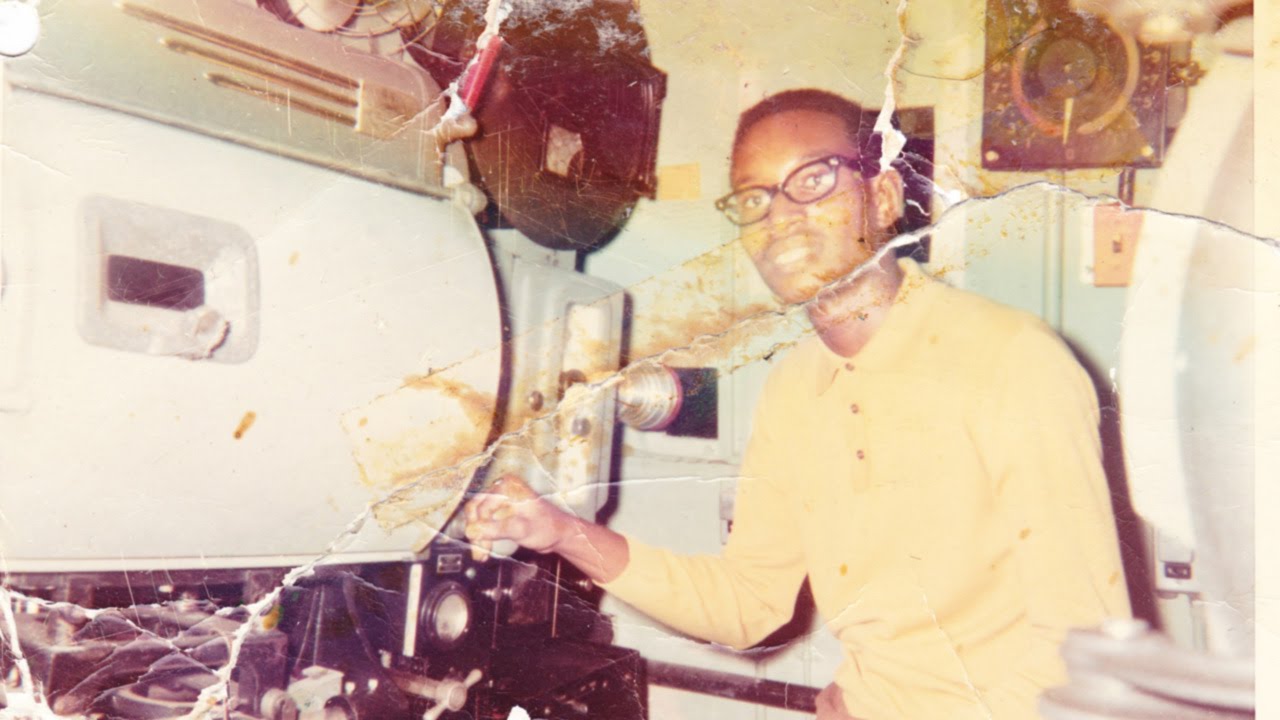
Bringing the Dead Back to Life: How to Restore a Torn Photo in Photoshop

Bringing the Dead Back to Life: How to Restore a Torn Photo in Photoshop

Old photos are brutal. Not emotionally (okay, sometimes emotionally) but technically. Torn edges, yellowed paper, creases running straight through someone’s face. If a client or a family member ever slides one of these across a table at you, the gut reaction is to smile and nod while internally spiraling. I’ve been there. The good news is that Photoshop has everything you need to bring these things back from the brink. The bad news is that the workflow isn’t obvious if you’ve never done it before.

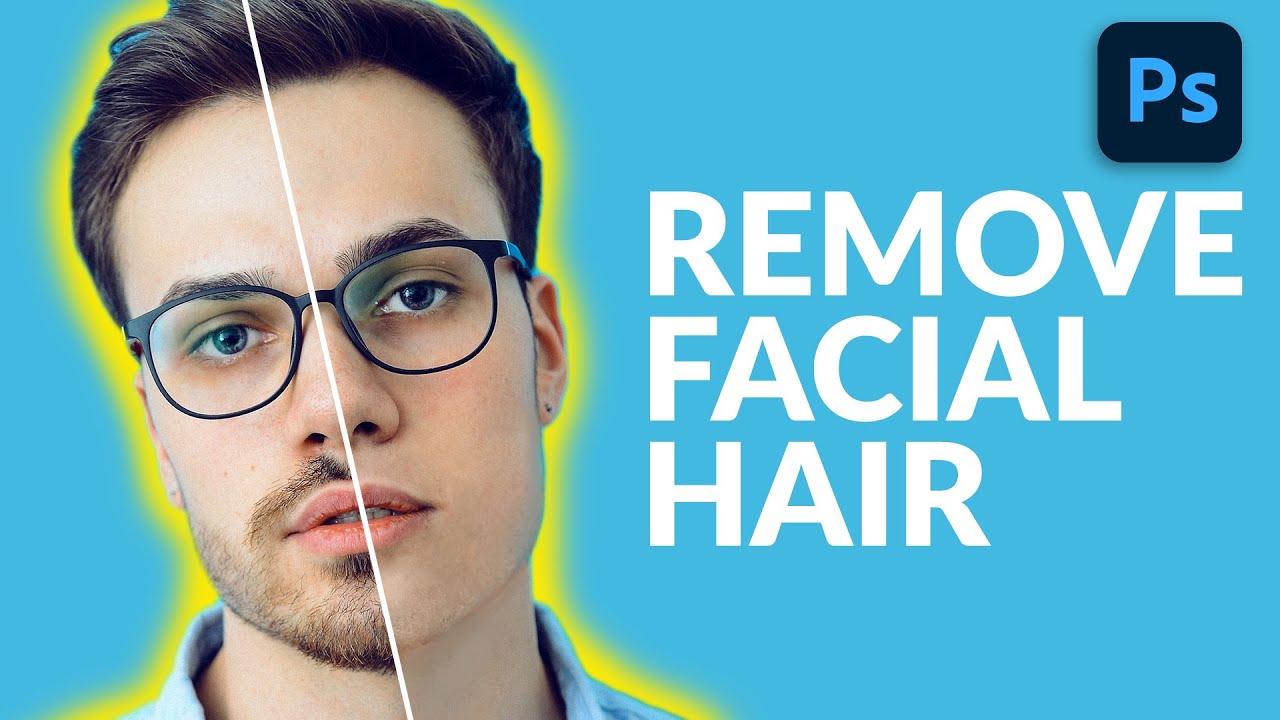
Painting Away Beards in Photoshop: The Manual Method That Actually Works

Painting Away Beards in Photoshop: The Manual Method That Actually Works

Retouching facial hair is one of those jobs that sounds simple until you’re forty-five minutes deep and your subject looks like they lost a fight with a rubber eraser. I’ve had clients send me portraits where the brief is something like “can you just clean him up a bit” - and that phrase, “clean him up,” almost always means removing a beard, a patch of stubble, or some combination of both.

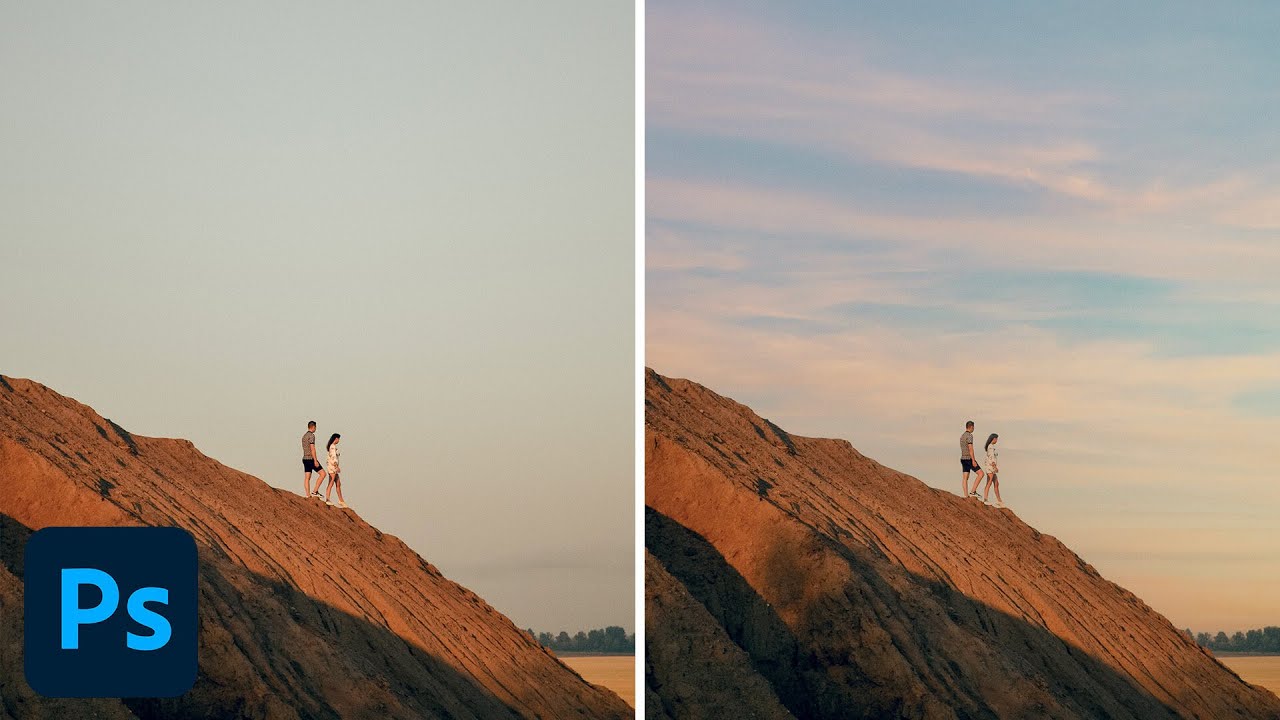
Stop Settling for Boring Skies: Photoshop's Sky Replacement Tool Is Better Than You Think

Stop Settling for Boring Skies: Photoshop's Sky Replacement Tool Is Better Than You Think

I used to spend embarrassing amounts of time hand-masking skies. We’re talking careful pen tool work, refine edge passes, the whole ritual. Then a friend watched me do it, said nothing, and later sent me a screenshot of a finished composite that took him 20 minutes. I had spent three days on mine. That specific kind of humiliation is what motivates me to actually learn the tools Photoshop has already built for me.

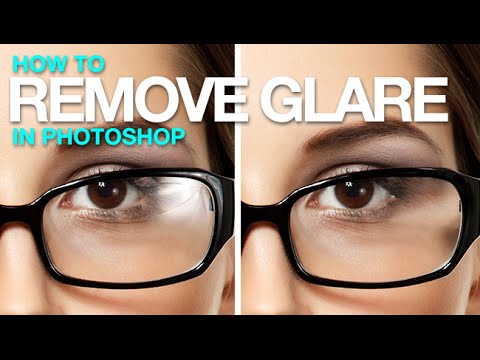
Clone Stamp Secrets: How to Actually Fix Eyeglass Glare Without Making It Look Weird

Clone Stamp Secrets: How to Actually Fix Eyeglass Glare Without Making It Look Weird

Portrait retouching is full of small disasters, and eyeglass glare is one of the most common ones clients will actually notice. Nobody’s going to flag slightly off skin tone, but they will absolutely see a white blob where their eye is supposed to be. I’ve lost count of how many portrait shoots I’ve had to rescue in post because someone’s studio umbrella decided to park itself right in the middle of a subject’s lens.

Red Eyes, Distracting Reflections, and How to Fix Both in Photoshop

Red Eyes, Distracting Reflections, and How to Fix Both in Photoshop

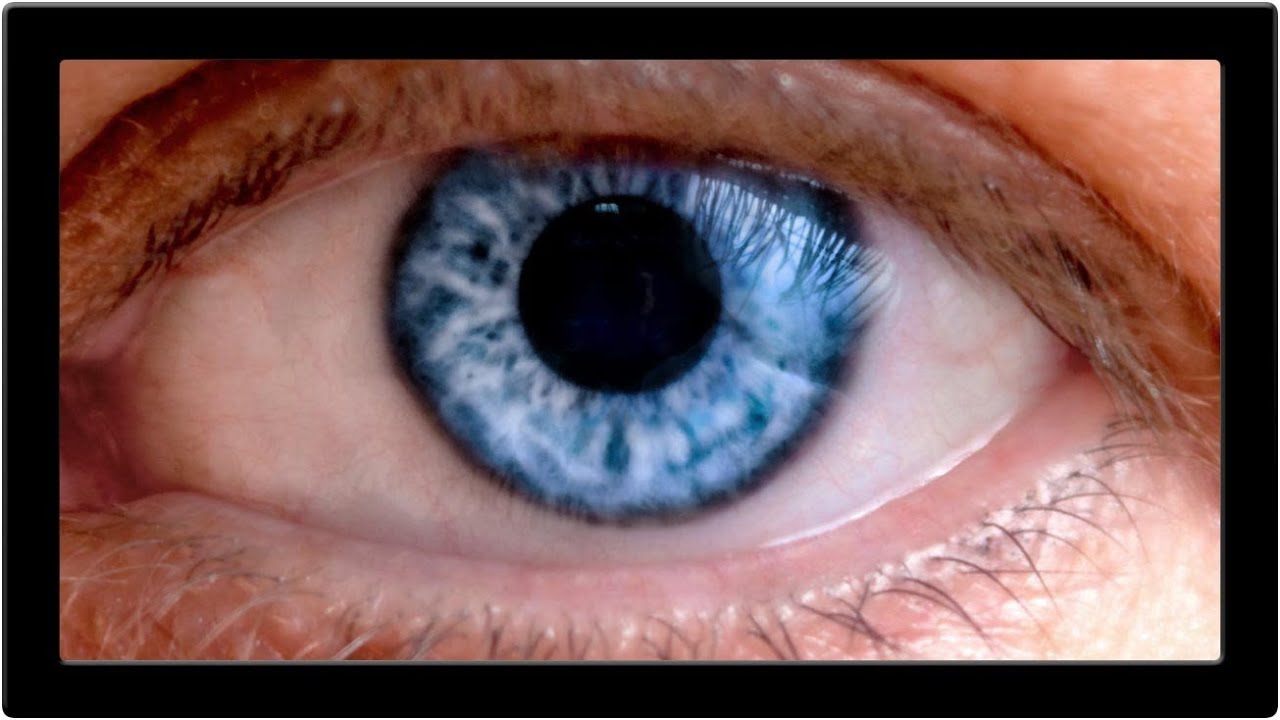
Portrait retouching has a way of humbling you fast. You can nail the skin, get the hair looking great, and then zoom into the eyes and realize the whole thing looks like your subject just finished a crying marathon or a very long night. Red veins, weird reflections, flat color in the iris – eyes are small but they carry an enormous amount of visual weight in any portrait, and when they’re off, everyone notices even if they can’t explain why.

Fake It Till You Make It: How to Paint Realistic Hair and Beards in Photoshop

Fake It Till You Make It: How to Paint Realistic Hair and Beards in Photoshop

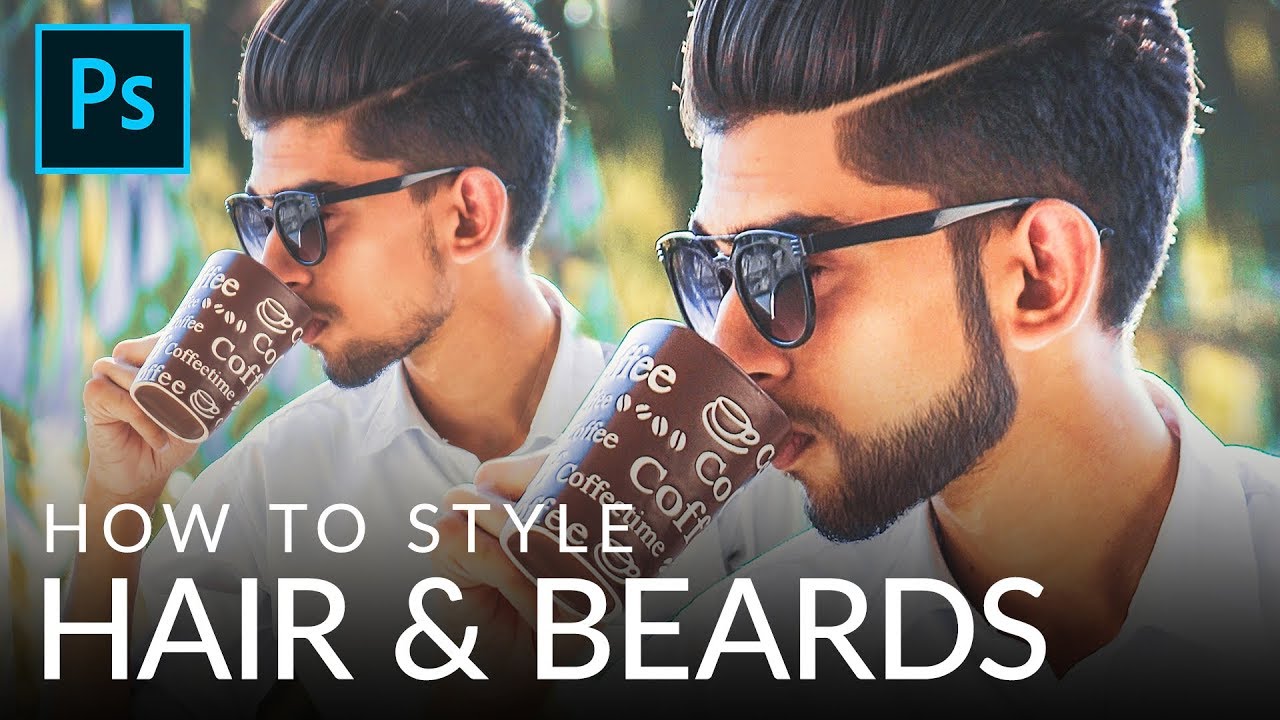
I’ve taken on enough portrait retouching gigs to know that hair is the thing that separates “pretty good” from “actually professional.” Skin? Frequency separation handles most of it. Eyes? A little dodging and burning. But hair, and especially beards, will absolutely expose you if you don’t know what you’re doing. Patchy beards, thin hairlines, awkward shapes that don’t match the light in the scene. Clients notice, even if they can’t articulate why something looks off.

Stop Wasting AI Credits on Easy Fixes — The Clone Stamp Hack You're Probably Doing Wrong

Stop Wasting AI Credits on Easy Fixes — The Clone Stamp Hack You're Probably Doing Wrong

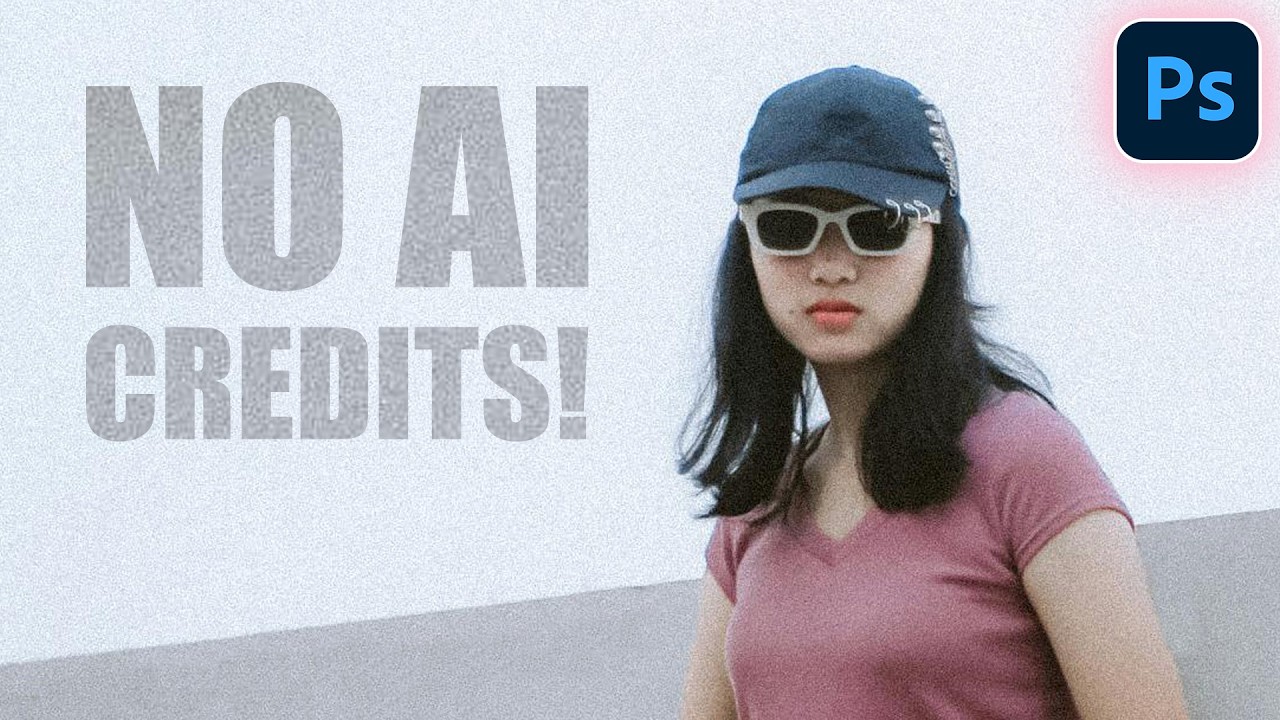
There’s a particular kind of freelance shame that comes from billing a client for a job you could have done faster with a tool you already own. I’ve been there more times than I’d like to admit. Lately I’ve noticed myself reaching for Photoshop’s Generative Fill on things that are genuinely too simple for it — small cracks in walls, stray wires, a smudge of graffiti on an otherwise clean background.