Stop Guessing With Color: A Practical Guide to Hue/Saturation in Photoshop

Stop Guessing With Color: A Practical Guide to Hue/Saturation in Photoshop

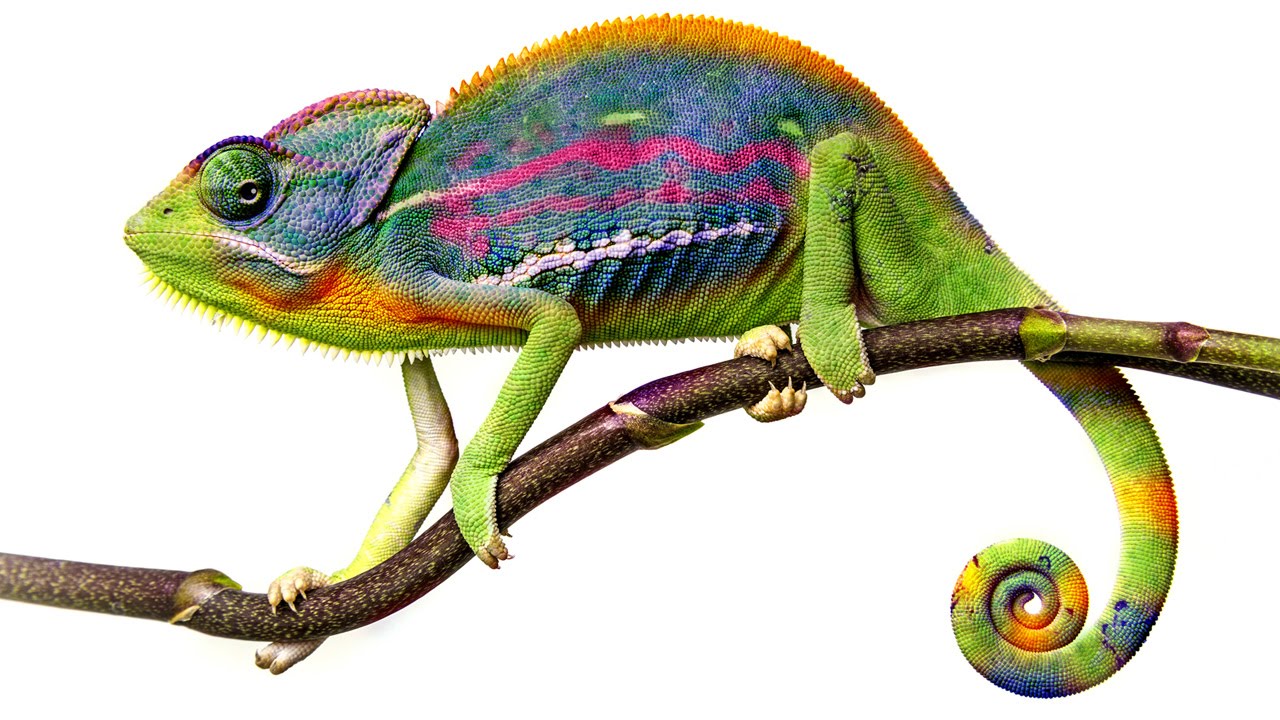
Color adjustments are where most beginners torch their files and don’t realize it until three saves later. I know because I spent years doing exactly that, flattening hue shifts directly onto background layers and then wondering why I couldn’t refine anything without starting over. The whole workflow felt fragile, like editing in pen instead of pencil. In this Aaron Nace (PHLEARN) tutorial, he walks through the Hue/Saturation tool from the ground up, and what makes it worth your time isn’t just the “move slider, color changes” part.
How to Actually Separate a Subject from a Busy Background (Without Losing Your Mind)

How to Actually Separate a Subject from a Busy Background (Without Losing Your Mind)

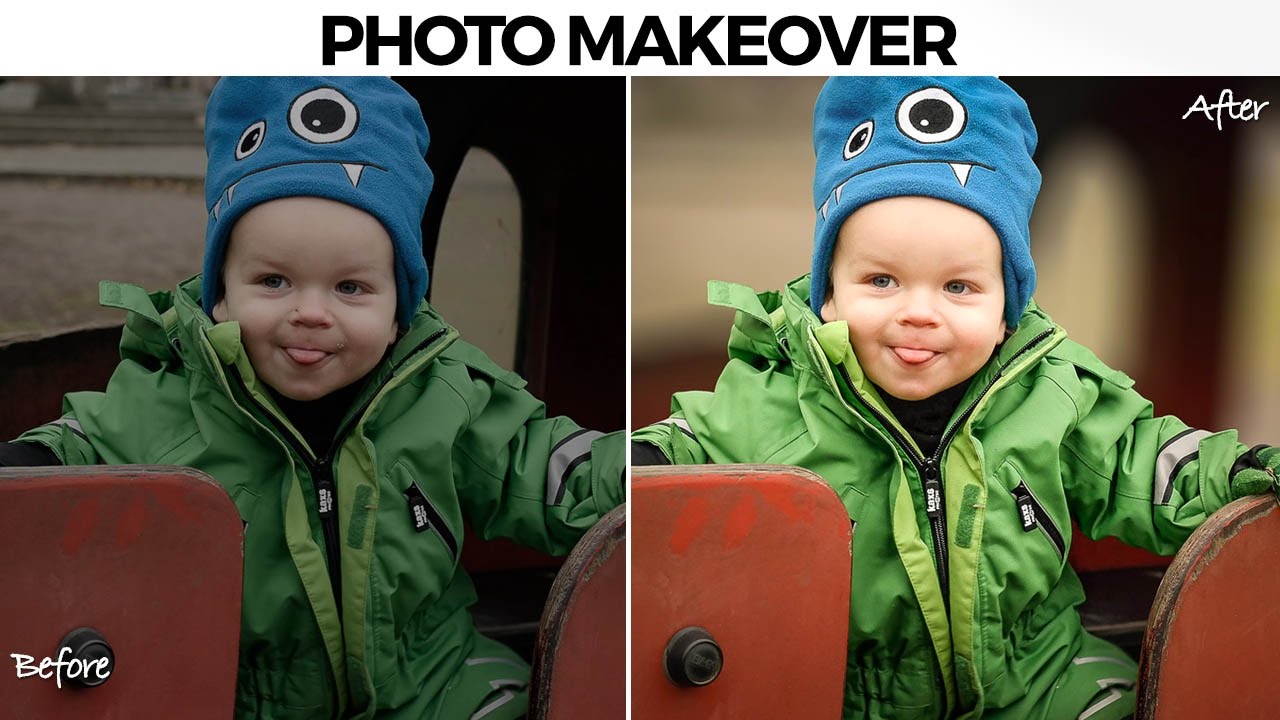
There’s a specific kind of job that used to make me quietly dread opening my inbox. A parent, a friend, someone’s aunt, sends you a candid photo of a kid with a genuinely great expression, and the background is just… a gray wall of visual noise. The subject is good. The light is okay. But nothing separates the person from everything behind them, and the whole thing reads as flat. I used to either spend way too long on it or hand it back with minimal changes and feel vaguely embarrassed about it.

Split Toning, Blend If, and Building a Cinematic Edit from Scratch (PHLEARN Breakdown)

Split Toning, Blend If, and Building a Cinematic Edit from Scratch (PHLEARN Breakdown)

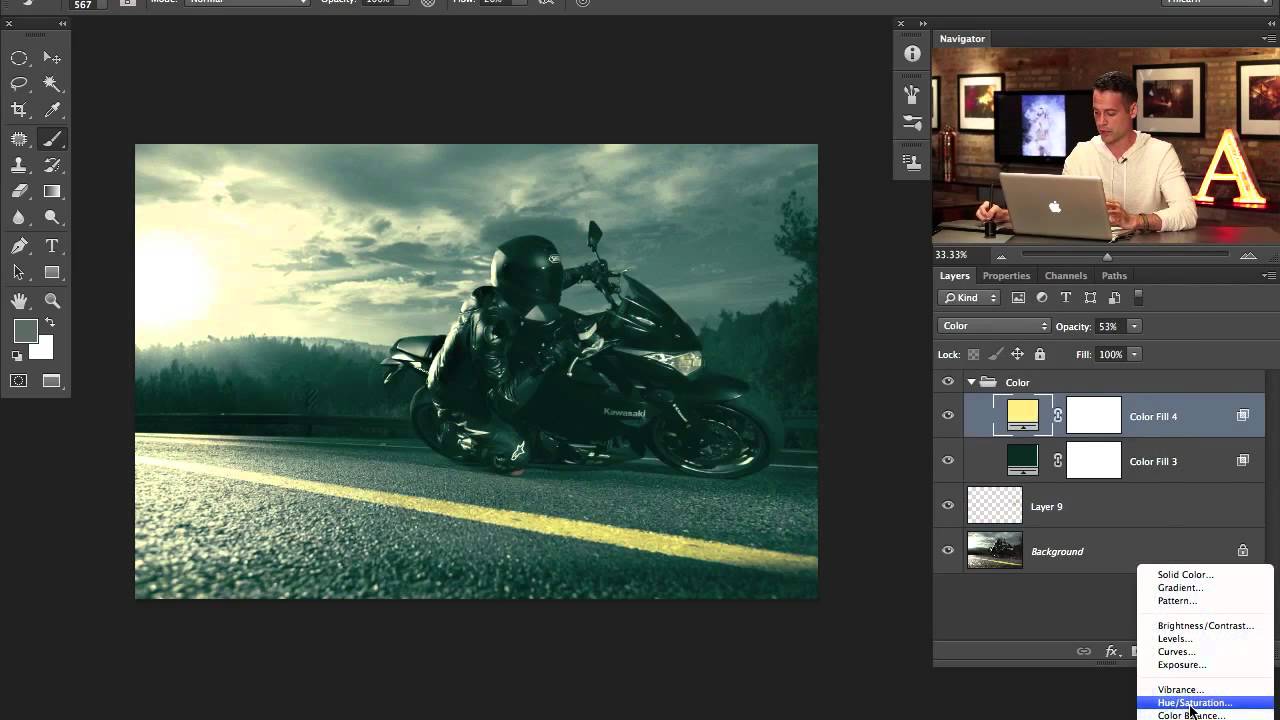
There’s a specific kind of frustration that hits when you finish editing a photo and it just looks… fine. Technically correct. Boring. You added some contrast, maybe bumped the saturation, and the result is an image that could have come out of any free Lightroom preset pack. I spent an embarrassing amount of time in that zone early in my freelance career, convinced I was missing some secret tool. Turns out I wasn’t missing a tool.

Build a Book Cover Template That Updates Across Every Mockup Automatically

Build a Book Cover Template That Updates Across Every Mockup Automatically

Here’s a workflow problem I used to solve the dumbest way possible. Client wants to see their book cover design on three different book mockups. Old me would place the design manually on each mockup, flatten everything, then realize I wanted to tweak the title font, and start the whole process over from scratch. Three times. I did this for longer than I’m willing to admit before someone pointed me toward smart objects and linked files.

Fake It Till You Make It: How to Wrap 3D Text Around a Subject in Photoshop (No AI Required)

Fake It Till You Make It: How to Wrap 3D Text Around a Subject in Photoshop (No AI Required)

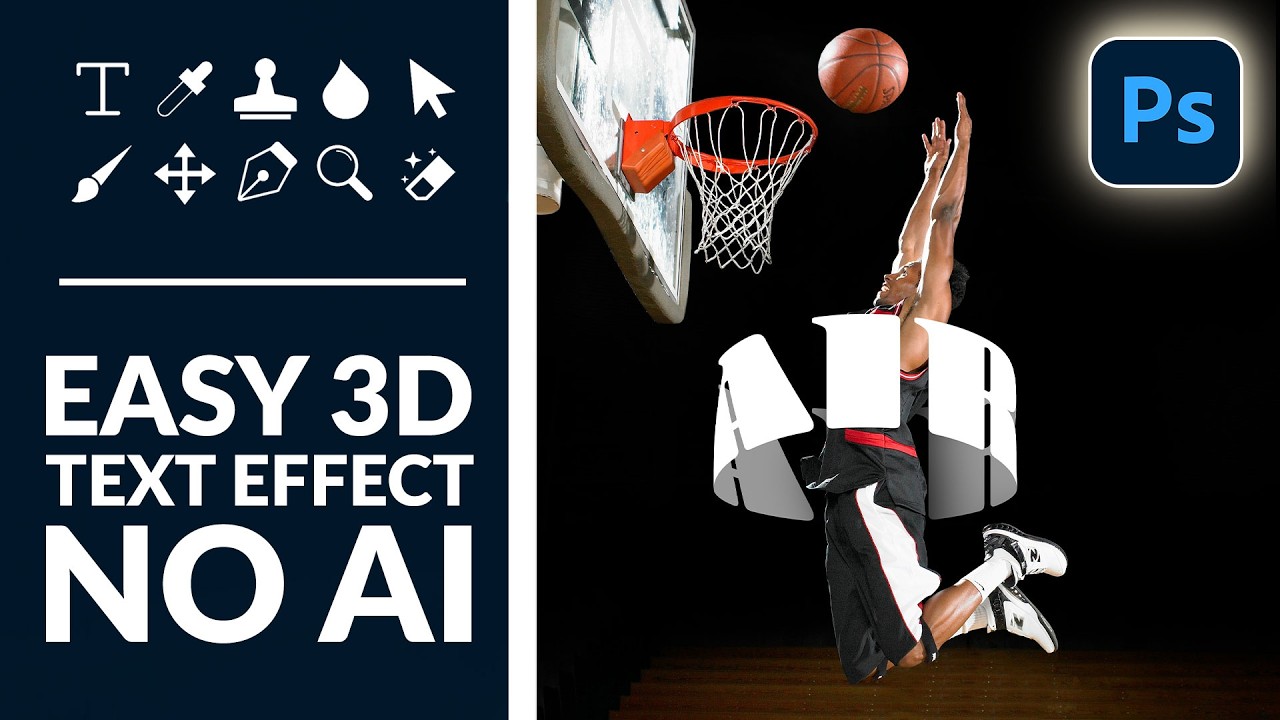
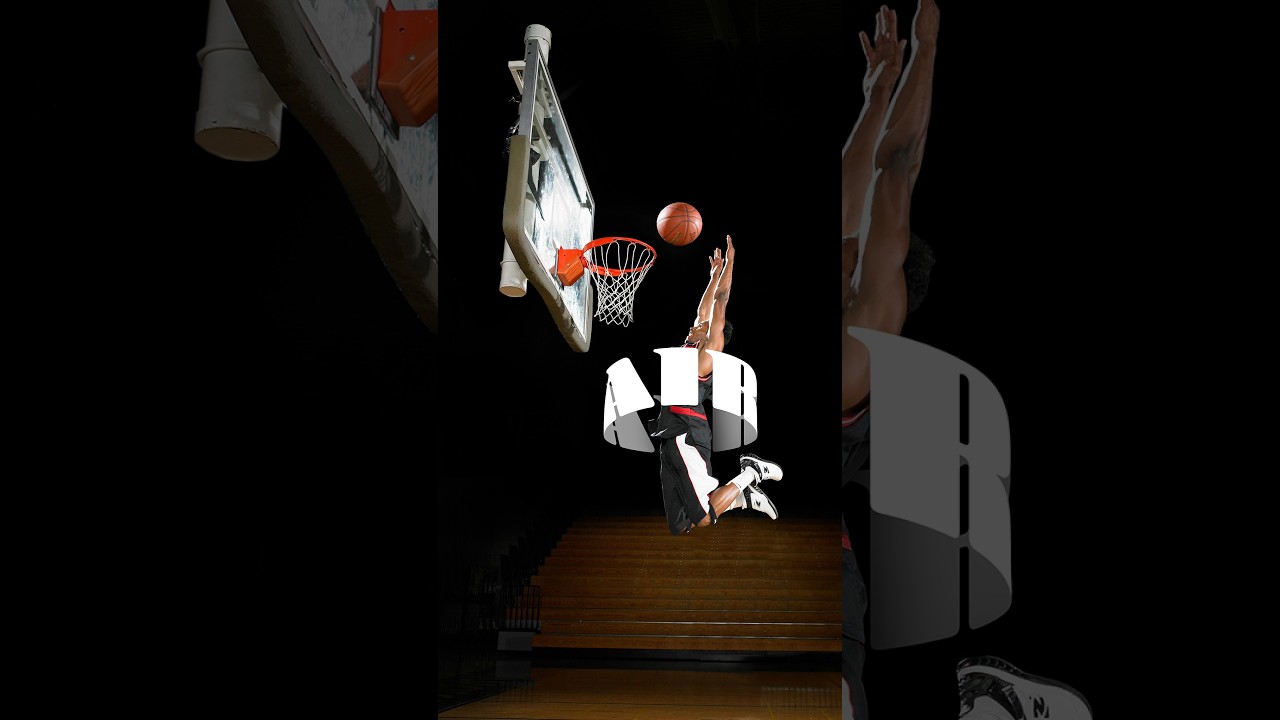
There’s a specific kind of design envy that hits when you see text curving around a subject like it actually exists in the same physical space. Not slapped on top. Not dropped in as an afterthought. Actually wrapping. I’ve faked this effect badly more times than I care to admit, usually by just skewing text and hoping nobody looked too closely. Spoiler: they always look too closely. So when I came across this Aaron Nace (PHLEARN) tutorial on creating a 3D text effect in Photoshop, I sat up a little straighter in my coffee shop booth.

How to Fake 3D Text in Photoshop Without Touching a Single AI Button

How to Fake 3D Text in Photoshop Without Touching a Single AI Button

Every few months I stumble across a technique that makes me feel like I’ve been doing things the hard way for no reason. This was one of those moments. I was working on a poster comp where the client wanted text that felt like it was physically wrapped around the subject, that kind of old-school carnival or vintage sports graphic energy. My first instinct was to reach for something complicated. Maybe export to a 3D program, maybe mess around with displacement maps, maybe just charge the client more and hope they forgot about it.

One Flash, One Stand, No Excuses: The Multi-Boom Setup That Replaced Half My Gear Bag

One Flash, One Stand, No Excuses: The Multi-Boom Setup That Replaced Half My Gear Bag

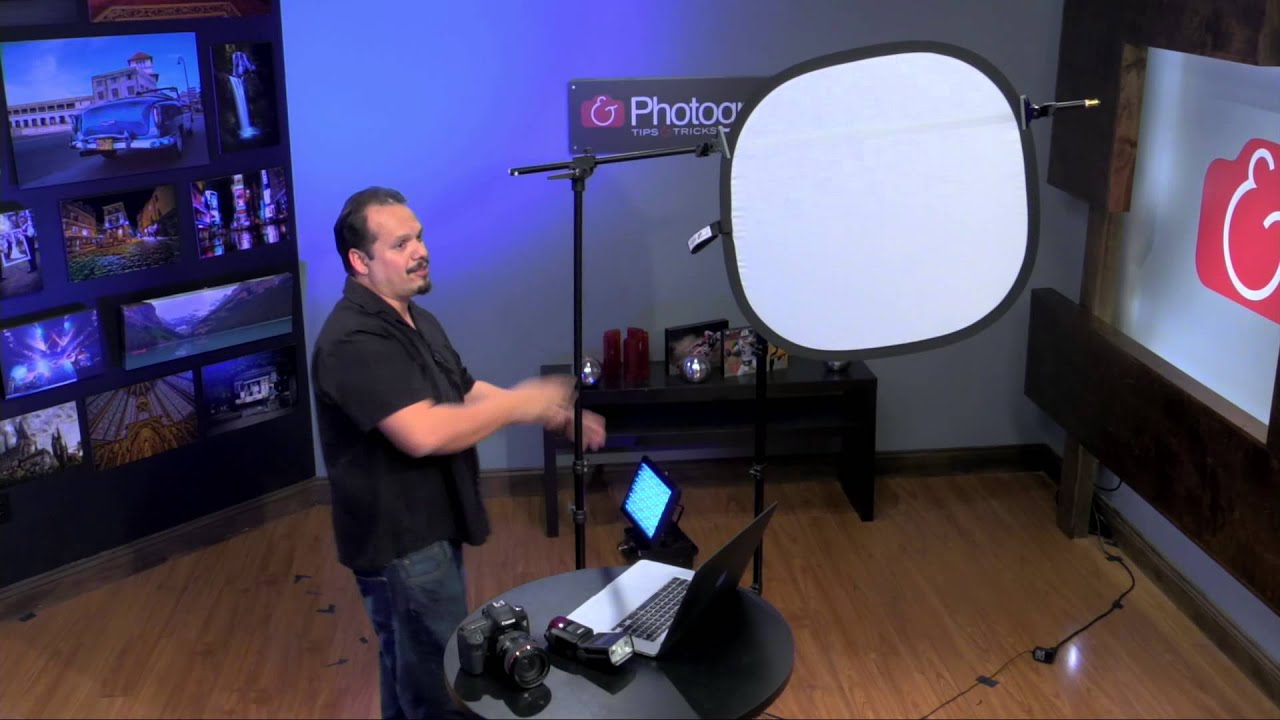
There’s a specific kind of dread that hits when a client says “keep it simple” and you show up with a rolling luggage bag full of stands, modifiers, and cables that takes 40 minutes to set up. I’ve been that person. I have very much been that person. The whole point of traveling light is to actually travel light, and for a long time my version of “light” still involved two stands, a reflector arm, and a bag of clamps I’d inevitably lose one of.

How to Open, Edit, and Save in Photoshop Without Destroying Your Work (Or Your Sanity)

How to Open, Edit, and Save in Photoshop Without Destroying Your Work (Or Your Sanity)

Early in my freelance career, I had a bad habit of editing directly on original files. No layers, no backup copies, just reckless confidence and a fast save button. You can probably guess how that story ends. I lost work, I re-did edits I’d already done, and I spent an embarrassing amount of time explaining to clients why their “finished” photos needed to be “finished” again. The fix was stupidly simple, and it came down to understanding one concept: non-destructive editing.

Photoshop's June 2025 Update Just Made Background Removal Actually Good

Photoshop's June 2025 Update Just Made Background Removal Actually Good

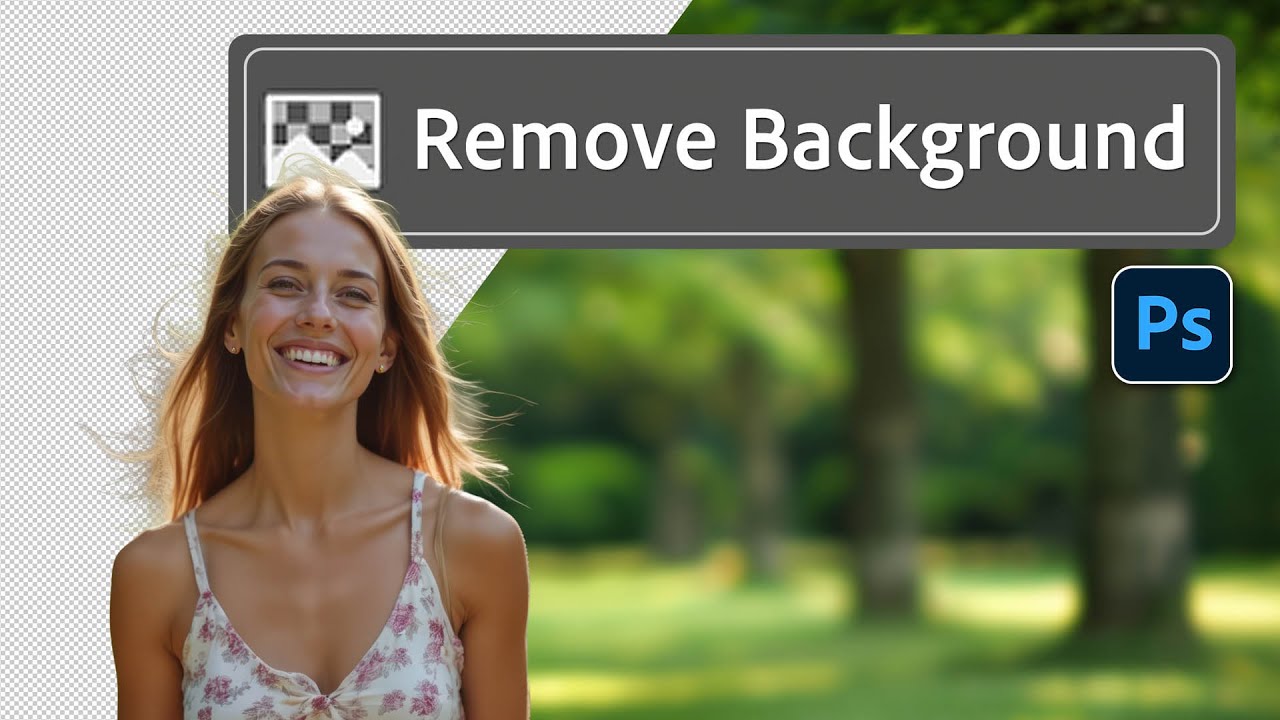
There’s a specific flavor of client nightmare I’ve lived through more times than I’d like to admit. Someone sends over a photo with a person they love, shot in front of a background they hate, and they want that person dropped onto something completely different. Fine. Except the subject has flyaway hair, or wispy strands catching the light, or some other detail that makes a clean cutout feel like defusing a bomb.

Lightroom's Radial Filter Is Doing Way More Work Than You Think

Lightroom's Radial Filter Is Doing Way More Work Than You Think

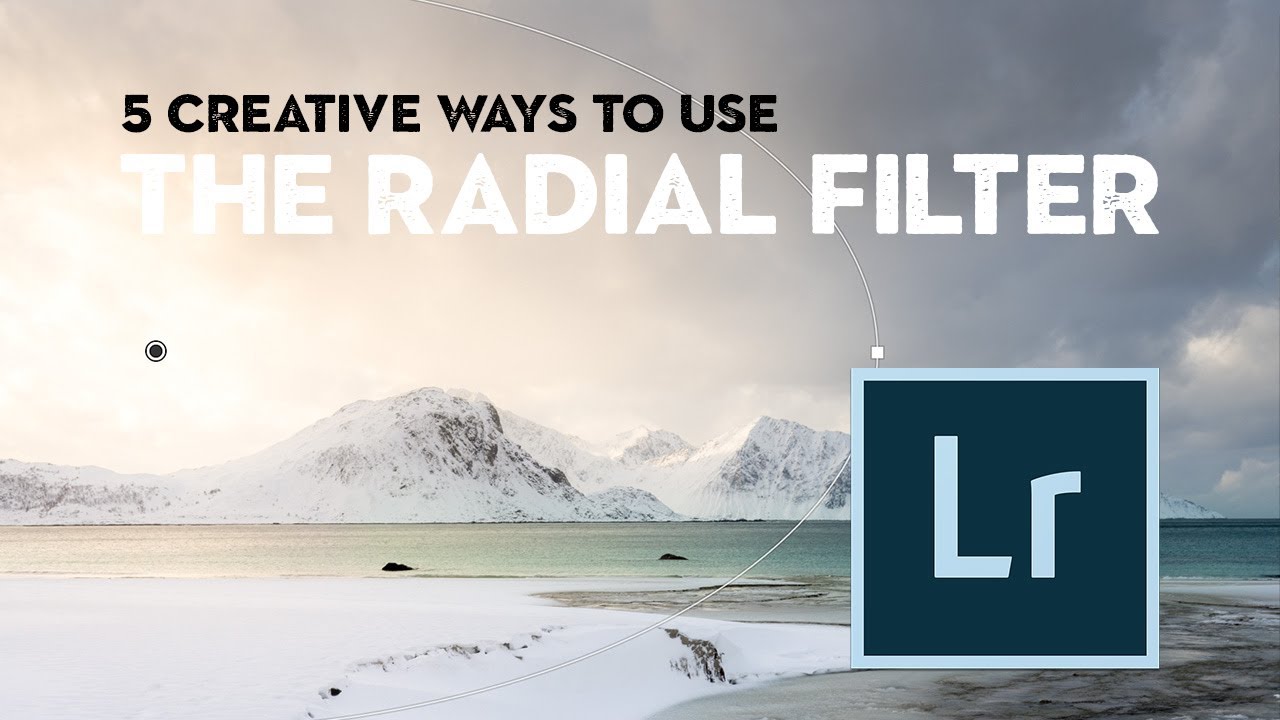
I’ll be honest with you. For an embarrassingly long time, I used Lightroom’s Radial Filter for exactly one thing: drawing a circle and darkening the outside of it. That’s it. That was my whole relationship with the tool. I was basically using a Swiss Army knife to open envelopes. Then I stumbled onto a tutorial by landscape photographer Nigel Danson where he runs through five distinct things you can do with the Radial Filter, and I had one of those “okay I’ve been doing this wrong” moments that I usually only get from accidentally breaking something expensive.

Stop Mousing Around: Layer Mask Shortcuts That Actually Save You Time

Stop Mousing Around: Layer Mask Shortcuts That Actually Save You Time

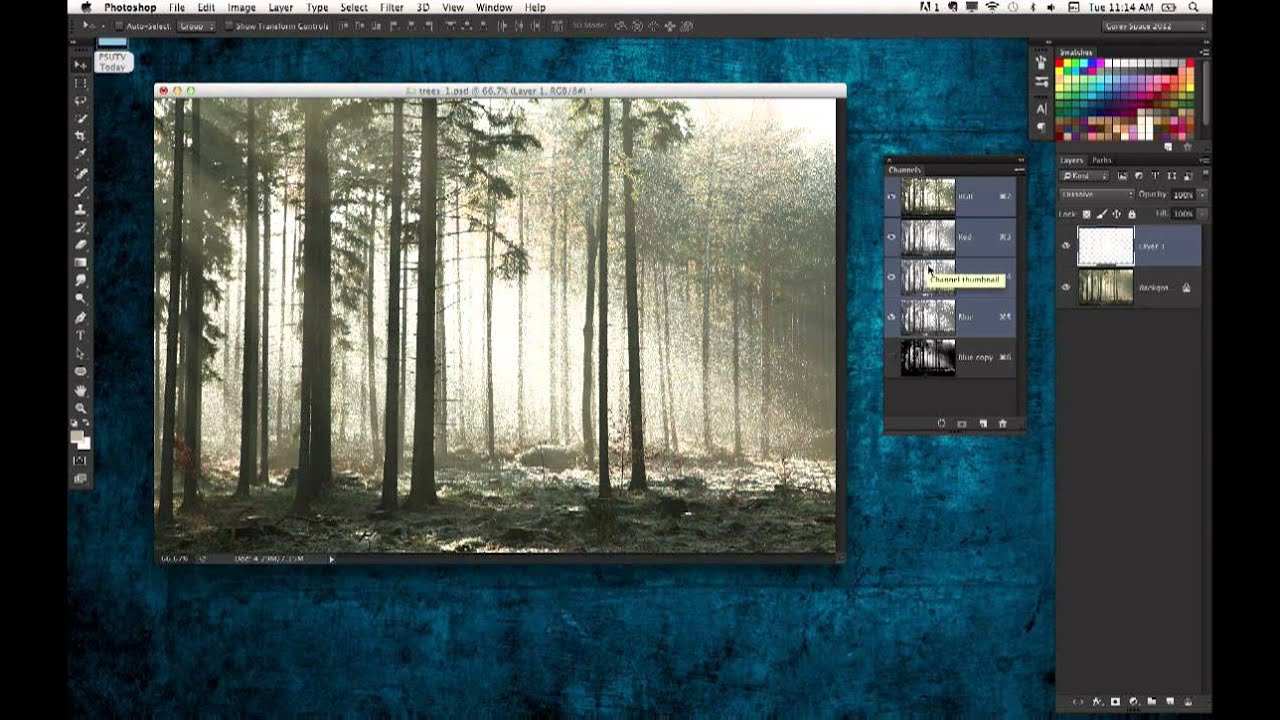
I’ll be honest: for an embarrassingly long time, I was that person clicking through every layer mask operation like I had all the time in the world. Click to add the mask, click to select it, click to disable it, click to view it. My mouse hand was getting a workout my brain wasn’t. It wasn’t until I watched Dave Cross walk through his layer mask shortcut workflow in this KelbyOne episode of Photoshop User TV that I realized how much friction I’d been building into my own process.

How to Fake Graffiti on Any Surface in Photoshop (Without It Looking Fake)

How to Fake Graffiti on Any Surface in Photoshop (Without It Looking Fake)

There’s a specific kind of client request that used to make me sweat: “Can you put some text/logo/graphic on that surface?” Not floating beside it. Not stamped on flat. Actually on it, following the curves, matching the lighting, looking like it was always there. Early in my freelance life I’d just nudge the layer around until it looked “close enough” and hope nobody zoomed in. Spoiler: clients zoom in. This technique is the proper answer to that problem.