Red Eyes, Distracting Reflections, and How to Fix Both in Photoshop

Red Eyes, Distracting Reflections, and How to Fix Both in Photoshop

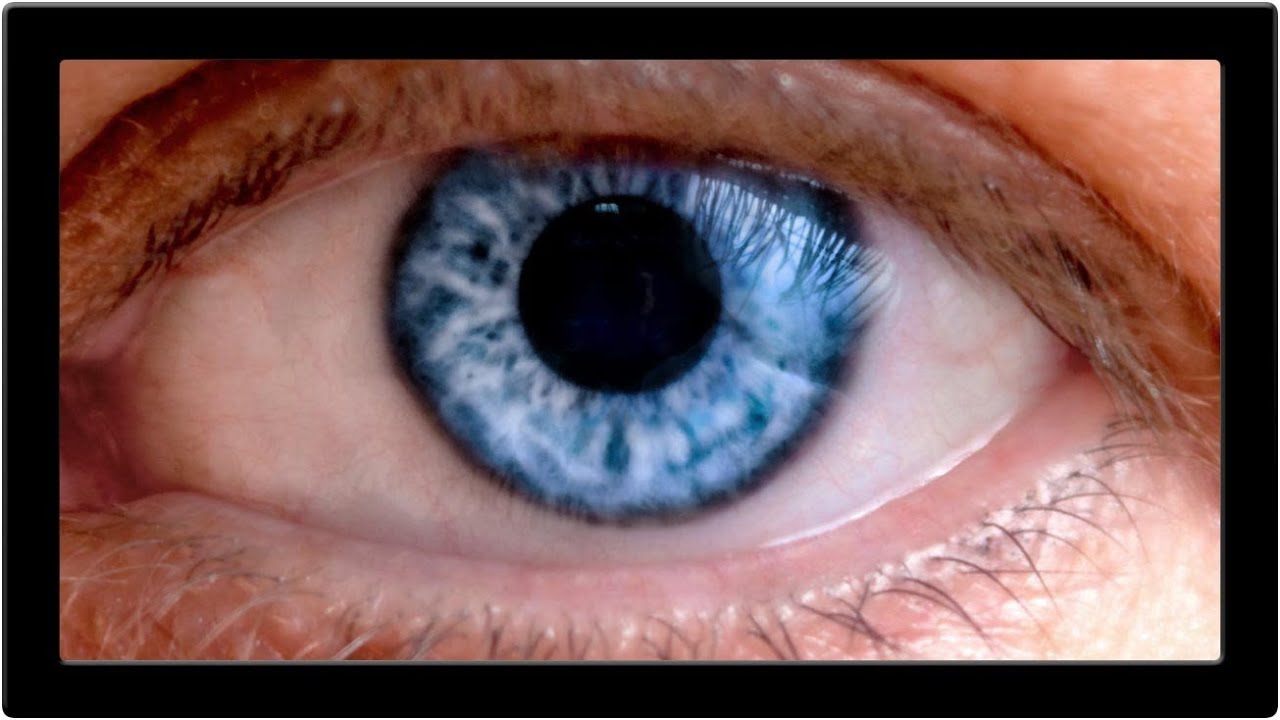
Portrait retouching has a way of humbling you fast. You can nail the skin, get the hair looking great, and then zoom into the eyes and realize the whole thing looks like your subject just finished a crying marathon or a very long night. Red veins, weird reflections, flat color in the iris – eyes are small but they carry an enormous amount of visual weight in any portrait, and when they’re off, everyone notices even if they can’t explain why.
10 AI Tricks in Photoshop That Actually Hold Up in Real Work

10 AI Tricks in Photoshop That Actually Hold Up in Real Work

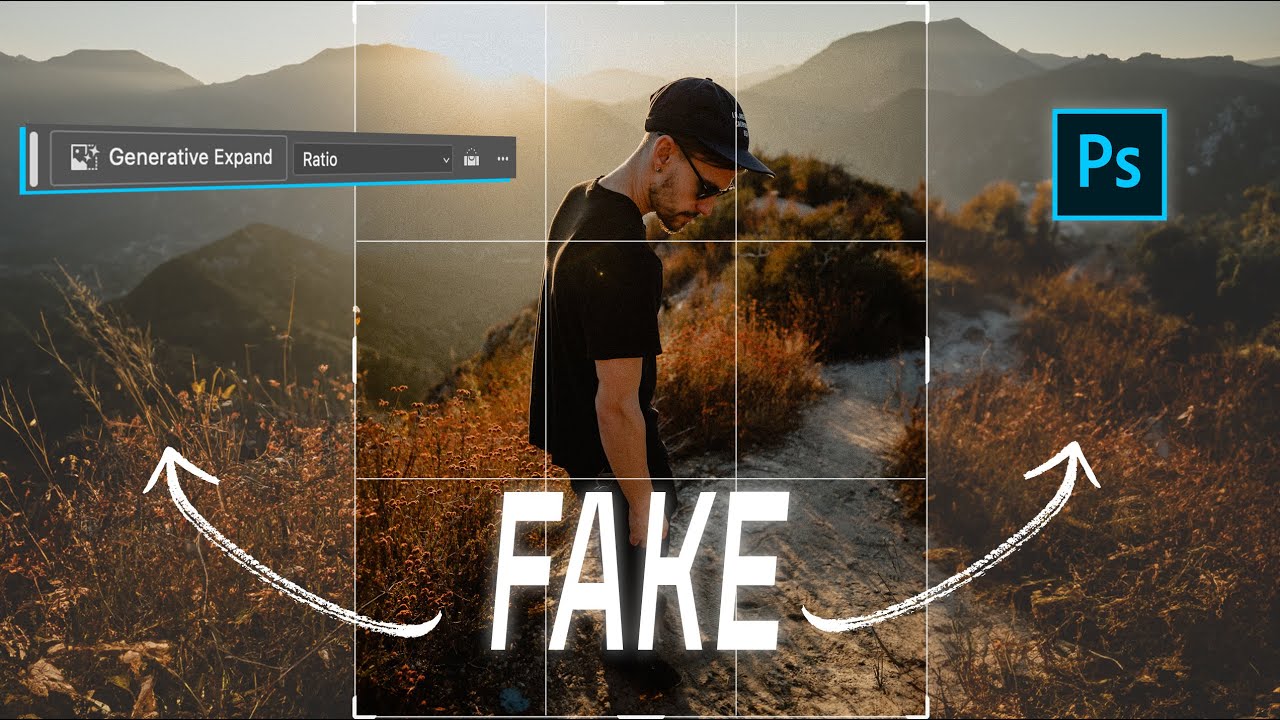
There’s a specific kind of frustration that hits when a client asks you to repurpose a photo for a completely different format than it was shot for. Portrait crop needs to become a YouTube thumbnail. Instagram 4x5 needs to become a LinkedIn banner. You either go back to the photographer, do an awkward zoom-and-pray crop, or spend an hour cloning background that should have been there in the first place. For a long time, that last option was the least-bad answer.

The Content-Aware Fill Apply Button Is the Photoshop Update I Didn't Know I Desperately Needed

The Content-Aware Fill Apply Button Is the Photoshop Update I Didn't Know I Desperately Needed

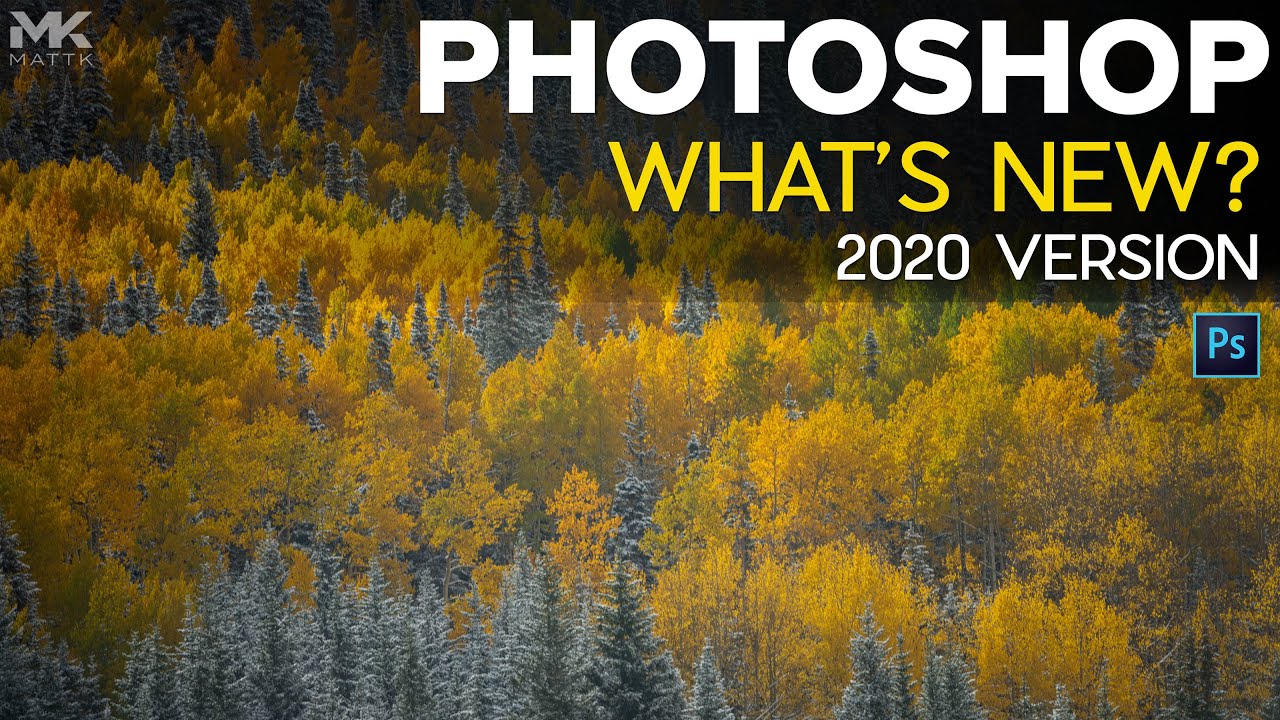
There’s a specific kind of freelance misery that hits when you’re cleaning up a photo with six distracting elements in the background and you have to run the full Content-Aware Fill dialog separately for each one. Select, fill, click OK, exit, re-select, repeat. By object three you’re questioning your career choices. By object five you’re Googling “how to become a park ranger.” This is exactly the problem that a recent Matt Kloskowski tutorial on Photoshop 2020 addresses, and I’ll be honest, I watched it mostly out of habit and ended up genuinely relieved.

Fake It Till You Make It: How to Paint Realistic Hair and Beards in Photoshop

Fake It Till You Make It: How to Paint Realistic Hair and Beards in Photoshop

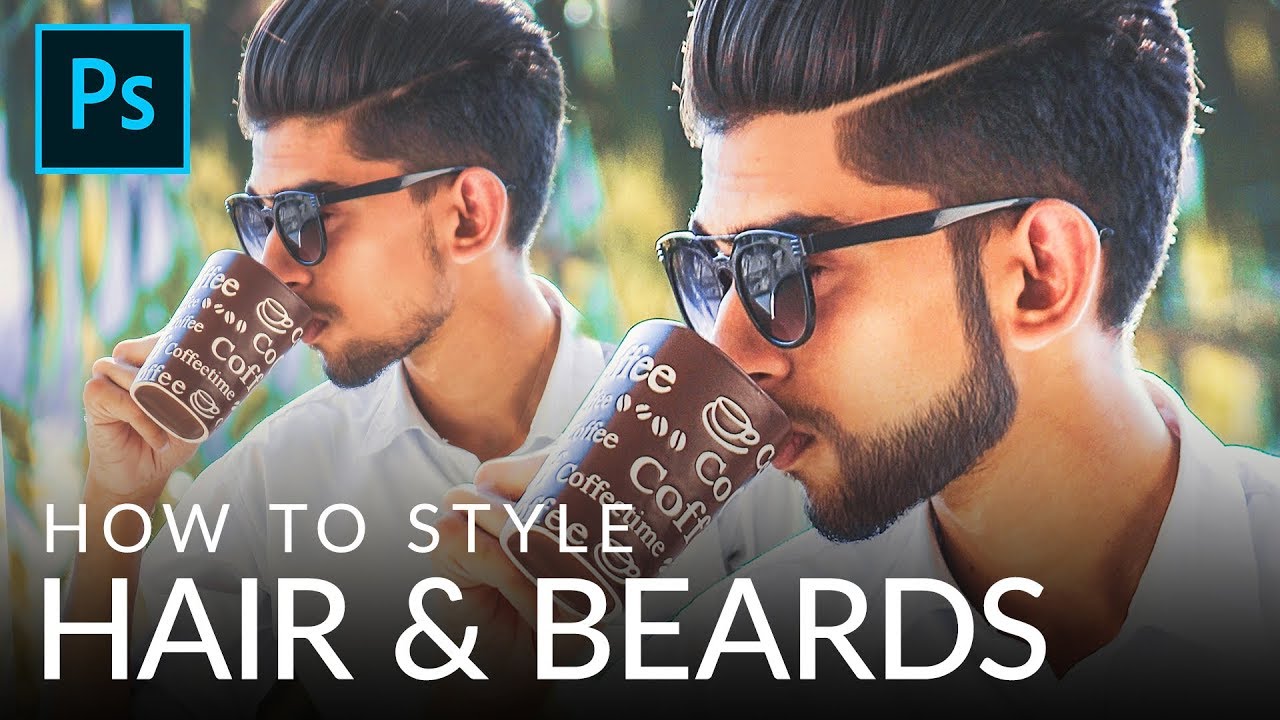
I’ve taken on enough portrait retouching gigs to know that hair is the thing that separates “pretty good” from “actually professional.” Skin? Frequency separation handles most of it. Eyes? A little dodging and burning. But hair, and especially beards, will absolutely expose you if you don’t know what you’re doing. Patchy beards, thin hairlines, awkward shapes that don’t match the light in the scene. Clients notice, even if they can’t articulate why something looks off.

Why Your Long Exposure Shots Look Terrible (And the $30 Fix That Actually Works)

Why Your Long Exposure Shots Look Terrible (And the $30 Fix That Actually Works)

There’s a specific kind of frustration that hits when you’re standing next to a beautiful moving river, you know exactly what the shot should look like, and your camera just… refuses to cooperate. You want that silky, blurred water effect you’ve seen everywhere. Instead you get a sharp, flat, completely unromantic snapshot that looks like you were in a hurry to catch a bus. I’ve been there. Most photographers have.

Photoshop 2020's Best New Tools for Photographers (The Ones Actually Worth Your Time)

Photoshop 2020's Best New Tools for Photographers (The Ones Actually Worth Your Time)

I’ll be honest with you: I am the person who ignores software update notes. I click “update” and then just go back to doing things the way I’ve always done them, completely oblivious to whatever Adobe just shipped. That habit has cost me hours. Hours I could have spent doing literally anything else, including staring at the wall, which I sometimes do between coffee refills at my usual spot on South Congress.

The 3-Minute Thumbnail Cutout That Actually Looks Professional (Thanks, Aaron Nace)

The 3-Minute Thumbnail Cutout That Actually Looks Professional (Thanks, Aaron Nace)

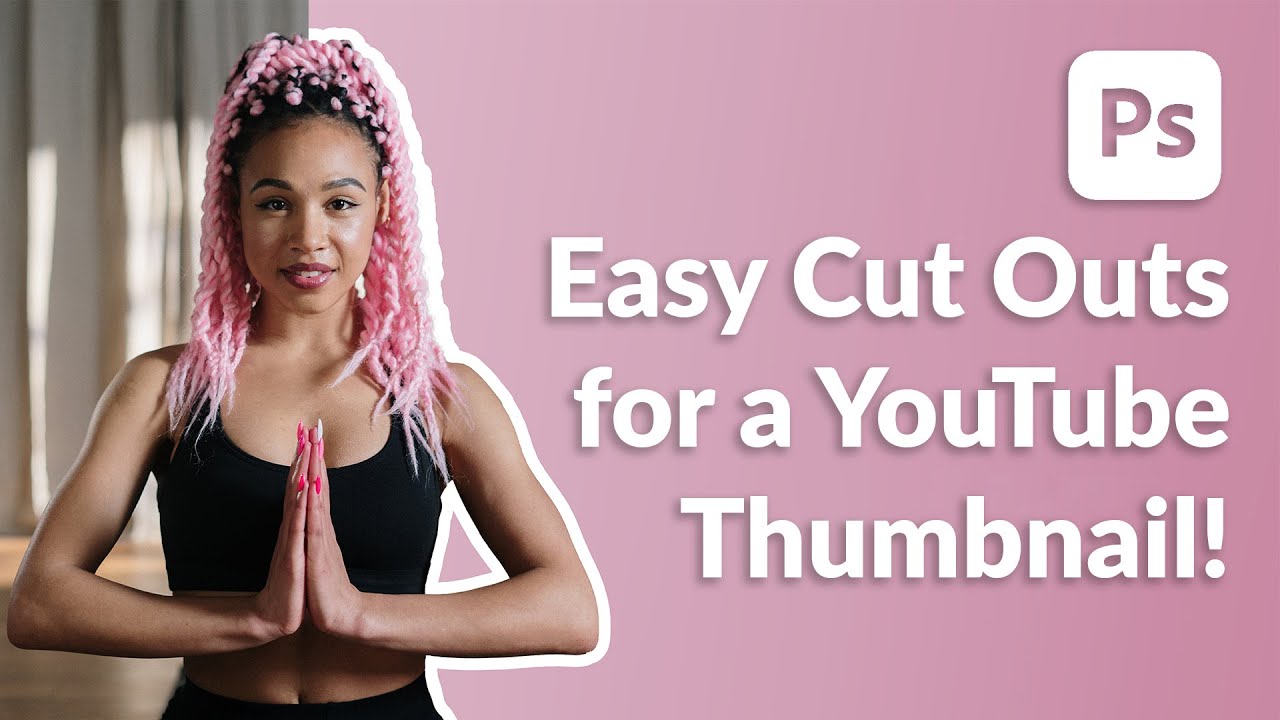
Thumbnails are one of those things I kept treating as an afterthought, right up until a client pointed out that my gorgeous composite was getting zero clicks because the preview image looked like a potato. Lesson learned. Since then I’ve been obsessive about figuring out the fastest, cleanest way to cut a subject out and make them pop against a background, which is exactly the problem this technique solves. In this Aaron Nace (PHLEARN) tutorial, he walks through a workflow that takes maybe three minutes once you’ve done it twice, and the results look polished enough that people assume you spent much longer on it.

The Curves Fix You Didn't Know You Needed: Refine Saturation in Lightroom and Camera Raw

The Curves Fix You Didn't Know You Needed: Refine Saturation in Lightroom and Camera Raw

If you’ve ever pulled down the black point on a Curves adjustment and watched your greens go full radioactive swamp, congratulations - you’ve met one of the most quietly frustrating quirks in Lightroom and Camera Raw. You want punchy shadows. You get a photo that looks like it was color-graded by someone who really, really loves saturated tones. The fix used to be a compromise: back off the curve until the colors calm down and accept a softer black point, or sit with the over-saturation and pretend it’s a creative choice.

How to Make 3D Text Glow Like a Neon Sign in Photoshop (Using Illumination Materials)

How to Make 3D Text Glow Like a Neon Sign in Photoshop (Using Illumination Materials)

There’s a particular kind of client brief that shows up every few months in my inbox: “We want it to feel retro. Like neon. You know, glowy.” And for a long time, my answer involved stacking a bunch of Gaussian blurs and Outer Glow layer styles and hoping the client didn’t zoom in too close. It worked. Barely. But it never looked like actual light bouncing off a surface, because it wasn’t.

How Matt Kloskowski's Photoshop Origin Story Will Make You Feel Better About Your First Project

How Matt Kloskowski's Photoshop Origin Story Will Make You Feel Better About Your First Project

There’s a specific kind of embarrassment that comes with looking back at your earliest Photoshop work. Mine was a meme I made in MS Paint at age twelve, which I thought was genuinely hilarious, and which I will not be describing further. The point is: everyone starts somewhere ridiculous. And when I came across Watch the full tutorial on YouTube - this video from Matt Kloskowski reflecting on his very first time using Photoshop - I didn’t expect it to be particularly useful.

How to Fake a Graduated Sky Filter in Photoshop (Without Touching a Single Slider)

How to Fake a Graduated Sky Filter in Photoshop (Without Touching a Single Slider)

There’s a specific kind of frustration that hits when you’ve got a genuinely great shot — good composition, interesting foreground, strong light — and the sky is just… beige. Flat, washed-out, completely uninspiring. You know the image has something, but the sky is dragging it down. I’ve been there more times than I’d like to admit, and my usual instinct was to reach for Hue/Saturation or start messing with Curves until something looked vaguely better.

The Lightroom Color Tool You've Been Scrolling Past (And Why That's a Mistake)

The Lightroom Color Tool You've Been Scrolling Past (And Why That's a Mistake)

A few months ago I spent the better part of an afternoon trying to warm up a landscape shot using nothing but the Temperature slider. The result was technically warmer, sure, but it also looked like someone had smeared Velveeta across the sky. Everything shifted. The rocks, the shadows, the parts I didn’t even want touched. I ended up with a photo that looked like it was shot through a jaundiced window.