Camera Raw Just Got Focus Point Overlay and Bidirectional Gradients — Here's How to Use Them

Camera Raw Just Got Focus Point Overlay and Bidirectional Gradients — Here's How to Use Them

I’ll be honest about something embarrassing. I once delivered a batch of bird photos to a client, convinced I had nailed the focus on every single shot. Spoiler: I had not. The camera had decided a patch of blurry background grass was far more interesting than the actual bird, and I only found out after the client did. If I’d had a way to verify focus points inside my raw editor before exporting, that conversation never happens.


Photoshop's Generative Fill Is Absurdly Good — Here's What It Actually Does

Photoshop's Generative Fill Is Absurdly Good — Here's What It Actually Does

I’ll be honest with you. The first time someone told me Photoshop had shipped an AI fill tool that could generate entirely new content from a text prompt, I assumed it was the usual Adobe overpromise. I’ve been burned before. I sat through the Neural Filters rollout with genuine excitement and walked away using maybe one of them semi-regularly. So when Generative Fill started making the rounds in the beta version of Photoshop, I kept my expectations low and my skepticism high.

Adobe Camera Raw in Photoshop Is Doing Heavy Lifting I Used to Do Manually (And I Feel Foolish)

Adobe Camera Raw in Photoshop Is Doing Heavy Lifting I Used to Do Manually (And I Feel Foolish)

I spent the better part of three years doing things the hard way in Photoshop. Manually painting masks for background blur. Dragging Hue/Saturation sliders trying to isolate a sky without torching the rest of the image. Stacking adjustment layers like I was building a skyscraper out of toothpicks. It worked, mostly, but it was slow and fragile. One wrong move and the whole thing collapsed. That’s actually how I learned about smart objects, after accidentally flattening a client’s project file and spending the next two hours trying to reconstruct it from a JPEG export.

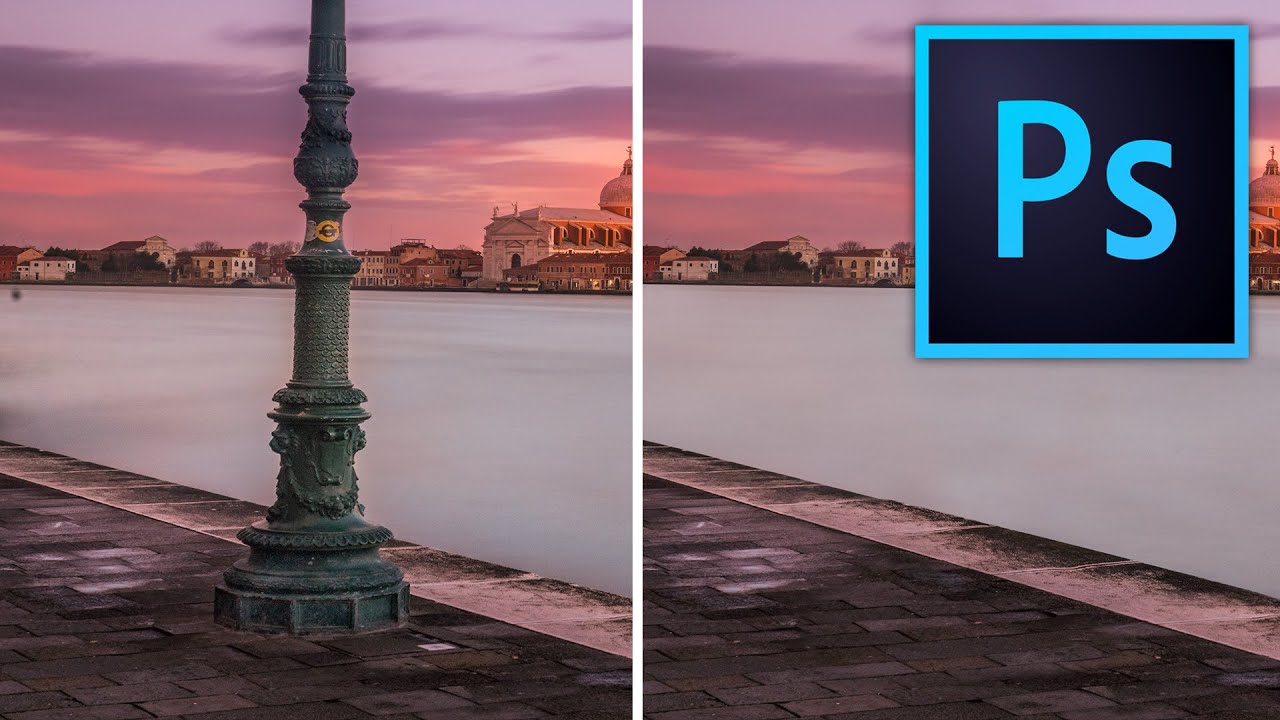
Stop Making Obvious Edits: How to Remove Objects in Photoshop Without the Telltale Clone Stamp Smear

Stop Making Obvious Edits: How to Remove Objects in Photoshop Without the Telltale Clone Stamp Smear

There’s a specific kind of embarrassment that comes from sending a client a retouched photo where you can clearly see where you removed something. The water ripples that suddenly repeat. The brick pattern that tiles like a bad desktop wallpaper from 2003. I know it well. Early in my freelance career I handed off a product shot with a background so obviously cloned that my client asked if the floor was “supposed to look like that.

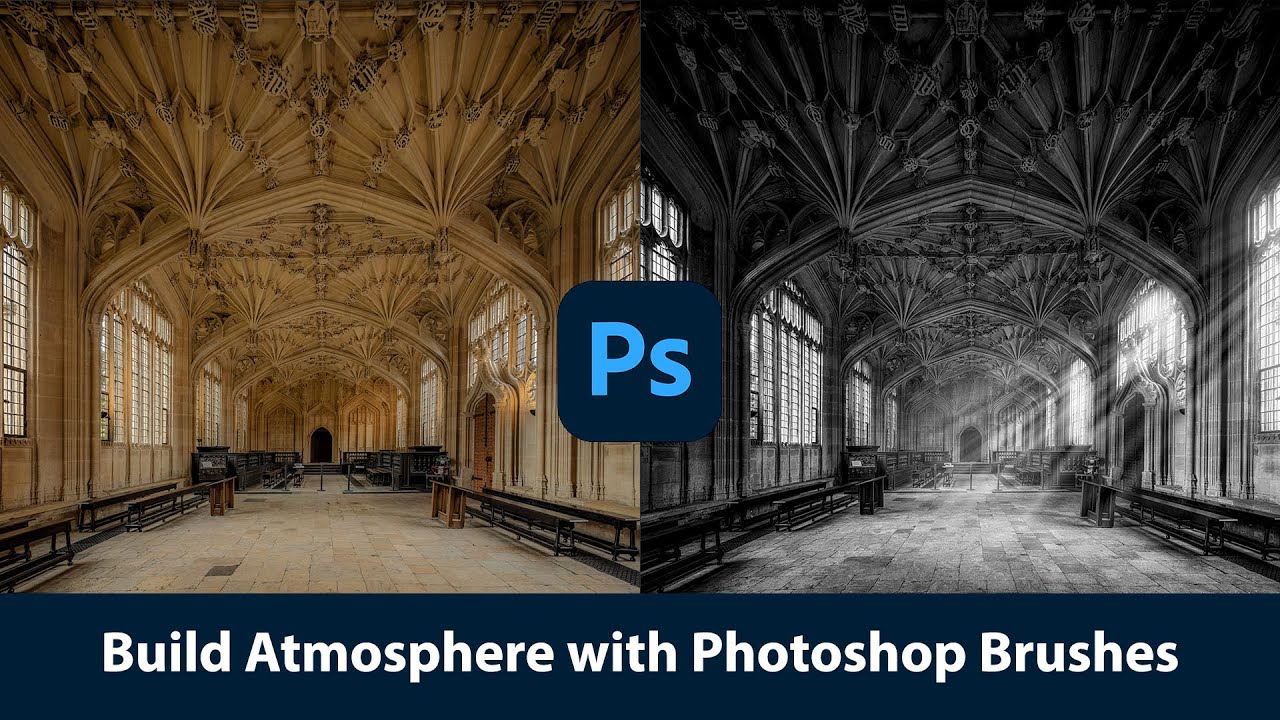
Painting With Light and Fog: How Joel Grimes Uses Photoshop Brushes to Make Images Feel Cinematic

Painting With Light and Fog: How Joel Grimes Uses Photoshop Brushes to Make Images Feel Cinematic

There’s a specific problem I kept running into early in my freelance work: I’d build out a composite, get the subject placed and lit, and then stare at the background feeling like something was missing. The image looked assembled. Competent, maybe, but flat. Like a person standing in front of a green screen even when they weren’t. What I didn’t understand then was that real drama in a photograph isn’t just about contrast or color grading.

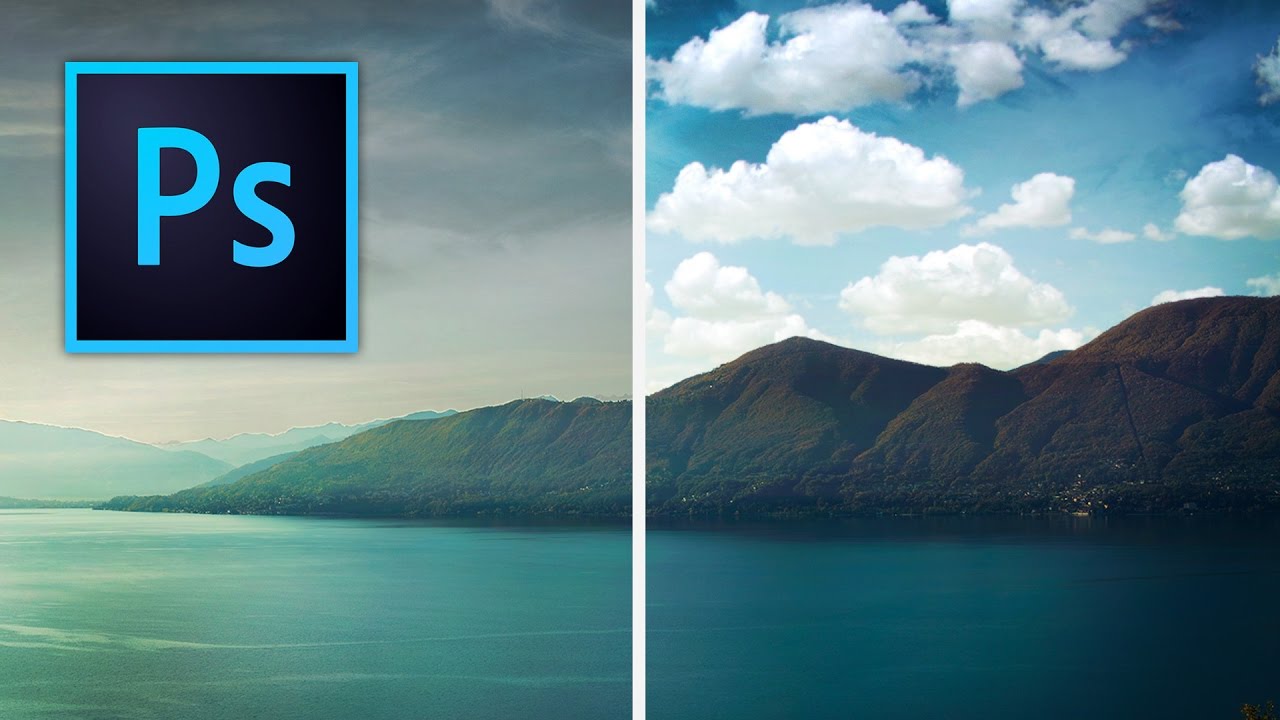
Stop Settling for Boring Skies: A Practical Photoshop Sky Swap Walkthrough

Stop Settling for Boring Skies: A Practical Photoshop Sky Swap Walkthrough

A few years back I spent the better part of a Tuesday stressing over a landscape composite for a client. The photo was solid — good light, interesting subject — but the sky was that flat, washed-out grey that makes everything look like it was shot in a Walmart parking lot. I knew the fix existed somewhere in Photoshop. I just didn’t know the clean way to do it without spending three hours masking individual clouds by hand like some kind of caffeinated monk.

Remove the Junk, Fix the Frame, Save the Shot: A Practical Photoshop Cleanup Workflow

Remove the Junk, Fix the Frame, Save the Shot: A Practical Photoshop Cleanup Workflow

There’s a specific kind of frustration that comes from spending two hours cloning out power lines and random visual garbage from a photo, only to realize you missed three of them. I’ve been there more times than I’d like to admit. It’s the kind of tedious work that makes you question your life choices somewhere around the 45-minute mark at your corner coffee shop table. So when I watched PHLEARN’s tutorial on cleaning up, reframing, and polishing photos in Photoshop, I immediately stopped what I was doing and paid close attention.

Stop Sleeping on Camera Raw Filter: Your Secret Weapon for Stunning Photos

Stop Sleeping on Camera Raw Filter: Your Secret Weapon for Stunning Photos

The Tool You’ve Been Ignoring I’ll be honest—I spent years treating Photoshop’s Camera Raw filter like it was exclusively for photographers who shot in RAW format. Turns out, I was dead wrong, and I’m betting a lot of you have made the same mistake. Camera Raw Filter isn’t just a converter. It’s a full-featured editing powerhouse that most of us have been criminally underutilizing. While you’ve been hunched over your Curves and Hue/Saturation panels doing the same color work over and over, this beast has been sitting right there in your Filter menu, ready to transform your images in ways that’ll make you wonder why you didn’t start using it sooner.

Stop Faking It: How to Actually Change a Background in Photoshop Without It Looking Like a Middle School Collage

Stop Faking It: How to Actually Change a Background in Photoshop Without It Looking Like a Middle School Collage

Background swapping is one of those Photoshop jobs that sounds simple until you’re three hours deep, your subject looks like they were cut out with safety scissors, and the client is asking for “just a quick update.” I’ve been there more times than I care to admit. The dirty secret is that pulling a clean selection is only half the battle. The part most tutorials skip is making the foreground belong in the new background.

Adobe Camera Raw Just Quietly Got Way Better at Complex Edges (And Nobody's Talking About It)

Adobe Camera Raw Just Quietly Got Way Better at Complex Edges (And Nobody's Talking About It)

The Update Nobody’s Celebrating Yet I stumbled onto something in Adobe Camera Raw last week that made me genuinely excited—which, let’s be honest, doesn’t happen often with software updates. While everyone’s been distracted by whatever shiny new feature Adobe’s marketing team is pushing, two legitimately useful masking tools snuck into the latest version, and I’m convinced they’re about to change how we approach selective adjustments. Here’s the thing: these aren’t revolutionary in concept, but they’re revolutionary in execution.

Photoshop Filters: The Secret Weapon You're Probably Overusing

Photoshop Filters: The Secret Weapon You're Probably Overusing

Photoshop Filters: The Secret Weapon You’re Probably Overusing Look, I’m going to be straight with you: filters are like hot sauce. A little transforms your work. Too much and everyone knows something’s wrong. I’ve spent more hours than I care to admit watching people discover the Filter menu and immediately turn their portraits into oil paintings or blast them with motion blur like they’re shooting a car commercial. Then they wonder why their images look like they were processed in 2007.

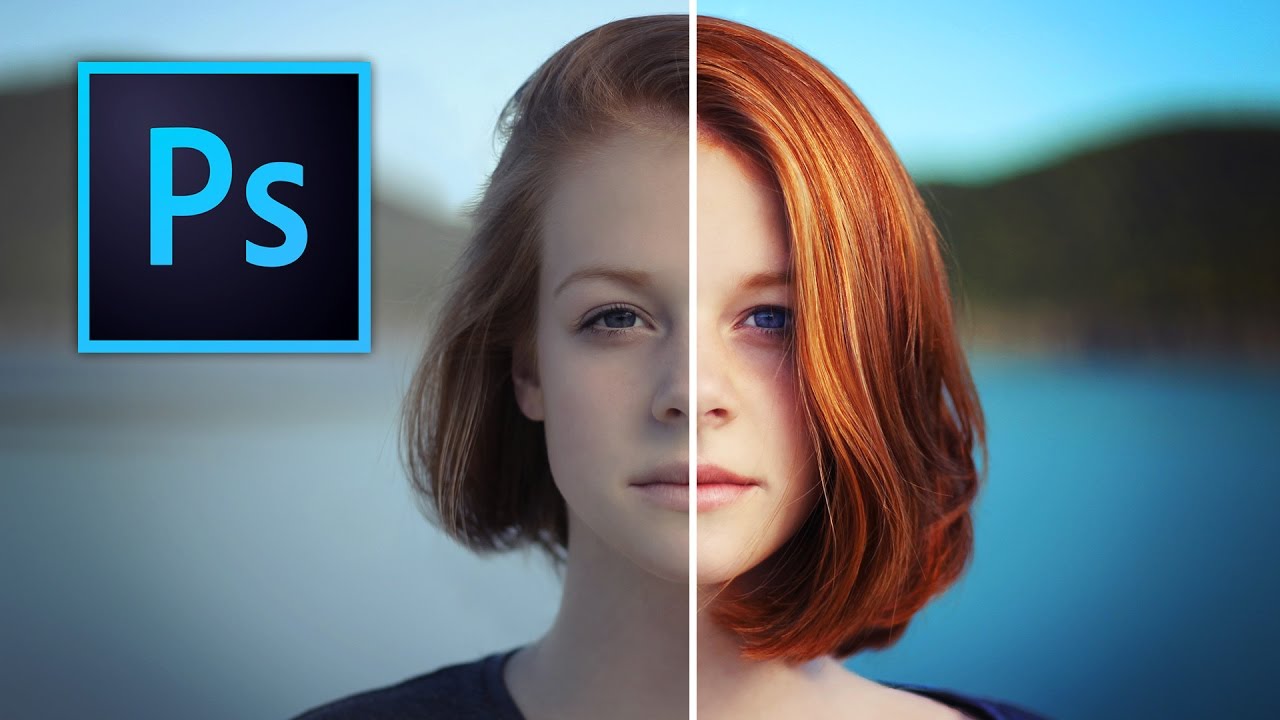
Stop Boring Photos: The Ultimate Guide to Making Colors Pop in Photoshop

Stop Boring Photos: The Ultimate Guide to Making Colors Pop in Photoshop

There’s a specific kind of client photo that fills me with quiet dread. You know the one. Shot on a decent camera, decent light, decent composition, but the colors look like they were run through a beige filter. Nothing is technically wrong with it, but nothing pops either. It just sits there, looking fine. Fine doesn’t close clients. Fine doesn’t get shared. Fine is the enemy. I’ve spent more time than I’d like to admit trying to fix these kinds of photos with increasingly complicated methods, stacking adjustment layers like I’m building a sandwich, wondering why the result still looks flat.