Stop Faking It: How to Actually Change a Background in Photoshop Without It Looking Like a Middle School Collage

Stop Faking It: How to Actually Change a Background in Photoshop Without It Looking Like a Middle School Collage

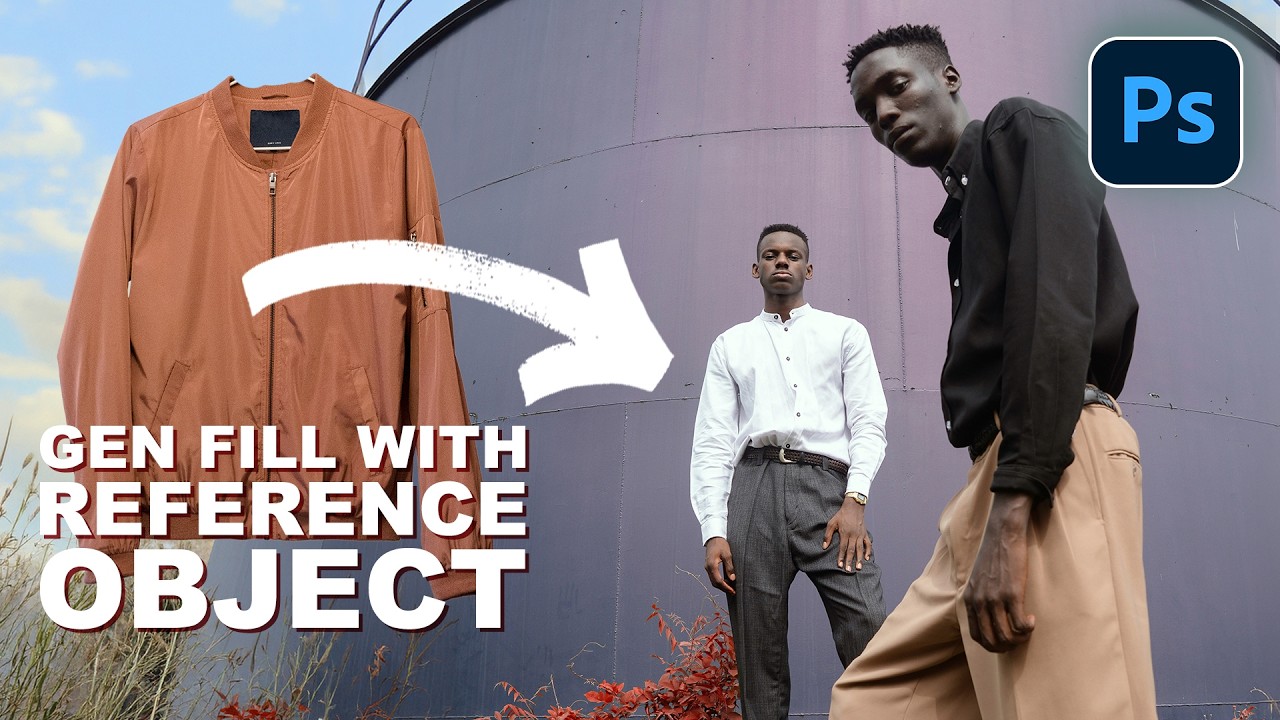
Background swapping is one of those Photoshop jobs that sounds simple until you’re three hours deep, your subject looks like they were cut out with safety scissors, and the client is asking for “just a quick update.” I’ve been there more times than I care to admit. The dirty secret is that pulling a clean selection is only half the battle. The part most tutorials skip is making the foreground belong in the new background.

Adobe Camera Raw Just Quietly Got Way Better at Complex Edges (And Nobody's Talking About It)

Adobe Camera Raw Just Quietly Got Way Better at Complex Edges (And Nobody's Talking About It)

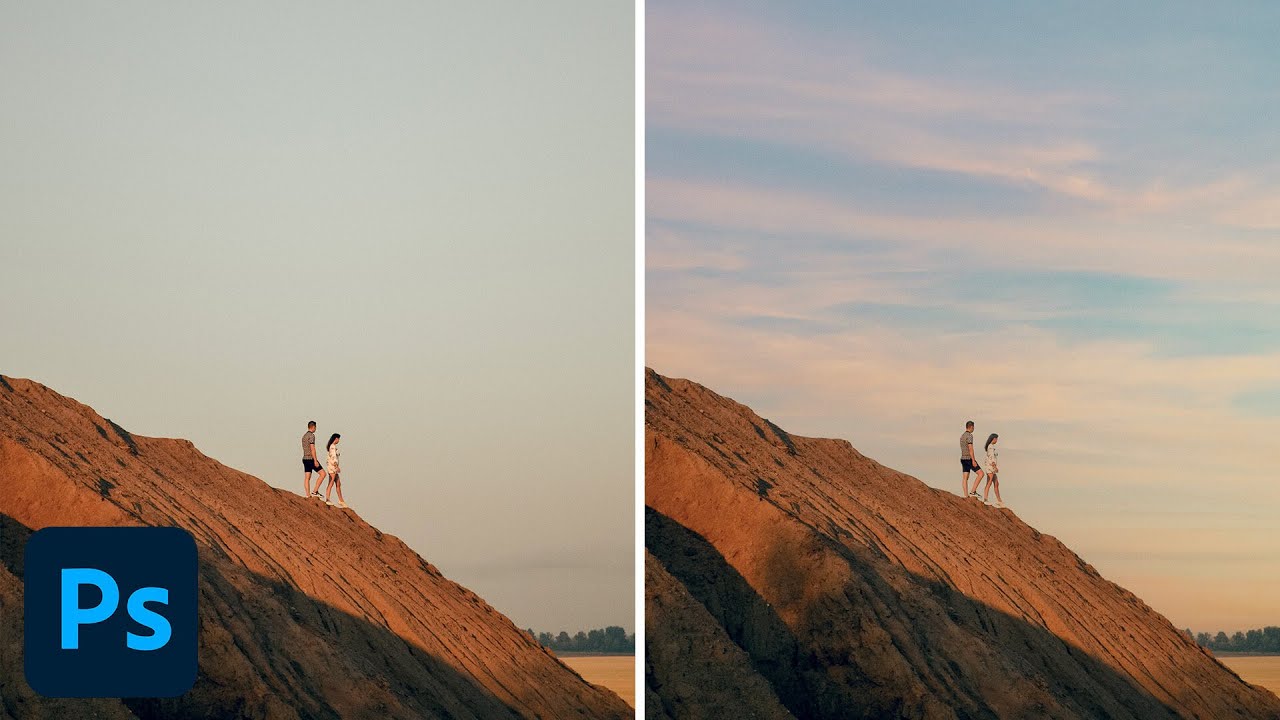
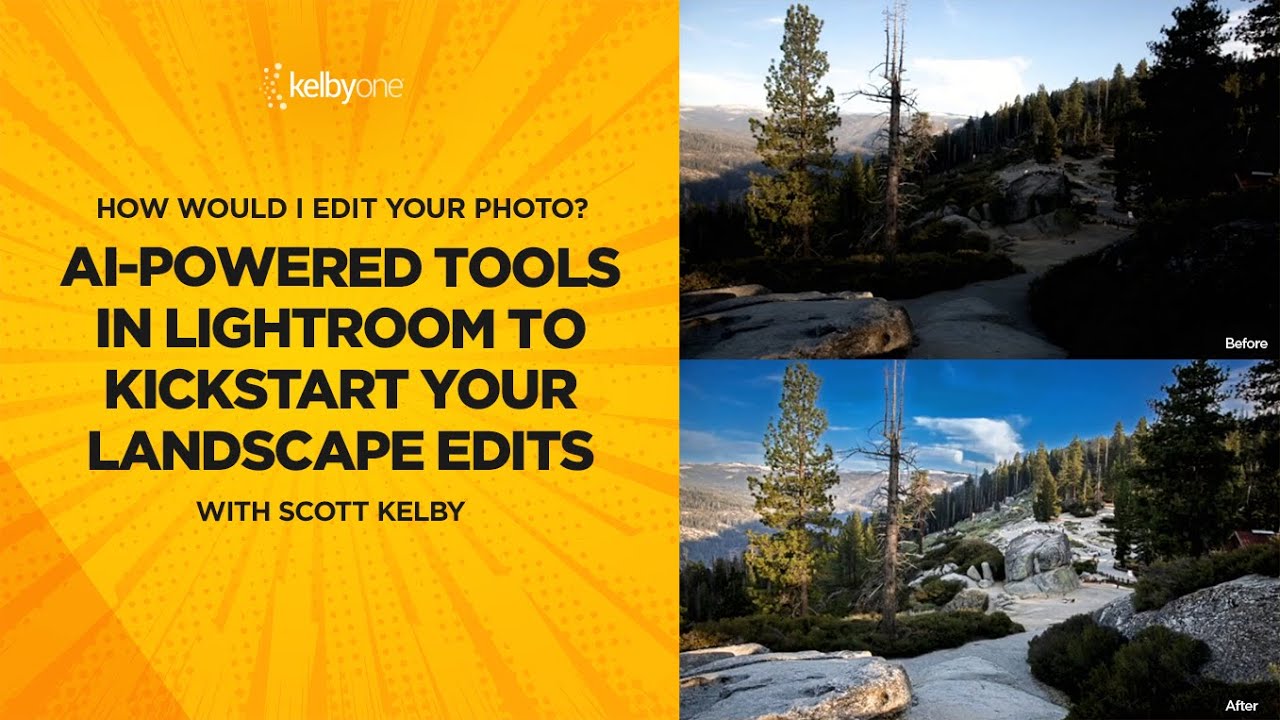
The Update Nobody’s Celebrating Yet I stumbled onto something in Adobe Camera Raw last week that made me genuinely excited—which, let’s be honest, doesn’t happen often with software updates. While everyone’s been distracted by whatever shiny new feature Adobe’s marketing team is pushing, two legitimately useful masking tools snuck into the latest version, and I’m convinced they’re about to change how we approach selective adjustments. Here’s the thing: these aren’t revolutionary in concept, but they’re revolutionary in execution.

Photoshop Filters: The Secret Weapon You're Probably Overusing

Photoshop Filters: The Secret Weapon You're Probably Overusing

Photoshop Filters: The Secret Weapon You’re Probably Overusing Look, I’m going to be straight with you: filters are like hot sauce. A little transforms your work. Too much and everyone knows something’s wrong. I’ve spent more hours than I care to admit watching people discover the Filter menu and immediately turn their portraits into oil paintings or blast them with motion blur like they’re shooting a car commercial. Then they wonder why their images look like they were processed in 2007.

Stop Boring Photos: The Ultimate Guide to Making Colors Pop in Photoshop

Stop Boring Photos: The Ultimate Guide to Making Colors Pop in Photoshop

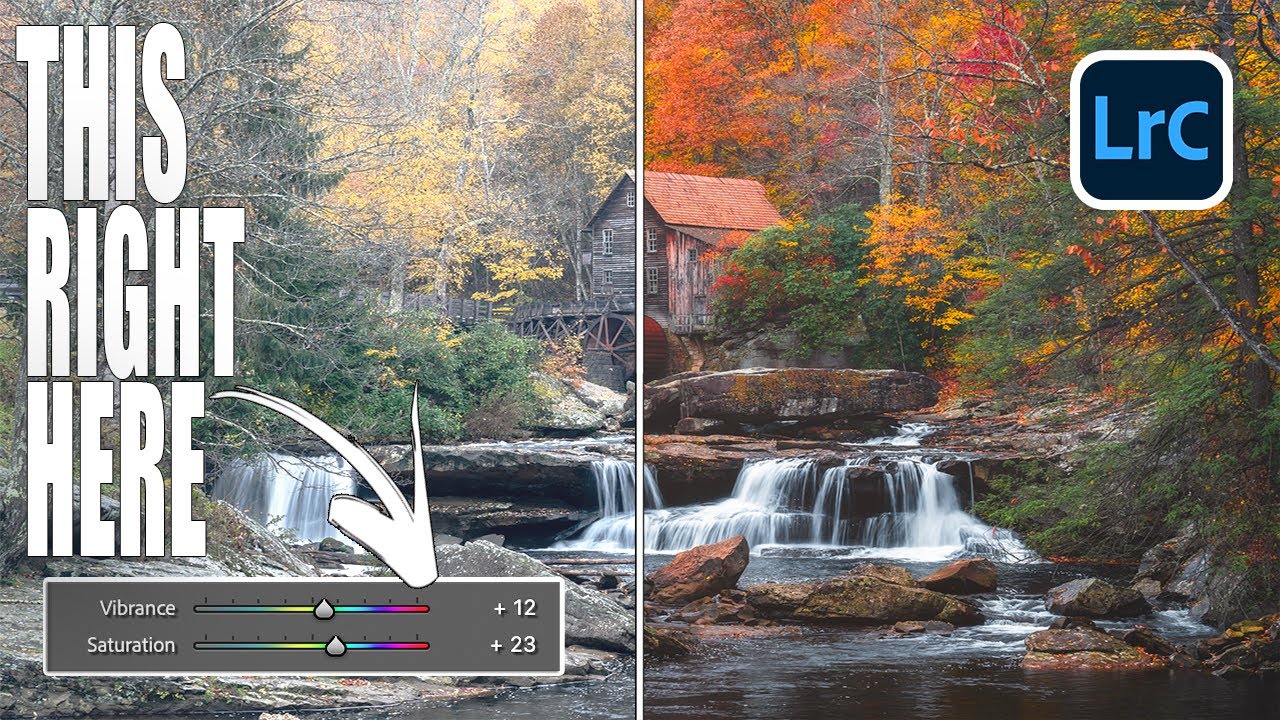
There’s a specific kind of client photo that fills me with quiet dread. You know the one. Shot on a decent camera, decent light, decent composition, but the colors look like they were run through a beige filter. Nothing is technically wrong with it, but nothing pops either. It just sits there, looking fine. Fine doesn’t close clients. Fine doesn’t get shared. Fine is the enemy. I’ve spent more time than I’d like to admit trying to fix these kinds of photos with increasingly complicated methods, stacking adjustment layers like I’m building a sandwich, wondering why the result still looks flat.

Photoshop's New General Distractions Tool: Your Secret Weapon for Cleaner Photos

Photoshop's New General Distractions Tool: Your Secret Weapon for Cleaner Photos

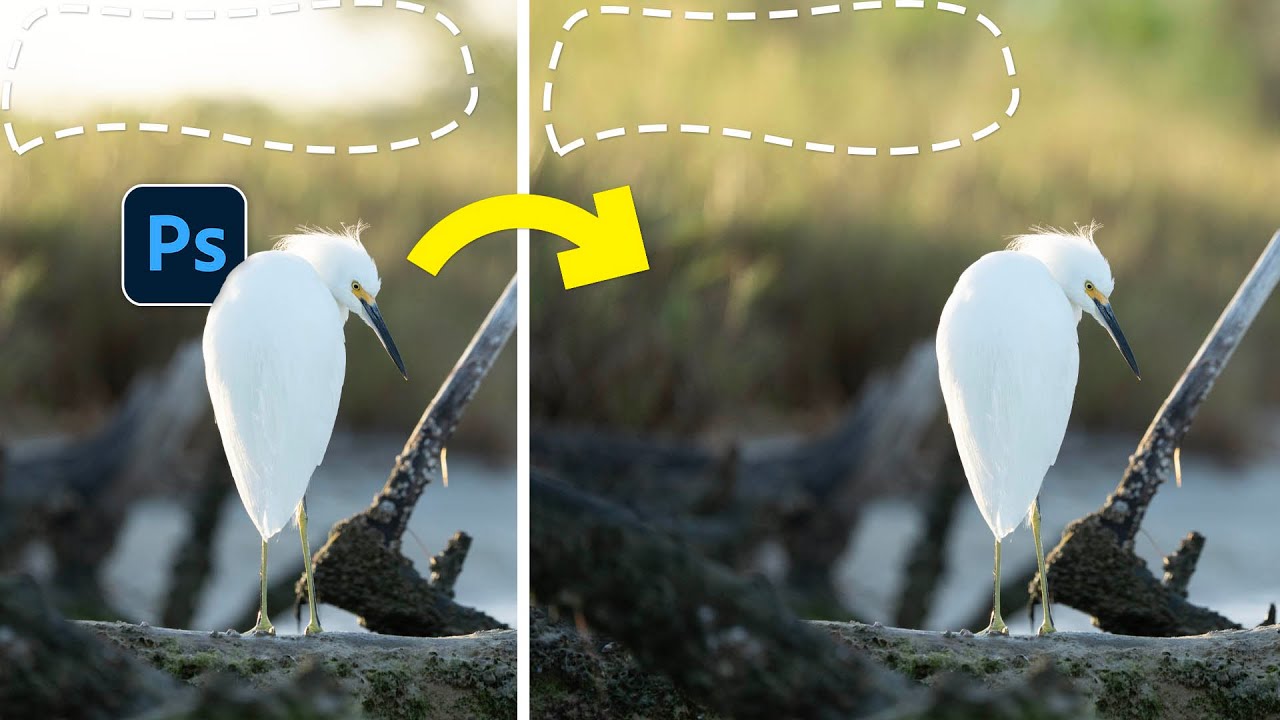
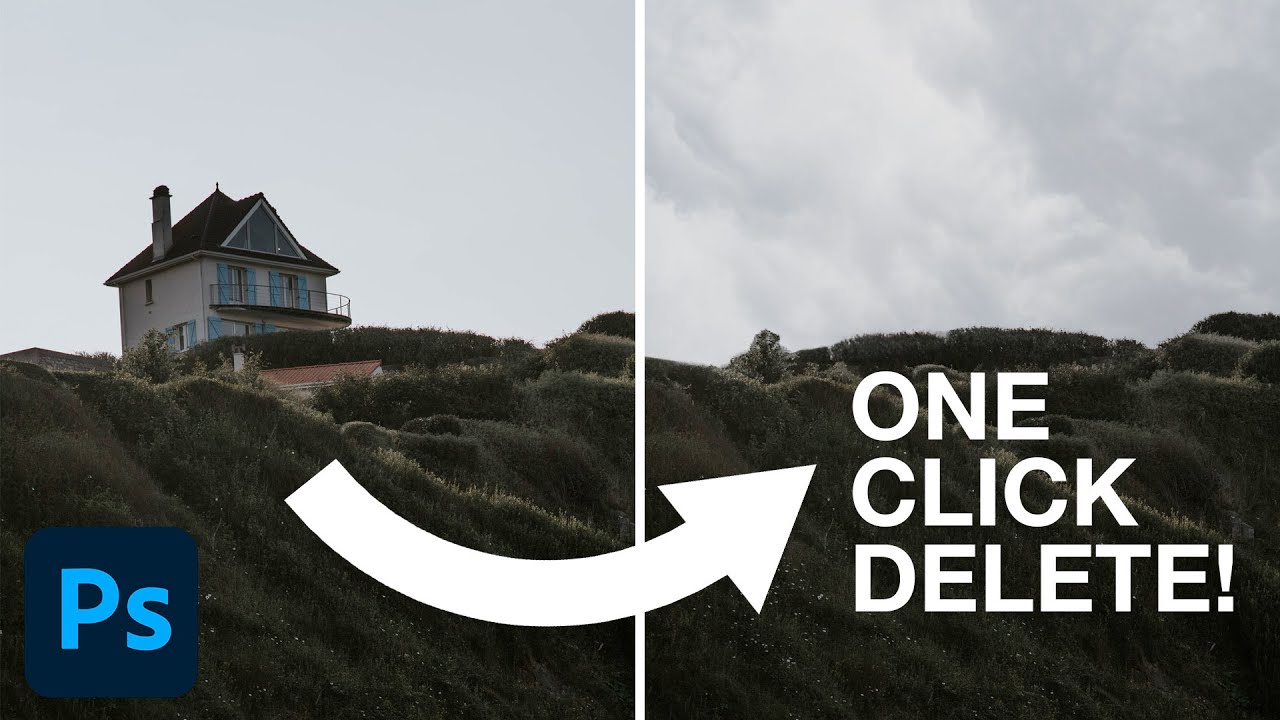
Photoshop’s New General Distractions Tool: Your Secret Weapon for Cleaner Photos Remember when removing unwanted objects from photos meant hours of cloning and healing brush work? Yeah, those days are increasingly behind us. Adobe just dropped a feature that’s about to save you serious time: General Distractions, the latest evolution of Photoshop’s remove tool. What’s New in the Remove Tool Arsenal Let’s be real—Photoshop’s remove tools have been getting increasingly smart.

Photoshop Filters: The Good, The Bad, and The Why Did I Do That

Photoshop Filters: The Good, The Bad, and The Why Did I Do That

Photoshop Filters: The Good, The Bad, and The “Why Did I Do That?” Look, I’m going to be honest with you. Filters in Photoshop are like hot sauce—a little bit transforms your dish into something amazing, but one wrong squeeze and you’ve ruined everything. I’ve been using Photoshop for longer than I care to admit, and I’ve learned that filters aren’t about applying the flashiest effect you can find. They’re about knowing which ones actually serve your image and how to use them without making your clients ask why their photo looks like a video game cutscene.

Master the Exposure Triangle: Your Gateway to Better Photos (And Better Edits)

Master the Exposure Triangle: Your Gateway to Better Photos (And Better Edits)

Master the Exposure Triangle: Your Gateway to Better Photos (And Better Edits) Here’s something that might blow your mind: whether you’re shooting on a beat-up old film camera or dropping six grand on the latest mirrorless beast, they’re all doing the exact same thing at their core. They’re just deciding how much light gets in. That’s literally it. Everything else—the fancy autofocus, the AI wizardry, those menus that go seventeen levels deep—is just window dressing to help you nail that one fundamental task.

How to Remove Background in Photoshop 2026: The Complete Guide to Every Method

How to Remove Background in Photoshop 2026: The Complete Guide to Every Method

How to Remove Background in Photoshop 2026: The Complete Guide to Every Method Look, I’ve been removing backgrounds in Photoshop for longer than I care to admit, and I’m here to tell you that Adobe has finally made it actually fun. The 2026 version brought some seriously impressive updates that make the old “painstaking selection tools” feel like we were editing with stone tablets. If you’re wondering how to remove background in Photoshop 2026, you’re in luck—because this year’s features are genuinely game-changing.

Blend Modes: Stop Using Normal and Start Looking Like You Know What You're Doing

Blend Modes: Stop Using Normal and Start Looking Like You Know What You're Doing

Blend Modes: Stop Using Normal and Start Looking Like You Know What You’re Doing I spent three years thinking blend modes were some kind of advanced wizardry reserved for people with design degrees and inexplicable confidence. Turns out, they’re just math. Boring, wonderful math that makes your work look infinitely better. Here’s the thing: if you’re still stacking layers at 100% opacity and calling it a day, you’re leaving money on the table.

Blend Modes: Stop Guessing and Start Creating

Blend Modes: Stop Guessing and Start Creating

I’ll be honest—blend modes used to terrify me. I’d see that dropdown menu with 27 options and just pick “Overlay” because it sounded professional. Turns out, that’s basically what everyone does, which is why half the internet’s edited photos look the same. Here’s the thing: blend modes aren’t magic. They’re just math. And I’m going to skip the math part because you didn’t come here for that. What you did come here for is knowing which ones actually do something useful.

Blend Modes Demystified: Stop Using Normal and Start Looking Like You Know What You're Doing

Blend Modes Demystified: Stop Using Normal and Start Looking Like You Know What You're Doing

Blend Modes Demystified: Stop Using Normal and Start Looking Like You Know What You’re Doing I’ll be honest with you—I spent three years in Photoshop thinking blend modes were just there to make my layers look like a glitchy nightmare. Then I actually learned what they do, and suddenly I stopped needing fifteen adjustment layers to fix simple problems. So let me save you some time and sanity. What Blend Modes Actually Are (Without the Math Nerd Stuff) Blend modes control how a layer interacts with the layers beneath it.

Blend Modes Demystified: Stop Using Normal and Start Actually Creating

Blend Modes Demystified: Stop Using Normal and Start Actually Creating

Blend Modes Demystified: Stop Using Normal and Start Actually Creating Look, I’m going to level with you. When I first started using Photoshop, I treated blend modes like that mysterious section of the menu—technically aware it existed, totally confused about how to use it, and perfectly content leaving it alone. Then I realized I was basically editing with one hand tied behind my back. Blend modes are genuinely the difference between “I spent four hours on this” and “I spent four hours on this and it actually looks professional.