Turn Any Photo Into an Illustrated Design Asset in Under 5 Minutes

Turn Any Photo Into an Illustrated Design Asset in Under 5 Minutes

There’s a specific kind of client panic I know well. You’ve got a photo that’s technically fine but creatively boring, a design layout that needs something, and a deadline that does not care about your feelings. I’ve been there more times than I’d like to admit, sitting in a coffee shop on my second Americano, staring at a stock photo wondering how to make it not look like a stock photo.
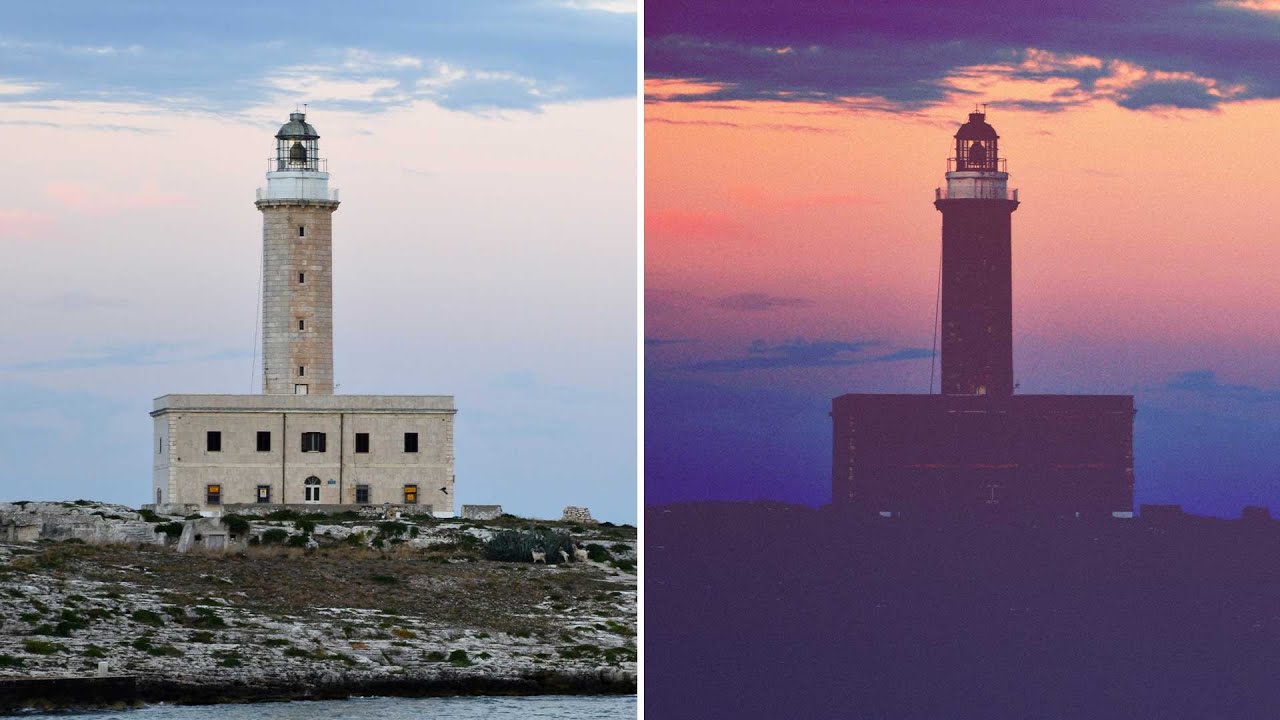
Turn Any Photo Into a Painting in Photoshop Using This Weird AI Trick

Turn Any Photo Into a Painting in Photoshop Using This Weird AI Trick

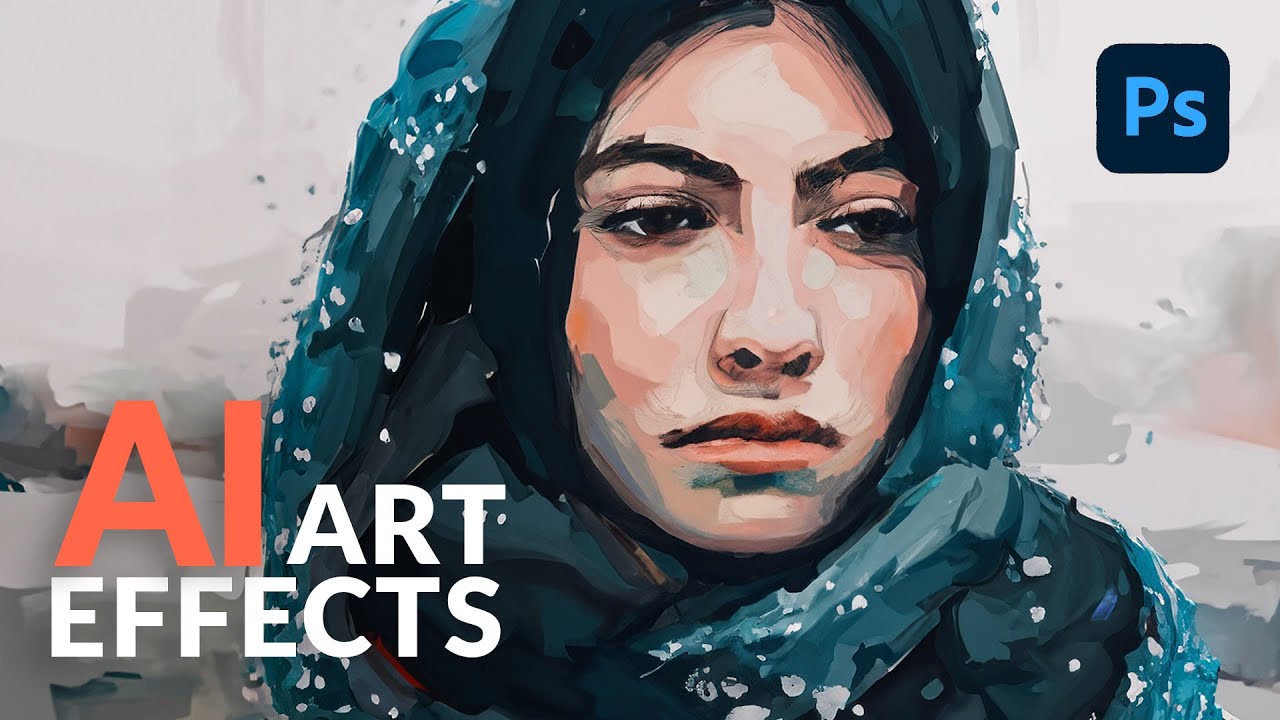
Client work slows down in summer. That’s when I do my best experimenting, usually with a cold brew at my corner table at the coffee shop, headphones on, burning through tutorials I’ve been bookmarking for months. I’ve tried a lot of AI techniques in Photoshop that promised “artistic effects” and delivered something that looked like a stock photo got into a fight with a Instagram filter. So when I stumbled on this one from Aaron Nace over at PHLEARN, I almost scrolled past it.

Fake Bokeh That Actually Looks Real: A Photoshop Trick You'll Use On Every Portrait

Fake Bokeh That Actually Looks Real: A Photoshop Trick You'll Use On Every Portrait

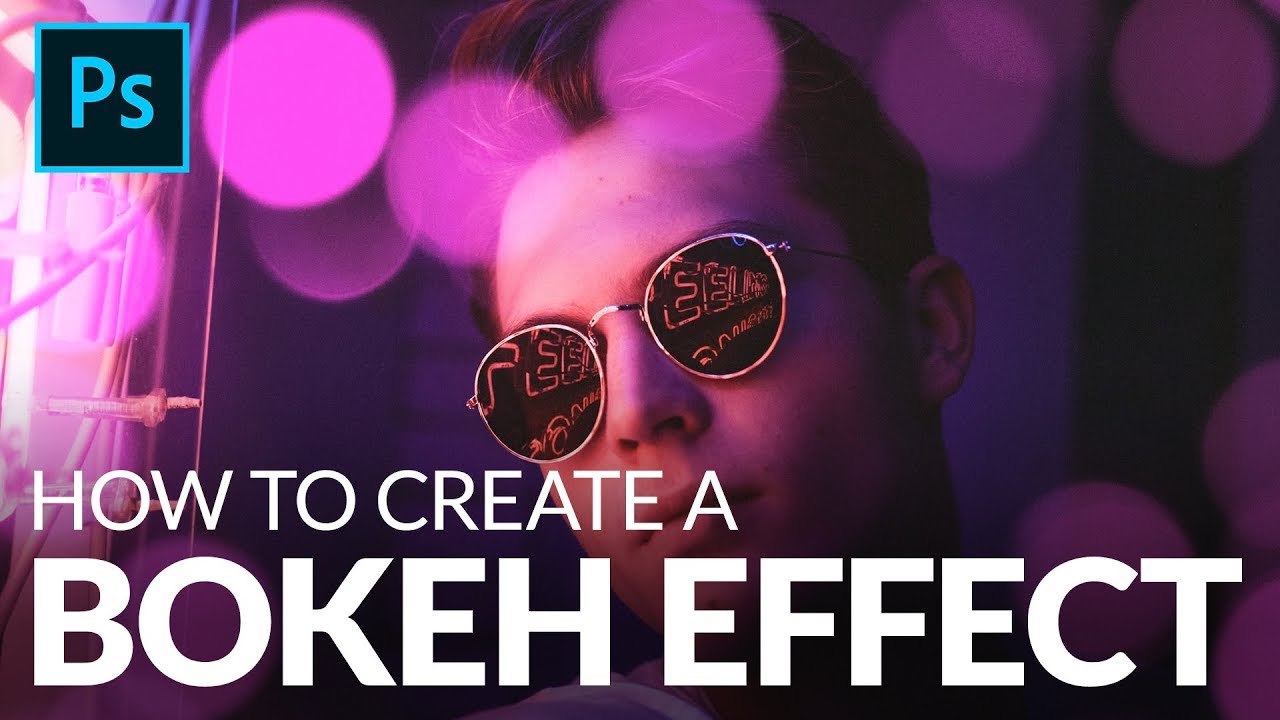
There’s a specific kind of client feedback that haunts me. The photo is sharp, the subject is well-lit, the composition is solid, and then: “Can you make it look more… dreamy?” Dreamy. Great. Super specific. What they almost always mean, even if they don’t know the word, is bokeh. Those soft, glowing orbs of out-of-focus light that make a photo feel expensive and editorial. The problem is you can’t go back and reshoot with a wider aperture, and generating fake depth of field that looks convincing is a whole other ordeal.

Lifting the Blacks: How to Nail That Moody Dark Film Look in Photoshop

Lifting the Blacks: How to Nail That Moody Dark Film Look in Photoshop

Client work has a way of forcing you to learn things fast. I spent an embarrassing amount of time trying to fake that moody, washed-out film look by just dragging the exposure slider down and hoping for the best. The result was always the same: muddy, flat, and nothing like the cinematic shadow work I was going for. The problem wasn’t my eye. It was that I was using the wrong tool for the job.

Steal Colors From Any Photo and Make Your Images Look Like a Fever Dream (In a Good Way)

Steal Colors From Any Photo and Make Your Images Look Like a Fever Dream (In a Good Way)

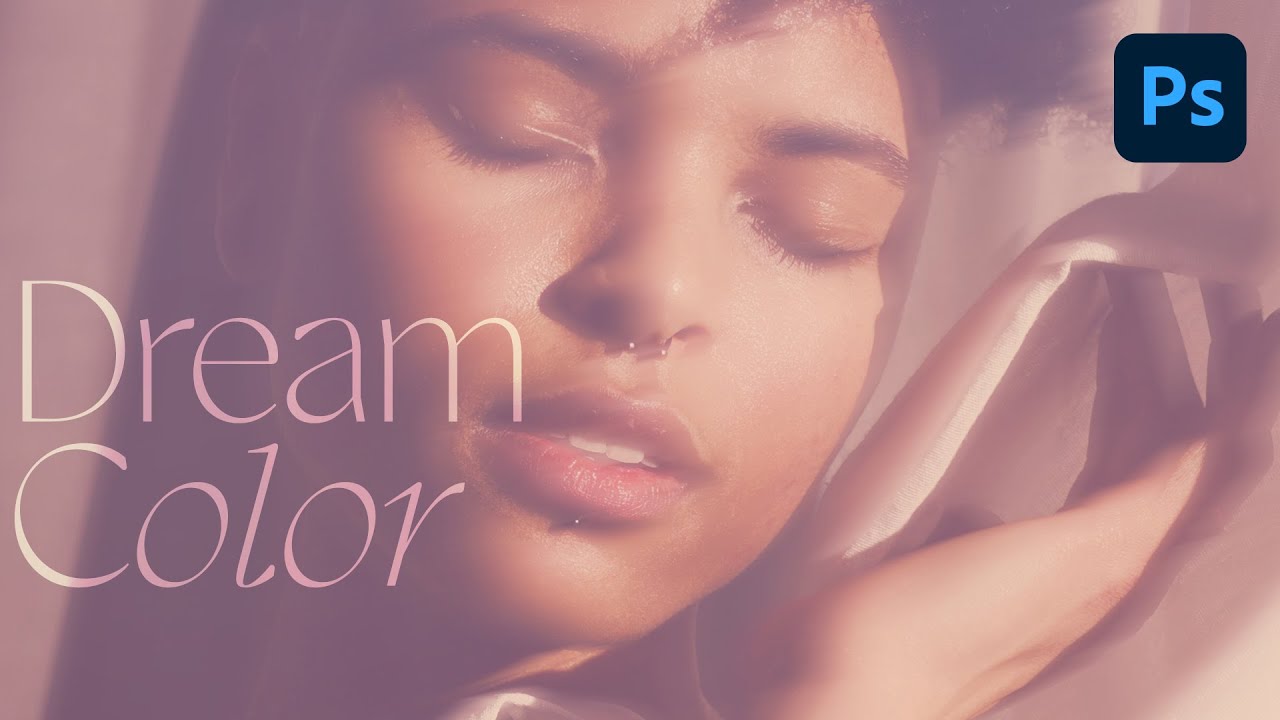
Client work has a way of humbling you. I spent the better part of an afternoon once trying to manually paint a warm, hazy color grade onto a portrait, layer by layer, brush stroke by brush stroke, and the result looked like someone had smeared margarine on the screen. The color was there, technically, but it had no life. No cohesion. What I actually needed was already sitting in another photo on my desktop, and I had no idea I could just… take it.

Photoshop Filters: Stop Using Them Like a 2005 MySpace Profile

Photoshop Filters: Stop Using Them Like a 2005 MySpace Profile

Photoshop Filters: Stop Using Them Like a 2005 MySpace Profile Look, I get it. You discovered the Filters menu and now everything looks like it was shot through a Instagram-sponsored fever dream. We’ve all been there. But here’s the thing: filters are actually useful when you’re not treating them like a sledgehammer. Let me show you how to use them without embarrassing yourself. The Golden Rule Nobody Follows: Subtlety is Your Friend I’m going to say this once, and I’m going to say it loud: most filters look terrible at default settings.

Transform Any Photo with Textures in Photoshop: A Practical Breakdown

Transform Any Photo with Textures in Photoshop: A Practical Breakdown

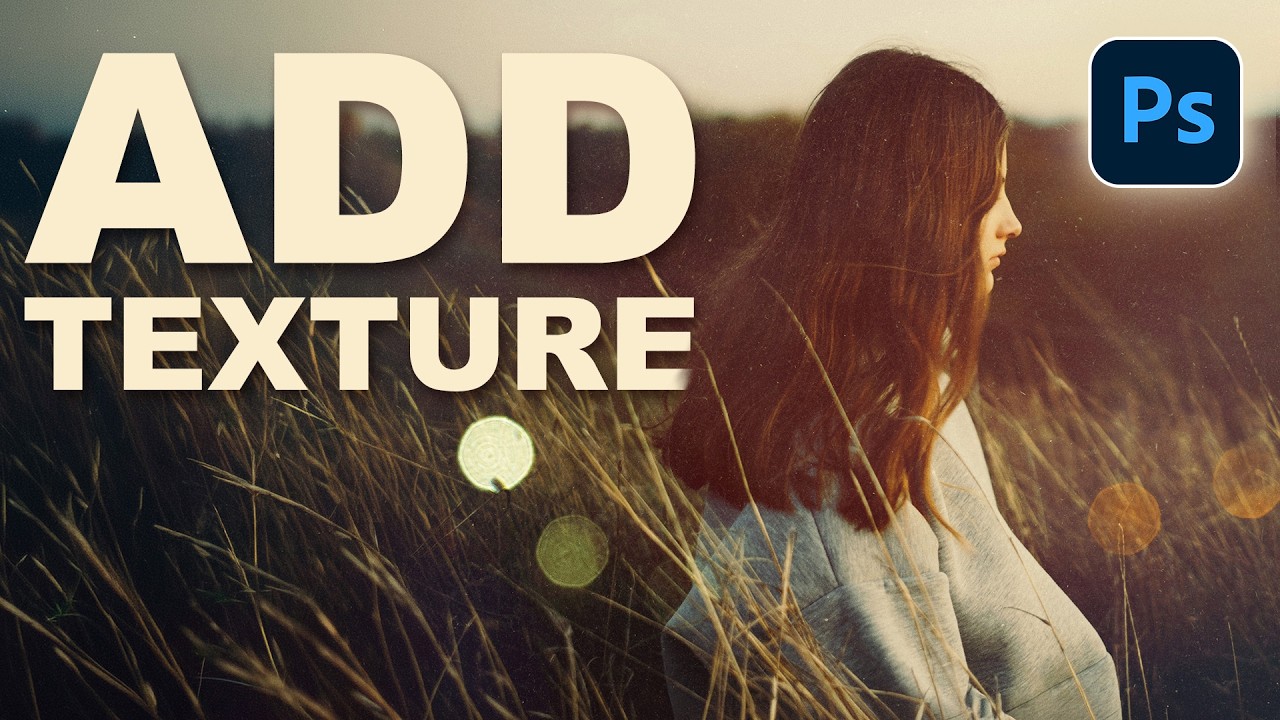
There’s a specific kind of flatness that happens when a photo is technically correct but visually boring. Good exposure, decent composition, and somehow it still looks like a stock image nobody bought. I ran into this constantly early in my freelance work, spending way too long adding drama in the wrong places, like overcooked contrast or aggressive vignettes, when the real fix was sitting one layer above the photo the whole time.

Filters in Photoshop: Stop Making Them Look Like You Used Filters

Filters in Photoshop: Stop Making Them Look Like You Used Filters

Filters in Photoshop: Stop Making Them Look Like You Used Filters Listen, I’ve seen a lot of Photoshop disasters in my time. And you know what they all have in common? Someone discovered the Filters menu and treated it like a kid in a candy store. The goal today is to make sure you’re not that person. Here’s the truth: filters are powerful tools, but they’re not meant to be blasted at full intensity like you’re seasoning a steak at the end of a long shift.