Photoshop Filters: Stop Using Them Like a 2005 MySpace Profile

Photoshop Filters: Stop Using Them Like a 2005 MySpace Profile

Photoshop Filters: Stop Using Them Like a 2005 MySpace Profile Look, I get it. You discovered the Filters menu and now everything looks like it was shot through a Instagram-sponsored fever dream. We’ve all been there. But here’s the thing: filters are actually useful when you’re not treating them like a sledgehammer. Let me show you how to use them without embarrassing yourself. The Golden Rule Nobody Follows: Subtlety is Your Friend I’m going to say this once, and I’m going to say it loud: most filters look terrible at default settings.
Transform Any Photo with Textures in Photoshop: A Practical Breakdown

Transform Any Photo with Textures in Photoshop: A Practical Breakdown

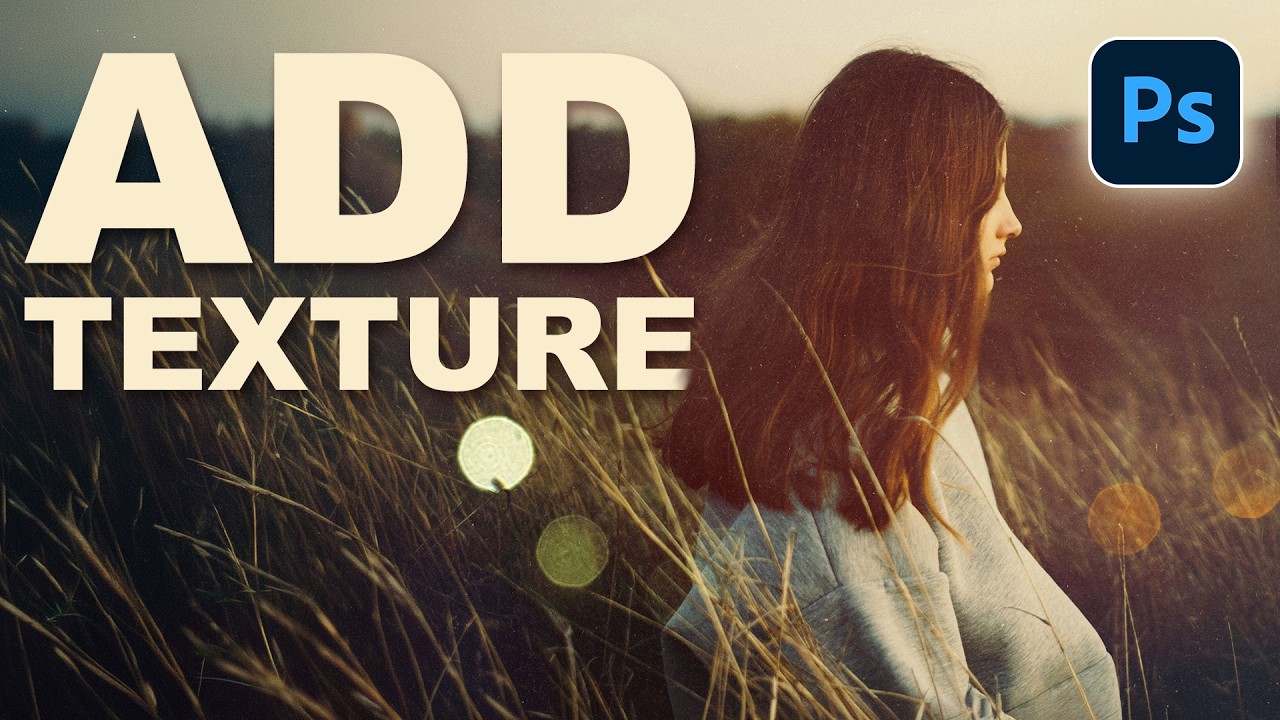
There’s a specific kind of flatness that happens when a photo is technically correct but visually boring. Good exposure, decent composition, and somehow it still looks like a stock image nobody bought. I ran into this constantly early in my freelance work, spending way too long adding drama in the wrong places, like overcooked contrast or aggressive vignettes, when the real fix was sitting one layer above the photo the whole time.

Filters in Photoshop: Stop Making Them Look Like You Used Filters

Filters in Photoshop: Stop Making Them Look Like You Used Filters

Filters in Photoshop: Stop Making Them Look Like You Used Filters Listen, I’ve seen a lot of Photoshop disasters in my time. And you know what they all have in common? Someone discovered the Filters menu and treated it like a kid in a candy store. The goal today is to make sure you’re not that person. Here’s the truth: filters are powerful tools, but they’re not meant to be blasted at full intensity like you’re seasoning a steak at the end of a long shift.