Stop Guessing Which Selection Tool to Use — Here's the Cheat Sheet You Actually Need

Stop Guessing Which Selection Tool to Use — Here's the Cheat Sheet You Actually Need

If selections aren’t clicking for you in Photoshop, I promise it’s not because you’re bad at software. It’s because there are about a dozen different ways to make a selection and nobody ever explains when to use which one. I spent the better part of my early freelance years defaulting to whatever tool I’d used last, regardless of whether it was the right call. Spoiler: it usually wasn’t. Getting a better grip on selection tools is genuinely one of those skill-ups that changes how fast you work, not just how well.

Stop Fighting Fuzzy Edges: The Smarter Cutout Workflow Aaron Nace Taught Me

Stop Fighting Fuzzy Edges: The Smarter Cutout Workflow Aaron Nace Taught Me

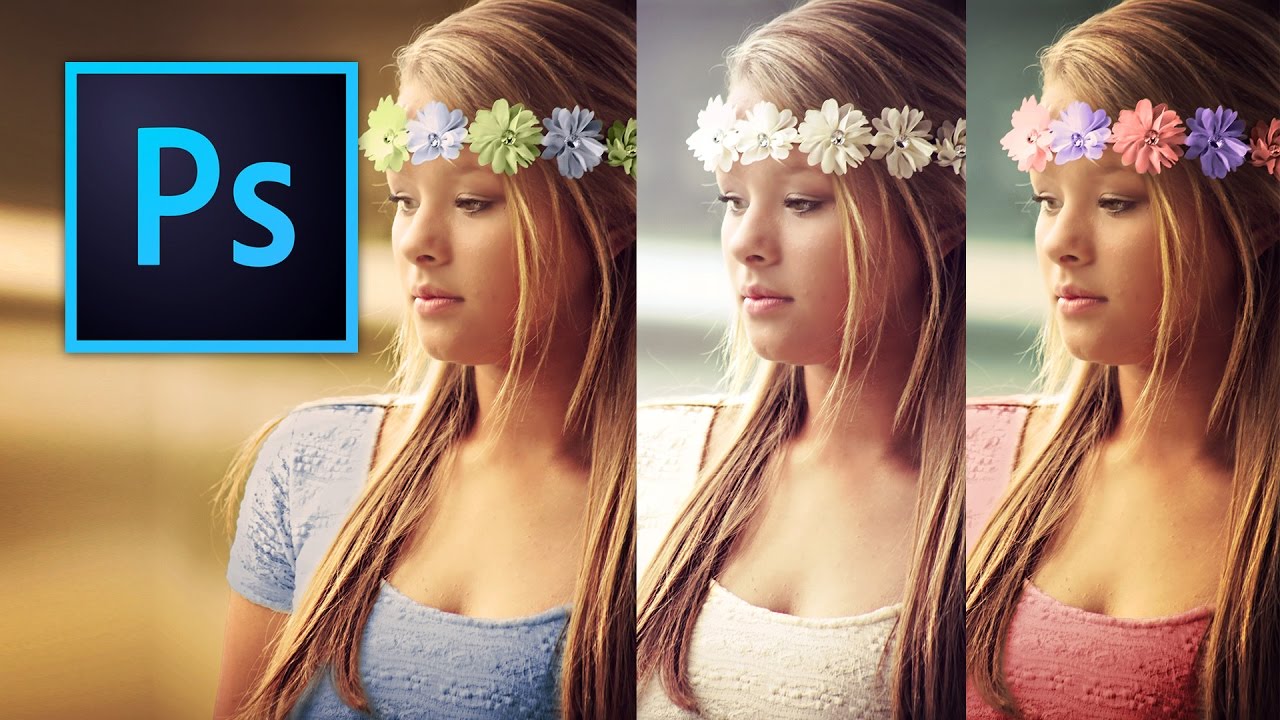
There’s a specific kind of defeat that comes from spending forty-five minutes with the Pen tool trying to cut out a fuzzy sweater, only to end up with edges that look like they were drawn by someone using a mouse for the first time. I’ve been there. More than once. The problem isn’t skill, it’s using the wrong tool for the wrong edge, and it took me longer than I’d like to admit to accept that.

Stop the Fringe: Three Ways to Clean Up Messy Selection Edges in Photoshop

Stop the Fringe: Three Ways to Clean Up Messy Selection Edges in Photoshop

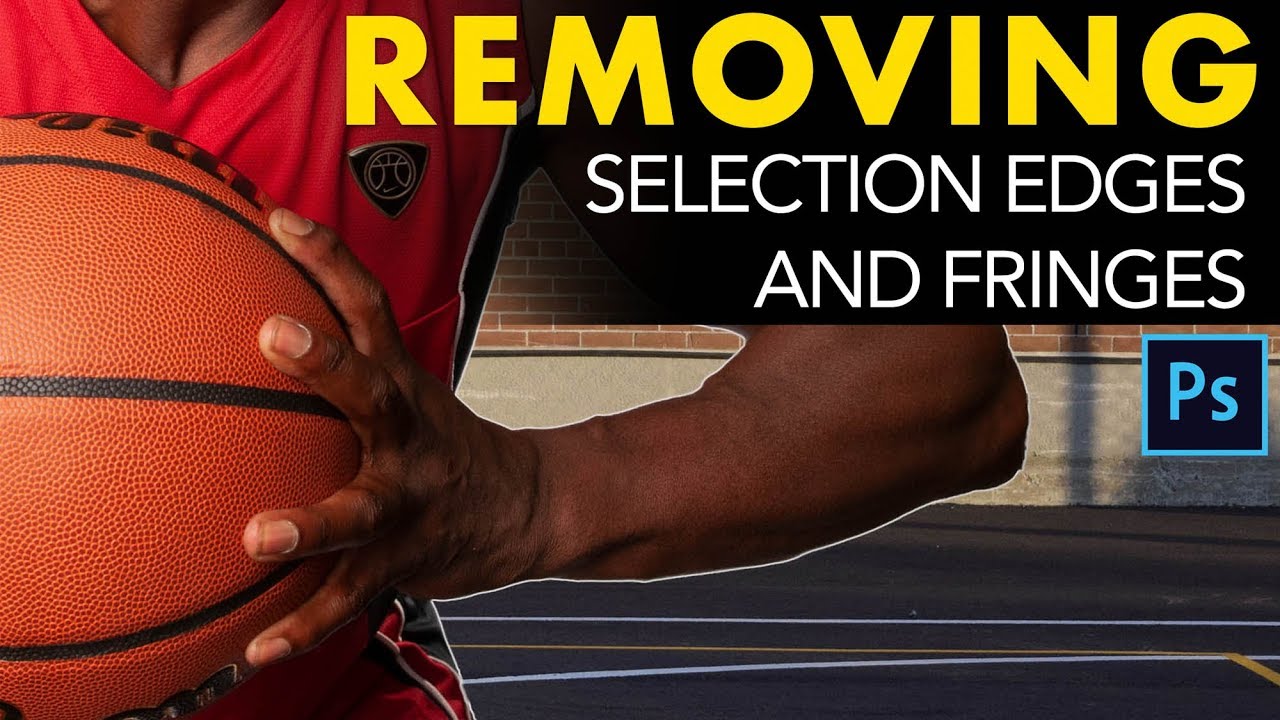
Fringe is the enemy. That gross little halo of color that clings to your subject after you’ve cut them out - the ghost of the background they came from - has killed more composites than any other single thing in my workflow. I’ve been there a dozen times: I spend an hour on a careful selection, drop the subject onto a new background, zoom out to admire my work, and there it is.

Rough, Fast, and Good Enough: How to Composite in Photoshop Without Losing Your Mind

Rough, Fast, and Good Enough: How to Composite in Photoshop Without Losing Your Mind

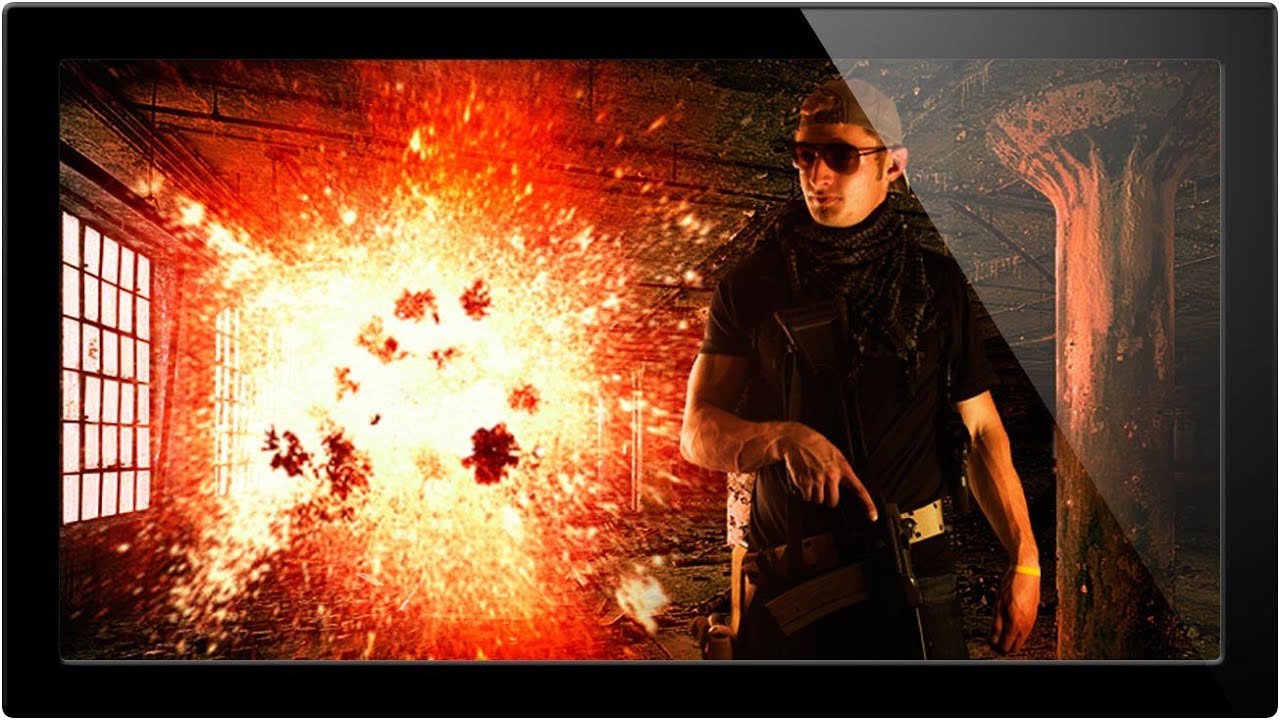
A few years back, I spent three full days on a composite. Three days of careful pen tool paths, obsessive masking, color matching that made my eyes water. A friend looked at it, nodded, then sat down and knocked out something that looked equally convincing in about twenty minutes using a workflow I’d never even considered. I wanted to flip my desk. Instead, I went home, opened YouTube, and started paying closer attention to how people who actually move fast think about this stuff.

Stop Fighting the Magic Wand Tool — It's Actually Good (When You Use It Right)

Stop Fighting the Magic Wand Tool — It's Actually Good (When You Use It Right)

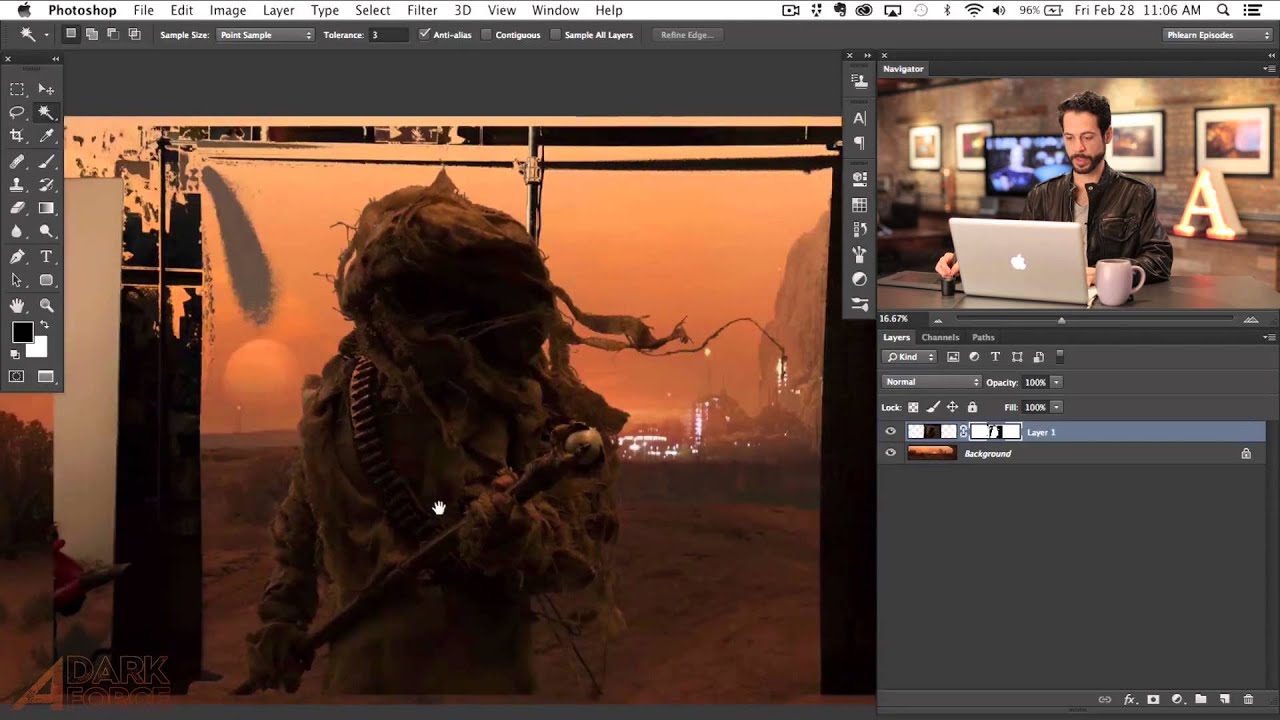
Compositing is where Photoshop either saves your project or humiliates you. I’ve been on both ends of that. There was a period where I spent three full days on a composite, painstakingly painting out a background pixel by pixel, only to have a friend glance at it, ask why I wasn’t using a smarter selection workflow, and then rebuild the whole thing in about twenty minutes while I sat there questioning my life choices.

How to Actually Separate a Subject from a Busy Background (Without Losing Your Mind)

How to Actually Separate a Subject from a Busy Background (Without Losing Your Mind)

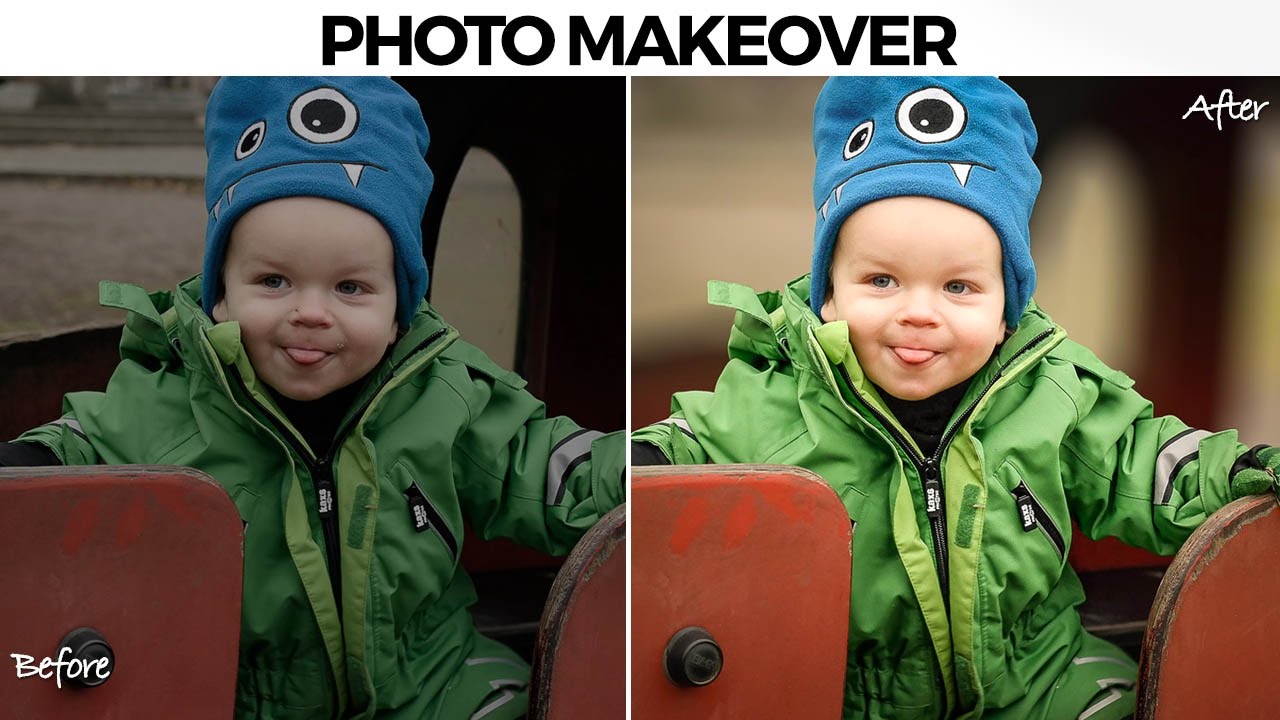
There’s a specific kind of job that used to make me quietly dread opening my inbox. A parent, a friend, someone’s aunt, sends you a candid photo of a kid with a genuinely great expression, and the background is just… a gray wall of visual noise. The subject is good. The light is okay. But nothing separates the person from everything behind them, and the whole thing reads as flat. I used to either spend way too long on it or hand it back with minimal changes and feel vaguely embarrassed about it.

Changing Eye Color in Photoshop Without Making It Look Ridiculous

Changing Eye Color in Photoshop Without Making It Look Ridiculous

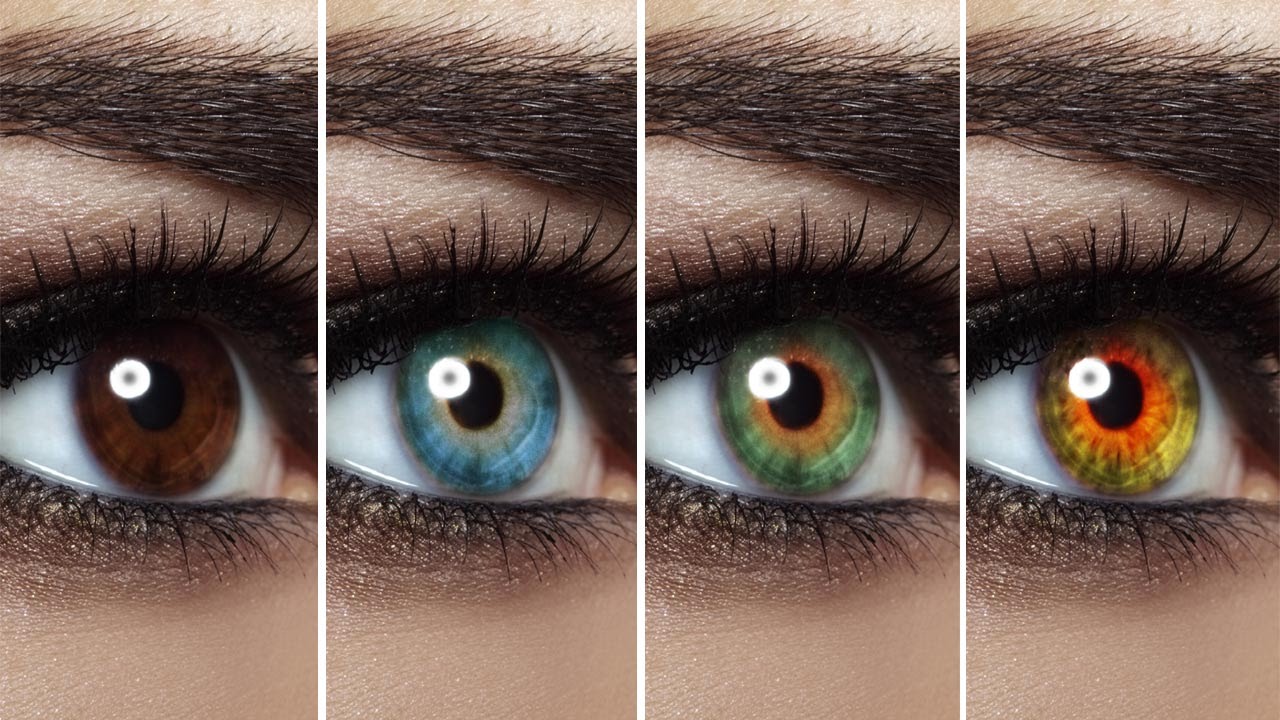
Client retouching jobs have a funny way of surfacing requests you’ve never actually practiced. Someone hands you a portrait and casually mentions, “Oh, can you also make the eyes green?” and suddenly you’re Googling at 11pm from a corner booth at your local coffee shop hoping nobody notices you’re sweating over something that’s supposed to be simple. Eye color changes sound trivial until you try one and end up with something that looks like a Halloween costume filter.

Stop Repainting Layers Like It's 2008 — Here's How to Change Any Color in Photoshop Properly

Stop Repainting Layers Like It's 2008 — Here's How to Change Any Color in Photoshop Properly

I used to handle color changes in Photoshop the embarrassing way. New layer, paintbrush, roughly scribble the new color over the thing, set it to Multiply, squint at it, and convince myself it looked fine. It did not look fine. The first time a client asked me to change the color of a product in a photo, I spent forty minutes doing something that, as I later found out, could have taken four.

Stop Fighting the Pen Tool: A Smarter Way to Cut Out Planes, Cars, and Anything With Hard Edges

Stop Fighting the Pen Tool: A Smarter Way to Cut Out Planes, Cars, and Anything With Hard Edges

There’s a specific kind of frustration that comes from spending forty-five minutes on a selection, zooming out, and realizing the edges look like you traced the thing with a bar of soap. Quick Select is great. Magic Wand has its moments. But when you’re cutting out something with hard, defined edges, like a car, a plane, a pair of glasses, a product shot, the fuzzy selection tools will consistently let you down.

Stop Fighting With Hair Selections — Here's the Photoshop Trick That Actually Works

Stop Fighting With Hair Selections — Here's the Photoshop Trick That Actually Works

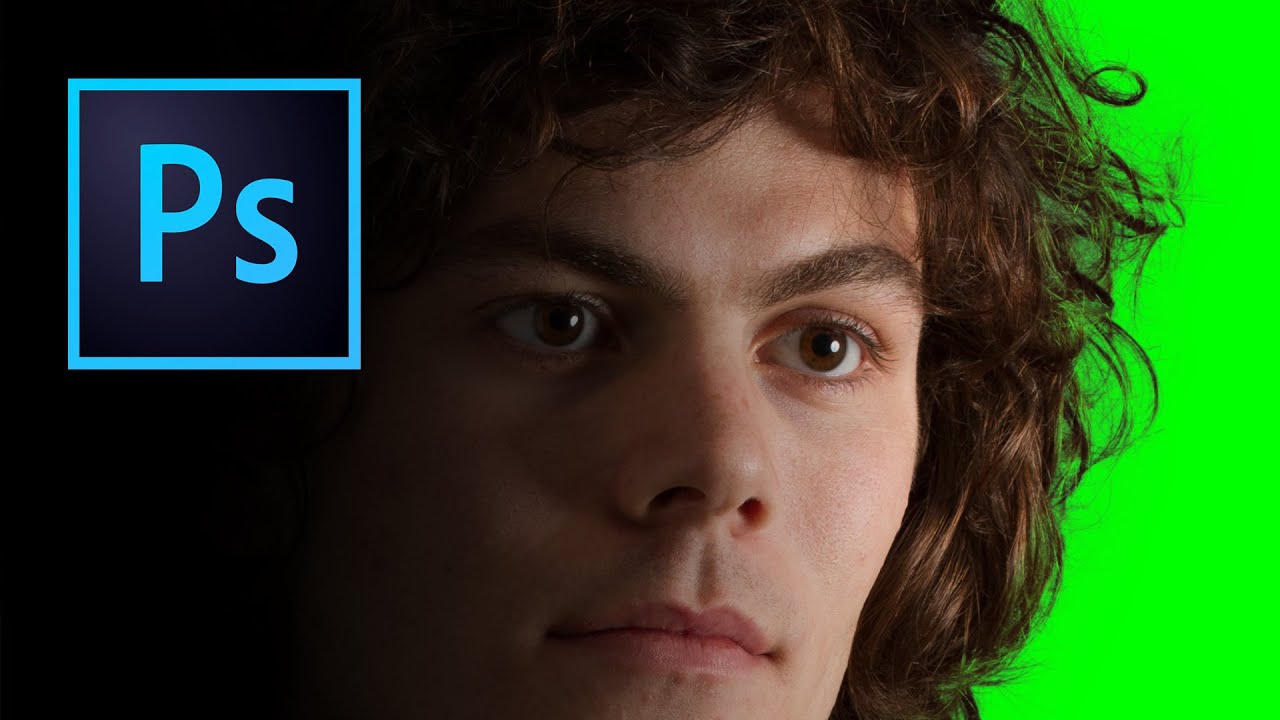
There’s a specific kind of frustration that comes from spending an hour manually tracing flyaway hair with the Lasso tool, zoomed in at 400%, one pixel at a time, only to zoom back out and realize it still looks like your subject is wearing a helmet made of jagged edges. I’ve been there more times than I want to admit. Early in my freelance days I’d deliver composites where the hair looked painted on, and I’d just… hope the client didn’t notice.

Stop Ruining Your Composites: How to Kill Halos and Fringes in Photoshop

Stop Ruining Your Composites: How to Kill Halos and Fringes in Photoshop

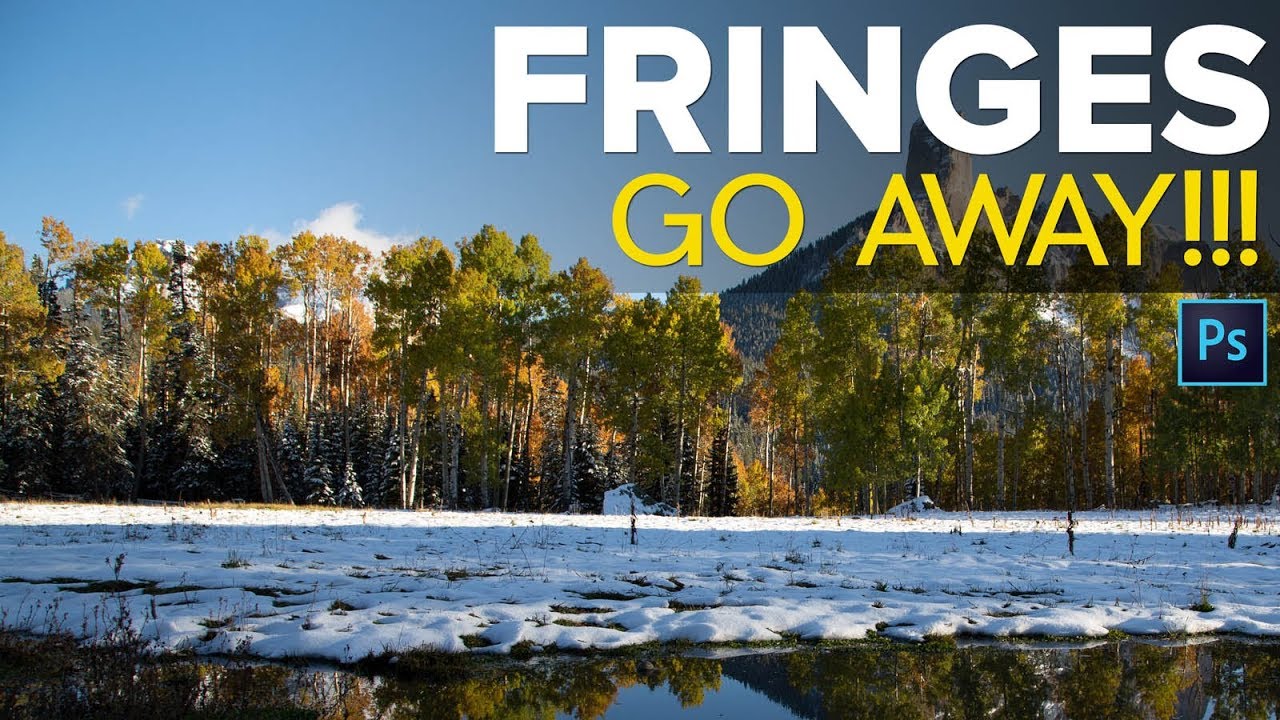
There’s a special kind of frustration reserved for spending an hour on a composite, stepping back to admire your work, and realizing there’s a glowing halo around every single tree. I’ve been there more times than I want to admit. You nail the selection, you paste in the new sky, and then that thin bright ring shows up like your Photoshop is personally trying to embarrass you. It’s one of those problems that’s easy to miss at 50% zoom and impossible to unsee once you spot it.

Stop Fearing the Pen Tool: A Practical Walkthrough for Photoshop and Illustrator

Stop Fearing the Pen Tool: A Practical Walkthrough for Photoshop and Illustrator

I spent an embarrassing amount of time avoiding the pen tool. Like, years. I’d use Quick Selection, Magic Wand, even painstakingly hand-erase backgrounds rather than sit down and learn the thing properly. My workarounds worked well enough until they didn’t, and the day a client asked me to cleanly isolate a product shot with a ton of curved edges, I finally had to face the music. The pen tool is the professional standard for outlining and masking complex shapes, and every hour you spend avoiding it is an hour you’re leaving quality on the table.