
Quick Fill vs. Full Control: Getting the Most Out of Content-Aware Fill in Photoshop

Quick Fill vs. Full Control: Getting the Most Out of Content-Aware Fill in Photoshop

There’s a specific kind of freelance panic that hits when a client photo has a distracting element right in the middle of an otherwise perfect shot. A shadow cutting across a clean background. A trash can lurking at the edge of a landscape. Some random blob that your eye keeps getting snagged on. You need it gone, and you need it gone without spending 45 minutes cloning pixels by hand like it’s 2009.
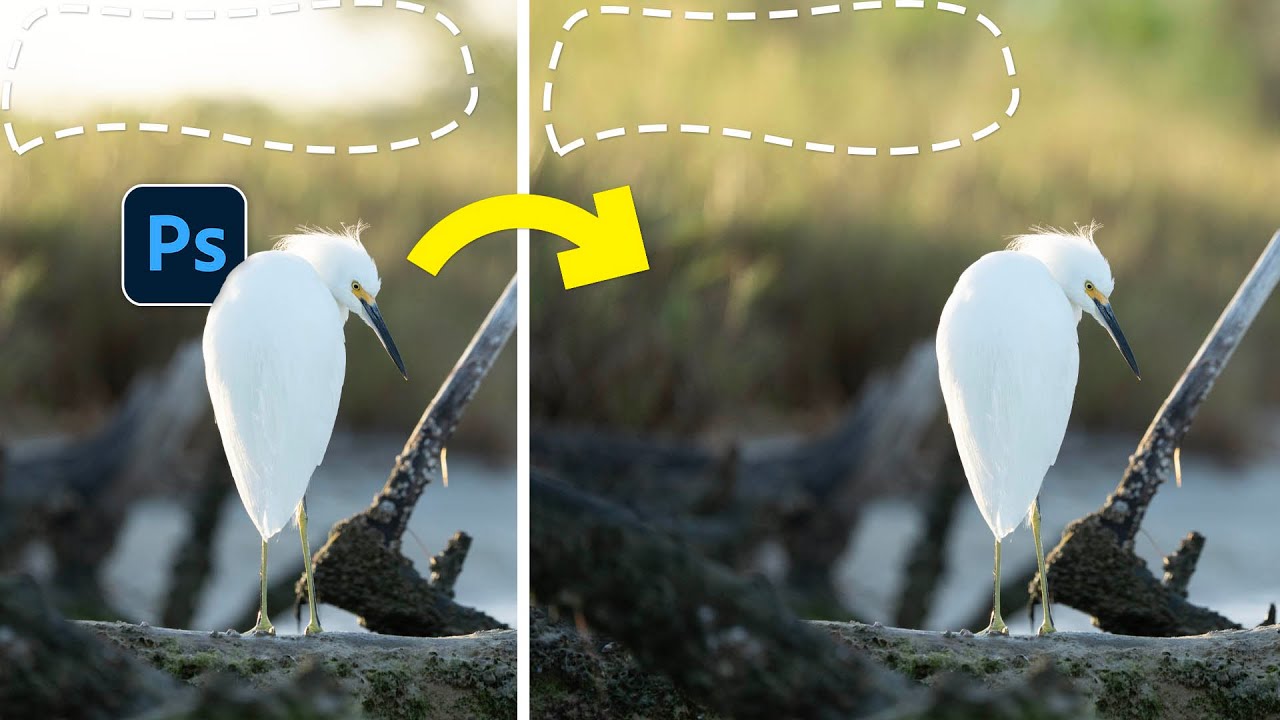
Content-Aware Fill Isn't Dead — Here's When to Reach for It Over Generative Fill

Content-Aware Fill Isn't Dead — Here's When to Reach for It Over Generative Fill

I’ll be honest with you. For the past year or so, I’ve basically been treating Content-Aware Fill like that one keyboard shortcut you memorized years ago and stopped using once something shinier came along. Generative Fill showed up, I became a convert, and Content-Aware Fill quietly got pushed to the back of the toolbox. Then I watched a tutorial from Matt Kloskowski that made me feel genuinely embarrassed about that decision.

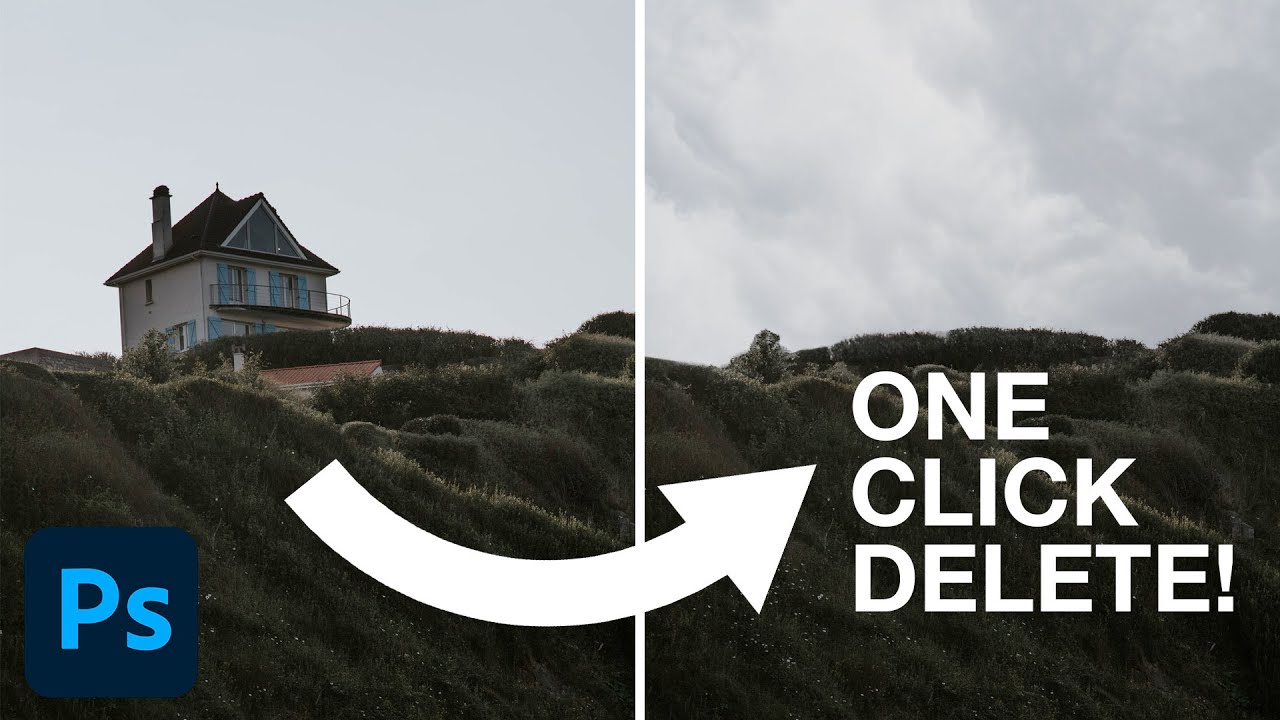
One Click and It's Gone: Photoshop 2023's Delete & Fill Feature Is Kind of Ridiculous

One Click and It's Gone: Photoshop 2023's Delete & Fill Feature Is Kind of Ridiculous

I’ve spent an embarrassing amount of time manually patching out unwanted objects in photos. We’re talking tedious clone stamp work, content-aware fill with mixed results, patching layer by layer while drinking my third coffee of the morning. It’s the kind of task that makes you question your life choices right around the 45-minute mark. So when I stumbled onto this PHLEARN tutorial from Aaron Nace showing off a legitimately new one-click removal tool baked into Photoshop 2023, I had to stop what I was doing and watch the whole thing.

The Content-Aware Fill Apply Button Is the Photoshop Update I Didn't Know I Desperately Needed

The Content-Aware Fill Apply Button Is the Photoshop Update I Didn't Know I Desperately Needed

There’s a specific kind of freelance misery that hits when you’re cleaning up a photo with six distracting elements in the background and you have to run the full Content-Aware Fill dialog separately for each one. Select, fill, click OK, exit, re-select, repeat. By object three you’re questioning your career choices. By object five you’re Googling “how to become a park ranger.” This is exactly the problem that a recent Matt Kloskowski tutorial on Photoshop 2020 addresses, and I’ll be honest, I watched it mostly out of habit and ended up genuinely relieved.

Stop Cropping Your Photos to Fit — Use These Photoshop Tricks Instead

Stop Cropping Your Photos to Fit — Use These Photoshop Tricks Instead

Every working photographer or designer hits this wall eventually. You’ve got a great shot, you need it to fill an 11x14 print (or a photo book spread, or a square social tile), and the aspect ratio just doesn’t cooperate. Your options feel like a bad multiple-choice question: crop out the part of the image you actually care about, or live with white bars on the sides like you’re watching a DVD on a 2003 flatscreen.