Photoshop's Generative Upscale Tool Might Save Your Old Photos (And Your Print Jobs)

Photoshop's Generative Upscale Tool Might Save Your Old Photos (And Your Print Jobs)

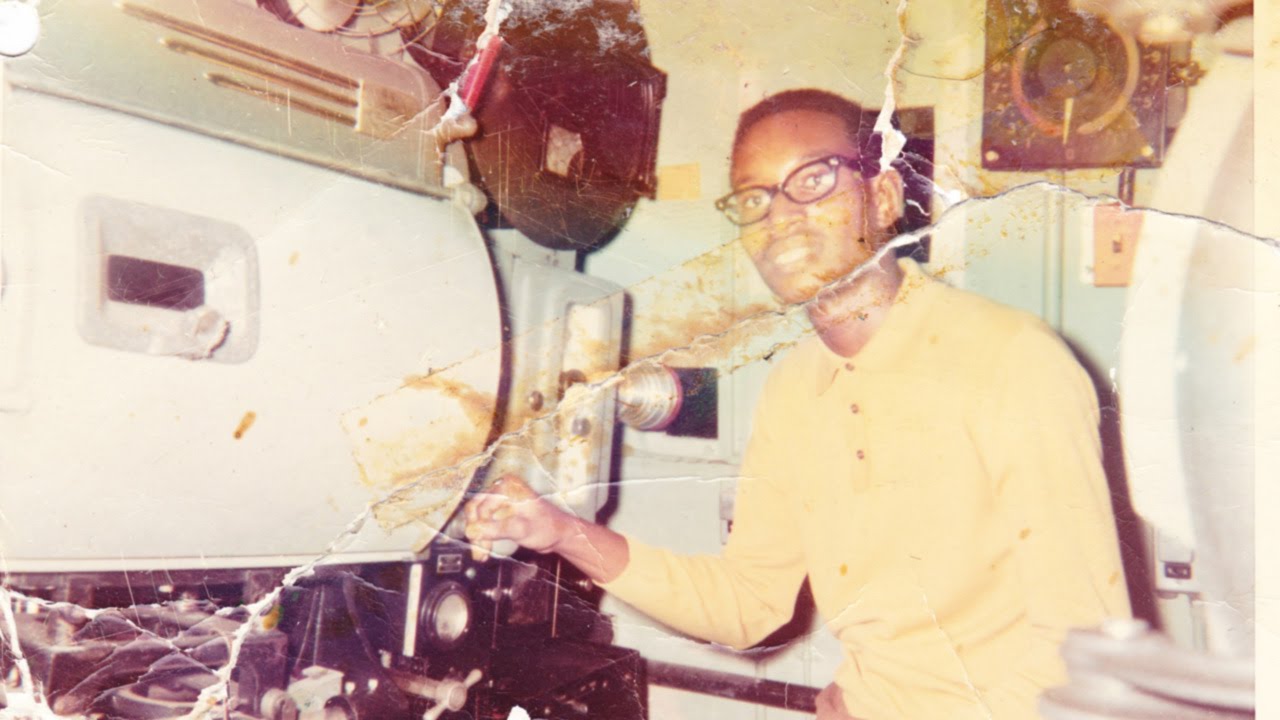
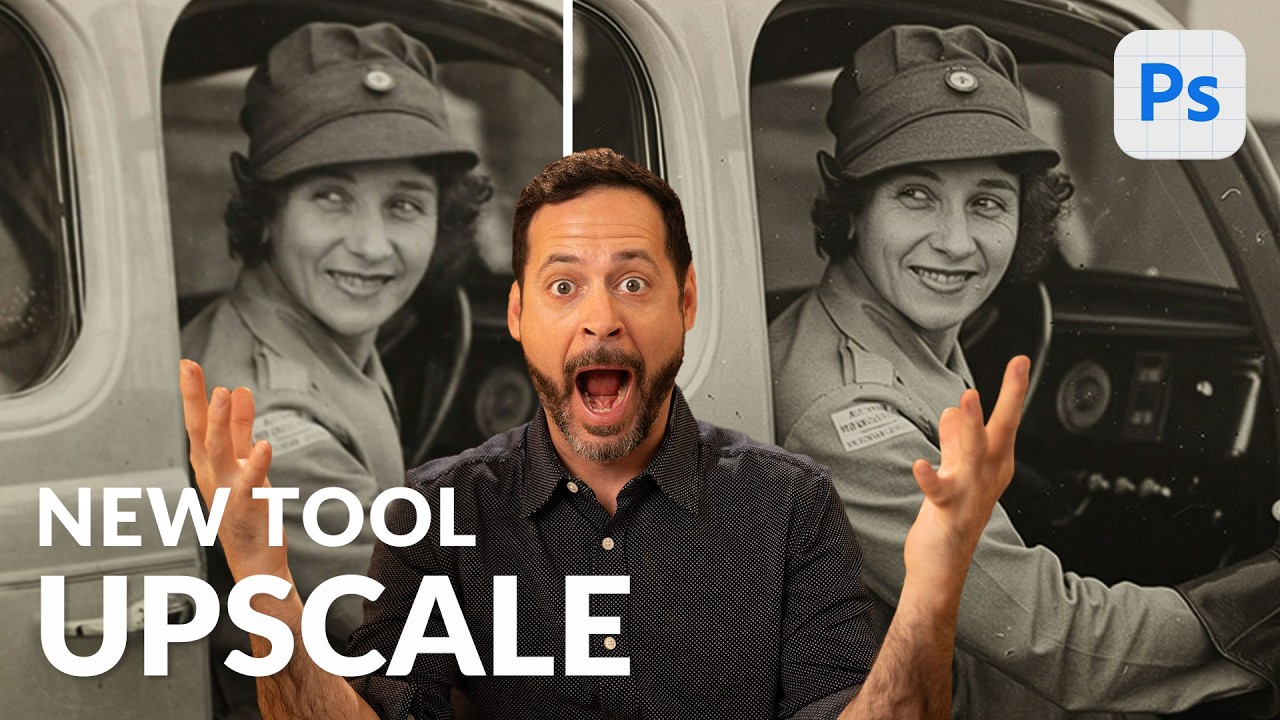
I have a folder on my hard drive called “Client Assets - HANDLE WITH CARE” and it is, genuinely, a disaster. Blurry product shots. Ancient family photos scanned at the wrong resolution. Images that looked fine on a phone screen but would print like a watercolor painting left in the rain. For years, my workaround was a combination of third-party upscaling apps, crossed fingers, and gently managing client expectations. Then Adobe quietly dropped a tool in Photoshop Beta that makes most of that song and dance completely unnecessary.

Rescuing a Wrecked Brochure Photo in Photoshop: A Real-World Walkthrough

Rescuing a Wrecked Brochure Photo in Photoshop: A Real-World Walkthrough

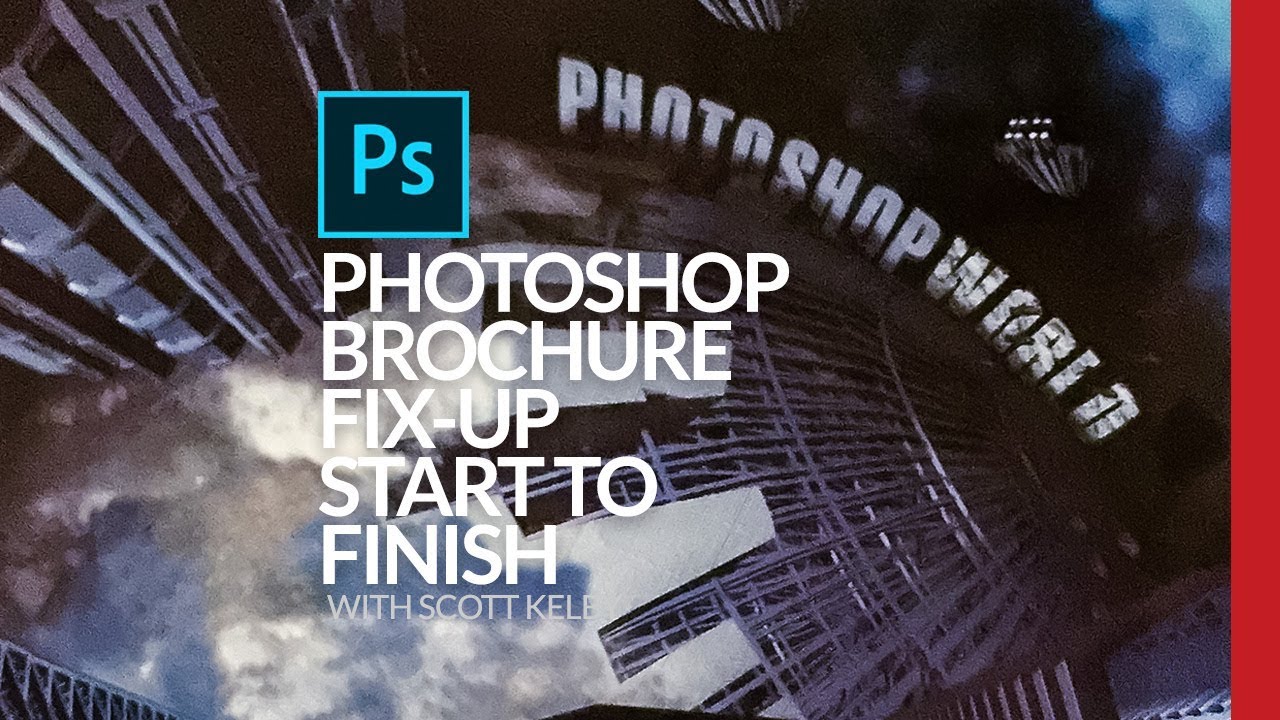
Client sends you a photo taken on an iPhone, under bad lighting, of a bent, faded, color-cast piece of paper. No raw file. No scanner. Just that. If you’ve been doing design or photo work for any length of time, you’ve been here. I’ve been here more times than I’d like to admit, usually sitting in a coffee shop trying to work miracles on someone’s terrible source material before a deadline hits.

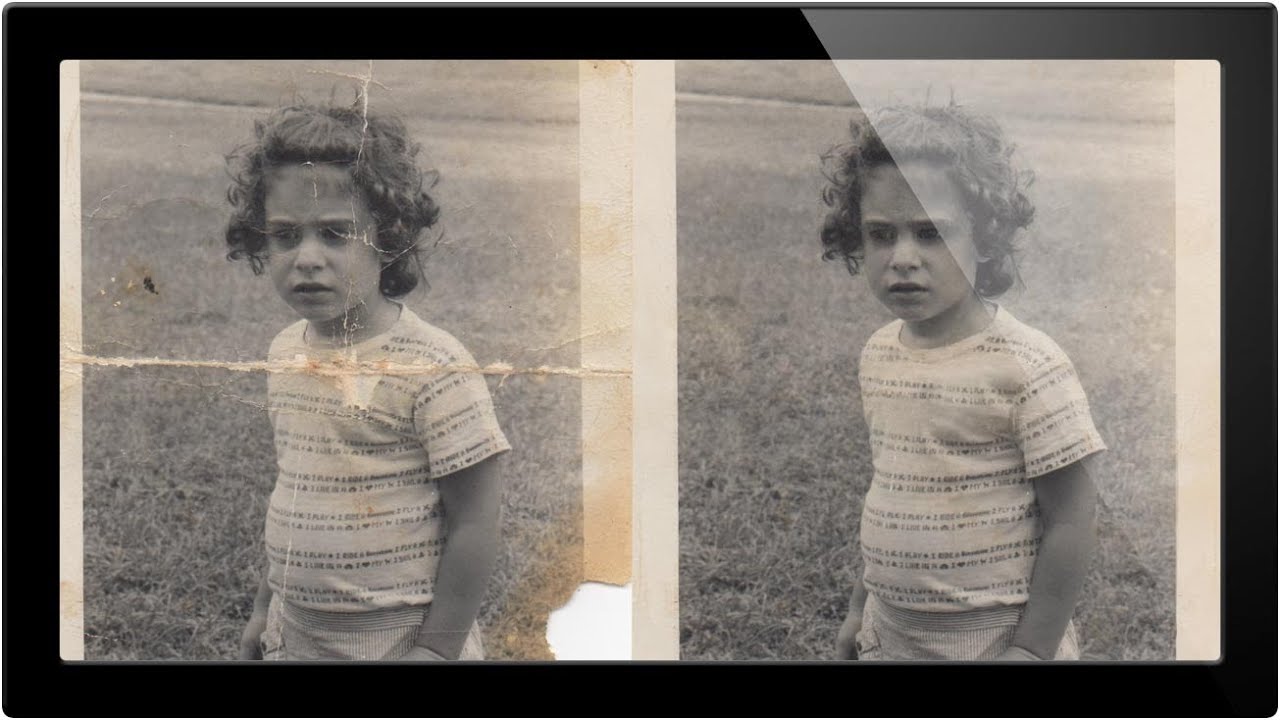
One Click Photo Restoration: Photoshop's AI Neural Filters Actually Deliver

One Click Photo Restoration: Photoshop's AI Neural Filters Actually Deliver

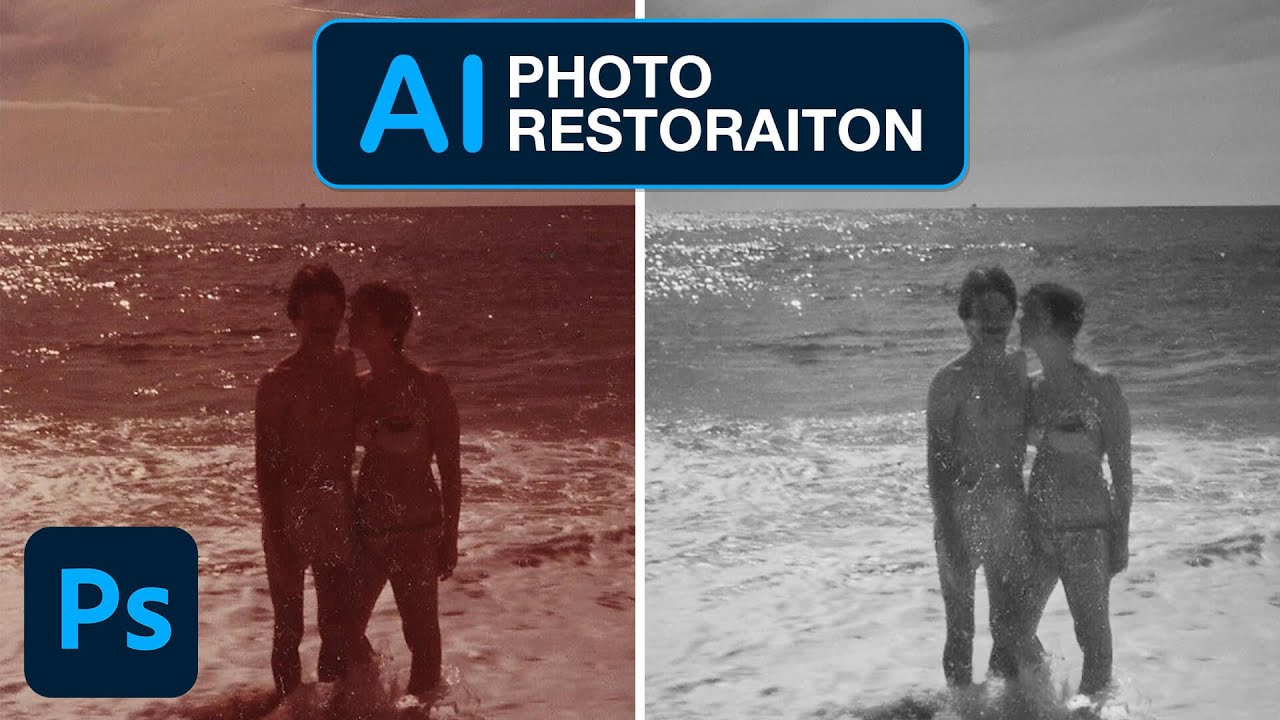
I have a folder on my hard drive called “someday” and it is exactly what it sounds like. Old scanned photos, damaged client images, faded family snapshots that someone emailed me hoping I’d “fix them up real quick.” I’ve been putting them off for years because the traditional route, clone stamp, healing brush, frequency separation, manual scratch removal, takes forever and never looks quite right on genuinely aged photographs. So when I came across this Aaron Nace (PHLEARN) tutorial on Photoshop’s new AI-powered Photo Restoration neural filter, I sat up a little straighter in my coffee shop chair.