How to Create a Watermark That Doesn't Ruin Your Photos

How to Create a Watermark That Doesn't Ruin Your Photos

Watermarks are one of those topics that photographers have strong opinions about. Some say they’re essential protection. Others say they’re visual pollution. Wherever you land on that debate, if you’re going to use one, at least make it look good. Here’s how to create a watermark that does its job without making people wish they hadn’t looked at your photo. What Makes a Bad Watermark You’ve seen them. A massive, semi-transparent logo slapped across the center of the image at 50% opacity.

How a $15 Amazon Filter Helped Cinematographer Nail 'Project Hail Mary's' Stunning Visuals

How a $15 Amazon Filter Helped Cinematographer Nail 'Project Hail Mary's' Stunning Visuals

When a Mega-Budget Film Relies on Bargain-Bin Solutions Here’s something that’ll make you feel better about your gear closet: one of the most visually stunning blockbusters of the year was partially shot through a $15 Amazon filter. I’m not making this up. Project Hail Mary, which has absolutely demolished the box office with over $420 million in earnings, looks like every penny of its budget went into making it gorgeous. The cinematography is chef’s kiss—the kind of work that makes you think, “Well, that took a crack team of specialists and millions in equipment.

Healing Brush vs Clone Stamp: A Practical Comparison

Healing Brush vs Clone Stamp: A Practical Comparison

The Healing Brush and Clone Stamp look similar and do similar things, but they use fundamentally different algorithms. Using the wrong one creates problems that are often worse than the original blemish. Here’s when to reach for each one. How They Differ Clone Stamp copies pixels exactly from the source point to the destination. What you sample is what you get — texture, color, brightness, everything. Healing Brush copies texture from the source but matches the color and brightness to the destination.

Game Devs Are Obsessed With Roguelites Now—Here's Why It Matters for Digital Artists

Game Devs Are Obsessed With Roguelites Now—Here's Why It Matters for Digital Artists

The Roguelite Revolution Nobody Asked For (But Everyone’s Getting Anyway) I’ve been watching the gaming industry’s love affair with roguelites with genuine amusement. First it was Hades. Then Elden Ring got the treatment. Now Serious Sam is jumping on the bandwagon with Serious Sam: Shatterverse, a co-op roguelite that’s dropping on Xbox this year. At this point, roguelites aren’t a niche genre anymore—they’re basically the industry’s default mode. But here’s why this matters for digital artists and Photoshop professionals: understanding game design trends helps you create better assets, market your work more effectively, and anticipate what studios will actually pay for.

How to Fix White Balance After the Fact

How to Fix White Balance After the Fact

You shot an entire session under tungsten light with your camera set to daylight white balance. Everything looks like it was photographed inside a toaster. Don’t panic. Photoshop can fix this, and if you shot RAW, it’s trivially easy. The RAW Advantage If you shot in RAW format, white balance correction is lossless. RAW files store the raw sensor data without baking in any color temperature, so you can change it after the fact with zero quality loss.

Filters in Photoshop: Stop Making Them Look Like You Used Filters

Filters in Photoshop: Stop Making Them Look Like You Used Filters

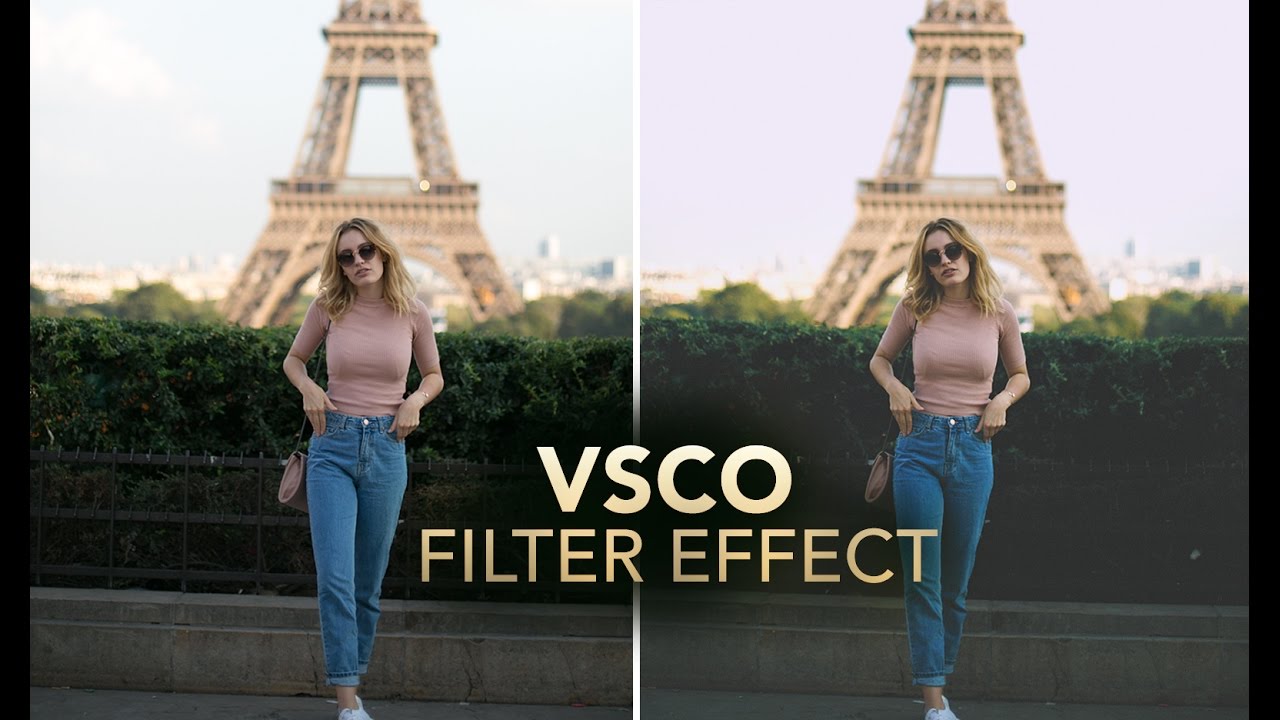
Filters in Photoshop: Stop Making Them Look Like You Used Filters Listen, I’ve seen a lot of Photoshop disasters in my time. And you know what they all have in common? Someone discovered the Filters menu and treated it like a kid in a candy store. The goal today is to make sure you’re not that person. Here’s the truth: filters are powerful tools, but they’re not meant to be blasted at full intensity like you’re seasoning a steak at the end of a long shift.

Double Exposure in Photoshop 2026: The Easy Way to Blend Two Images Like a Pro

Double Exposure in Photoshop 2026: The Easy Way to Blend Two Images Like a Pro

Double exposure effects have that magical quality where two completely different images somehow feel like they were always meant to be together. There’s something almost alchemical about it. The good news? Creating one isn’t nearly as mysterious as it looks. In this excellent tutorial, Aaron Nace (PHLEARN) walks through the process with the kind of clarity that makes you wonder why you didn’t try this sooner. I’m going to break down exactly what Aaron covers, add some of my own thoughts on where this technique shines, and show you how to pull this off yourself—even if you’re not a Photoshop wizard.

Custom Workspace Layouts That Will Change Your Life

Custom Workspace Layouts That Will Change Your Life

Photoshop ships with a workspace designed to showcase every panel for every possible use case. It’s like walking into a kitchen where every utensil is displayed on the counter. Technically everything is accessible. Practically, it’s a mess. Building custom workspace layouts for your specific tasks is one of the highest-impact productivity moves you can make. It takes ten minutes and saves you thousands of clicks over time. Why Custom Workspaces Matter Every time you hunt for a panel, you break your creative flow.

Creating Text Effects That Don't Look Like Clip Art

Creating Text Effects That Don't Look Like Clip Art

Photoshop’s Layer Styles panel is where good text goes to die. Bevel and Emboss, Outer Glow, Stroke — in the wrong hands, these tools produce text that looks like it belongs on a GeoCities page from 1998. But the tools themselves aren’t the problem. It’s how they’re used. Here’s how to create text effects that look professional. The Golden Rule: Restraint If you’re applying more than two layer styles to a single piece of text, you’re probably overdoing it.

Creating Seamless Panoramas in Photoshop

Creating Seamless Panoramas in Photoshop

Photoshop’s panorama stitching has gotten remarkably good over the years, but it still requires some understanding of what it’s doing — and what can go wrong — to get consistently great results. Shooting for the Stitch The quality of your panorama is mostly determined before you open Photoshop. Overlap by 30-40%. Each frame should share about a third of its content with the next frame. Less overlap gives the stitching algorithm less data to work with, resulting in visible seams or failed merges.

Content-Aware Fill: When It Works and When It Fails

Content-Aware Fill: When It Works and When It Fails

Content-Aware Fill is one of Photoshop’s most impressive features and also one of its most frustrating. When it works, it feels like magic. When it doesn’t, it produces results that range from “slightly off” to “nightmare fuel.” After years of using it professionally, I’ve learned to predict when it’ll nail the job and when I’m wasting my time. Here’s that knowledge distilled. When It Works Beautifully Removing objects from simple, textured backgrounds.

Blend Modes: Stop Using Normal Mode Like a Caveman

Blend Modes: Stop Using Normal Mode Like a Caveman

Blend Modes: Stop Using Normal Mode Like a Caveman Look, I get it. Blend modes seem intimidating. There are like 27 of them, they have weird names like “Overlay” and “Soft Light,” and nobody’s really explained what they actually do in plain English. So you’ve been sticking with Normal mode, layering stuff on top, and adjusting opacity until things look vaguely correct. We need to fix that. Right now. Here’s the truth: blend modes are just math formulas that tell Photoshop how to combine two layers together.