Stop Fighting Your Colors: How Color Range Masking Gives You Surgical Control

Stop Fighting Your Colors: How Color Range Masking Gives You Surgical Control

There’s a specific flavor of frustration I know too well: you brighten a photo, and suddenly everything looks like it’s been left out in the Texas sun for three days. The thing you actually wanted to pop, say a product, a piece of clothing, a neon sign, gets lost in the wash because you were editing the whole image instead of just the part that needed it. For a long time, my answer was to mess around with the HSL panel, nudge a slider, and hope for the best.

Stop Guessing Your Exposure: A Camera Raw Workflow That Actually Works

Stop Guessing Your Exposure: A Camera Raw Workflow That Actually Works

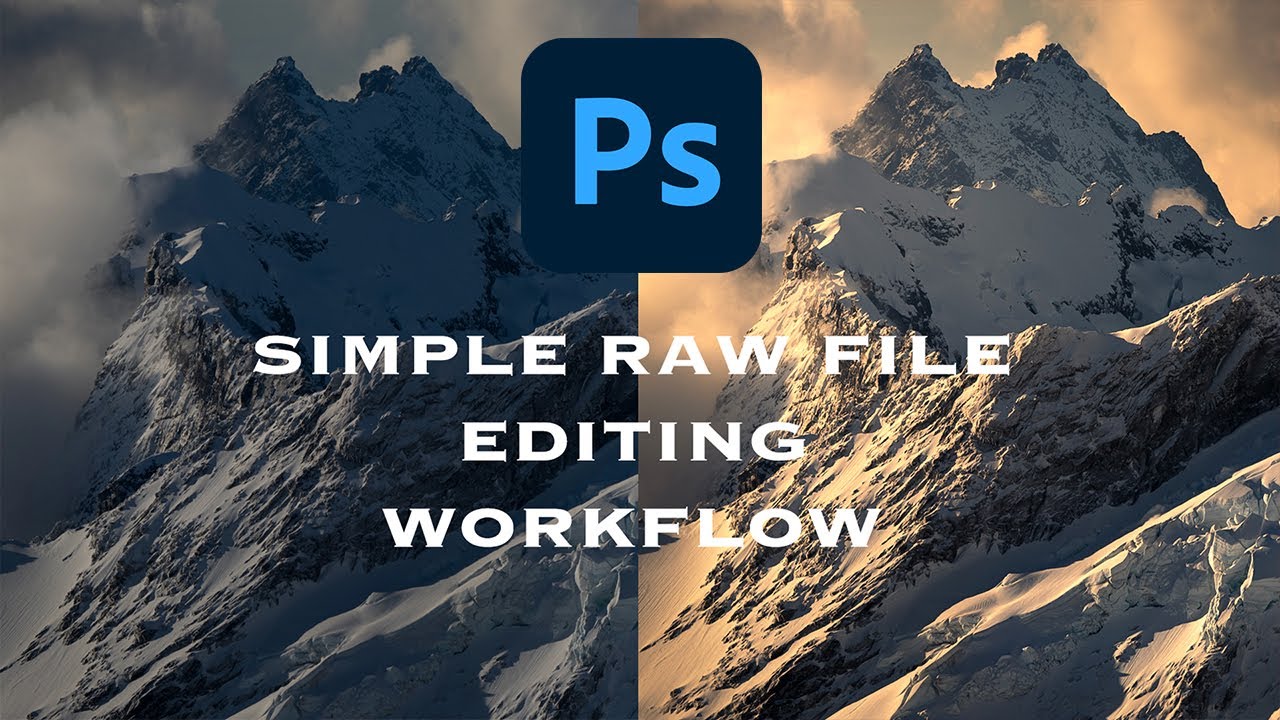
Exposure problems are the dirty secret of a lot of client work. You get a great shot, the composition is solid, the subject looks fantastic, and then you open it in Photoshop and realize half the image is either blown out or buried in shadows. I’ve been there more times than I care to admit. The temptation is to reach for Curves or Levels and start dragging things around until it looks “good enough” — which usually means you’ve overcorrected the highlights trying to save the shadows, or vice versa.

Two-Layer Vignettes in Photoshop: The Technique That Makes Your Subject Pop

Two-Layer Vignettes in Photoshop: The Technique That Makes Your Subject Pop

I used to add vignettes the lazy way. Throw a black-to-transparent radial gradient on top, drop the opacity to taste, call it a day. It worked well enough for meme graphics back when I was just making stuff for friends’ band pages, but the moment I started doing actual client work, that flat gradient approach looked exactly like what it was: a shortcut. The edges felt pasted on. Photographers noticed. Art directors noticed.

The 5-Minute Dreamy Photo Effect That Actually Works (No Orton Effect Required)

The 5-Minute Dreamy Photo Effect That Actually Works (No Orton Effect Required)

There’s a certain kind of client request that used to make me quietly groan into my coffee. “Can you make it look… softer? Like dreamy? You know, that look?” I did not always know that look. And my first instinct was usually to reach for some overcomplicated multi-layer Orton effect tutorial I’d bookmarked three years ago and never fully understood. Twenty minutes later I’d have something that looked like a fever dream, not a photograph.

Steal Colors From Any Photo and Make Your Images Look Like a Fever Dream (In a Good Way)

Steal Colors From Any Photo and Make Your Images Look Like a Fever Dream (In a Good Way)

Client work has a way of humbling you. I spent the better part of an afternoon once trying to manually paint a warm, hazy color grade onto a portrait, layer by layer, brush stroke by brush stroke, and the result looked like someone had smeared margarine on the screen. The color was there, technically, but it had no life. No cohesion. What I actually needed was already sitting in another photo on my desktop, and I had no idea I could just… take it.

Photoshop Filters Are Not Magic Buttons (But They Kind of Are If You Use Them Right)

Photoshop Filters Are Not Magic Buttons (But They Kind of Are If You Use Them Right)

My dog Pixel is a 40-pound chaos agent who has, on more than one occasion, walked across my keyboard mid-project. One afternoon she stepped on something during a portrait retouch and suddenly the whole image had this soft, diffused glow I hadn’t seen before. I looked down. She’d triggered Filter > Blur > Gaussian Blur, set to around 4.5 pixels, blended at 60% opacity through a luminosity blend mode I’d accidentally left active.

Adobe's AI Noise Reduction is Here and It's Kind of a Big Deal

Adobe's AI Noise Reduction is Here and It's Kind of a Big Deal

I shoot a lot of work late in coffee shops. Bad lighting, available light, high ISO, the whole disaster. So noise has always been my nemesis, sitting there in my shadows like an uninvited guest who refuses to leave. For years I dealt with it through a mix of manual sliders in Lightroom and a third-party plugin that worked well but added time to every job. Then Adobe dropped their AI-powered Denoise feature in Lightroom Classic and Adobe Camera Raw, and suddenly a lot of photographers started asking whether the plugin era is over.

Build a Photoshop Photo Book Template That Actually Saves You Time (Scott Kelby Method)

Build a Photoshop Photo Book Template That Actually Saves You Time (Scott Kelby Method)

Client photo books used to wreck my workflow. Not the creative part, I enjoy that. The part where you build twelve nearly-identical pages and have to manually swap out every image, resize it, reposition it, and pray nothing shifts. I burned more hours than I’ll admit before I stumbled across a smarter approach. In this Scott Kelby tutorial from his three-part photo book series, Kelby walks through building photo book pages directly in Photoshop CS4.

The Hidden Photoshop Filter That Cleans Dirty Studio Backdrops in About 30 Seconds

The Hidden Photoshop Filter That Cleans Dirty Studio Backdrops in About 30 Seconds

If you shoot portraits on seamless paper, you already know the betrayal. The backdrop looks pristine when you hang it. By the end of a two-hour shoot, it looks like a crime scene. Footprints, scuff marks, mysterious dark smears, wrinkles that catch light in the worst way possible. I’ve spent genuinely embarrassing amounts of time trying to patch and clone-stamp my way through dirty backgrounds, session by session, thinking that was just the cost of doing business.

Finally! Adobe Camera Raw Shows You Exactly Where Your Camera Focused

Finally! Adobe Camera Raw Shows You Exactly Where Your Camera Focused

Stop Blaming Your Camera (Or Start, Confidently) You know that moment? You’re editing a batch of photos, stumble across a blurry shot, and immediately think, “My camera’s autofocus is broken!” Before you rage-tweet at Canon or Nikon, Adobe just gave you a way to actually prove it—or eat humble pie. The latest version of Adobe Camera Raw (18.4.1) quietly dropped a feature I’ve been waiting for since roughly the invention of autofocus itself: the ability to see exactly where your camera focused.

Changing Eye Color in Photoshop Without Making It Look Ridiculous

Changing Eye Color in Photoshop Without Making It Look Ridiculous

Client retouching jobs have a funny way of surfacing requests you’ve never actually practiced. Someone hands you a portrait and casually mentions, “Oh, can you also make the eyes green?” and suddenly you’re Googling at 11pm from a corner booth at your local coffee shop hoping nobody notices you’re sweating over something that’s supposed to be simple. Eye color changes sound trivial until you try one and end up with something that looks like a Halloween costume filter.

Rescuing a Wrecked Brochure Photo in Photoshop: A Real-World Walkthrough

Rescuing a Wrecked Brochure Photo in Photoshop: A Real-World Walkthrough

Client sends you a photo taken on an iPhone, under bad lighting, of a bent, faded, color-cast piece of paper. No raw file. No scanner. Just that. If you’ve been doing design or photo work for any length of time, you’ve been here. I’ve been here more times than I’d like to admit, usually sitting in a coffee shop trying to work miracles on someone’s terrible source material before a deadline hits.