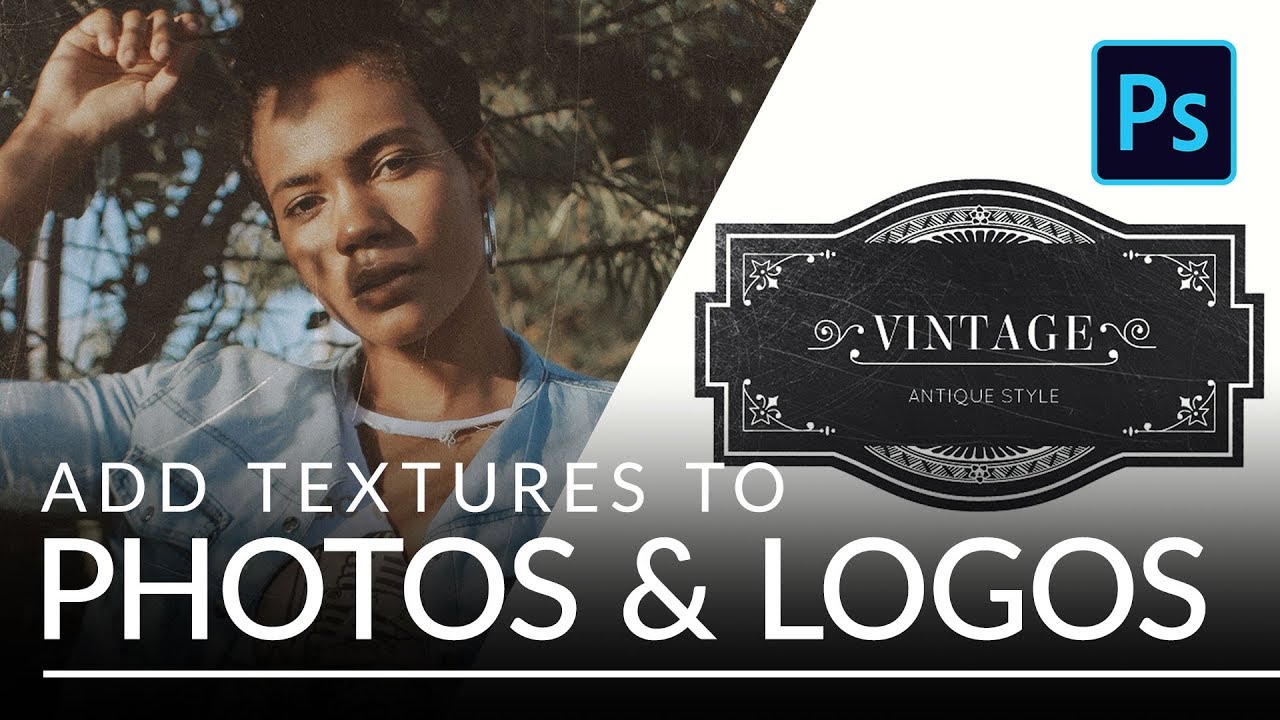
Steal This Trick: How to Slap Textures onto Photos and Logos Without Making a Mess

Steal This Trick: How to Slap Textures onto Photos and Logos Without Making a Mess

Client work has a funny way of humbling you. I can’t count the number of times someone has handed me a logo or a portrait and said “make it feel more… gritty? Vintage? Lived-in?” and I’ve sat there staring at a flat layer like it owes me money. Adding texture sounds simple until you’re actually doing it and everything either looks like you rubbed sandpaper on a JPEG or the effect is so subtle it may as well not exist.
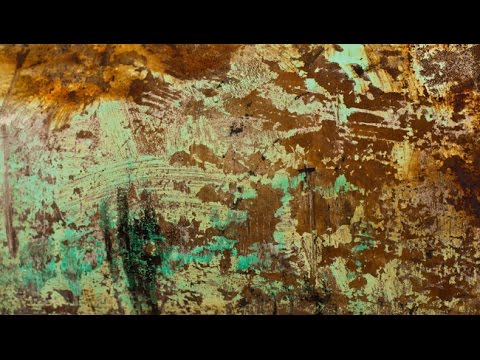
Fake It Till You Make It: Creating Convincing 3D Textures in Photoshop Without a 3D App

Fake It Till You Make It: Creating Convincing 3D Textures in Photoshop Without a 3D App

There’s a specific kind of client request that used to send me into a quiet spiral of dread. “Can you make the text look… dimensional? Like it’s actually part of the wall?” Sure, I’d say. Absolutely. Then I’d spend two hours nudging drop shadows around and delivering something that looked like a PowerPoint slide from 2009. The problem wasn’t effort. It was that I was reaching for the wrong tools entirely.

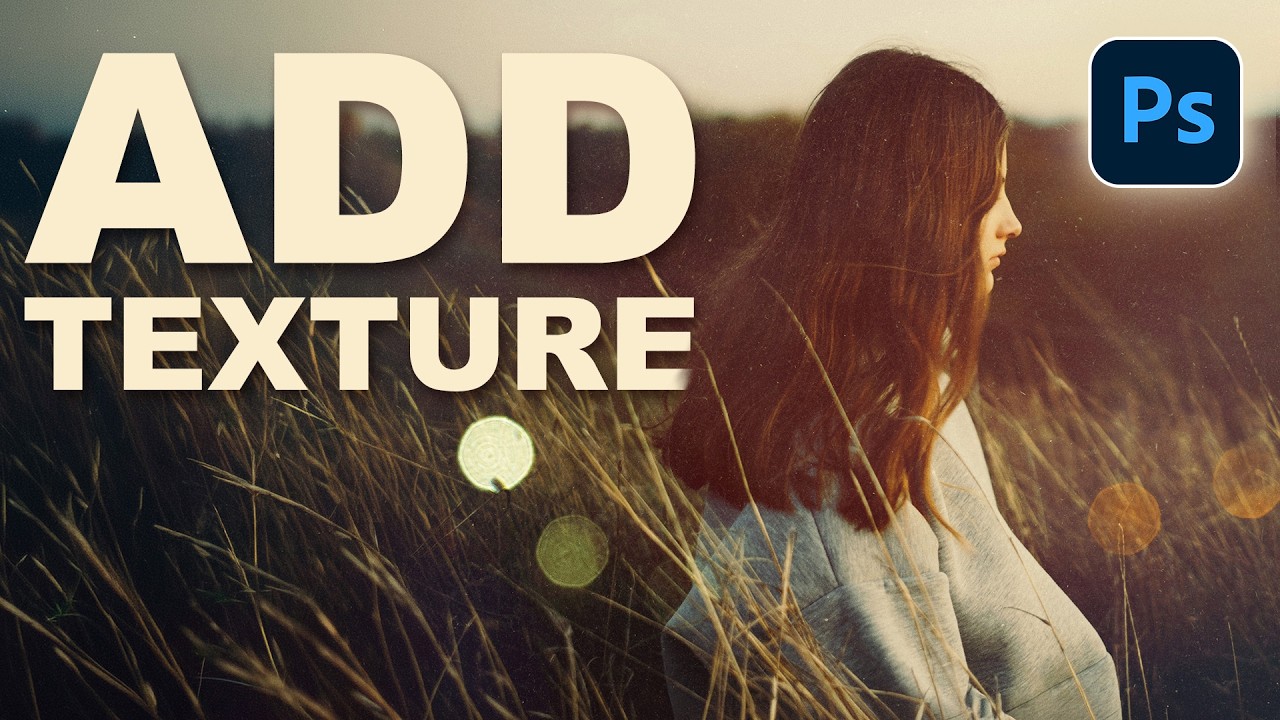
Transform Any Photo with Textures in Photoshop: A Practical Breakdown

Transform Any Photo with Textures in Photoshop: A Practical Breakdown

There’s a specific kind of flatness that happens when a photo is technically correct but visually boring. Good exposure, decent composition, and somehow it still looks like a stock image nobody bought. I ran into this constantly early in my freelance work, spending way too long adding drama in the wrong places, like overcooked contrast or aggressive vignettes, when the real fix was sitting one layer above the photo the whole time.