
Stop the Fringe: Three Ways to Clean Up Messy Selection Edges in Photoshop

Stop the Fringe: Three Ways to Clean Up Messy Selection Edges in Photoshop

Fringe is the enemy. That gross little halo of color that clings to your subject after you’ve cut them out - the ghost of the background they came from - has killed more composites than any other single thing in my workflow. I’ve been there a dozen times: I spend an hour on a careful selection, drop the subject onto a new background, zoom out to admire my work, and there it is.
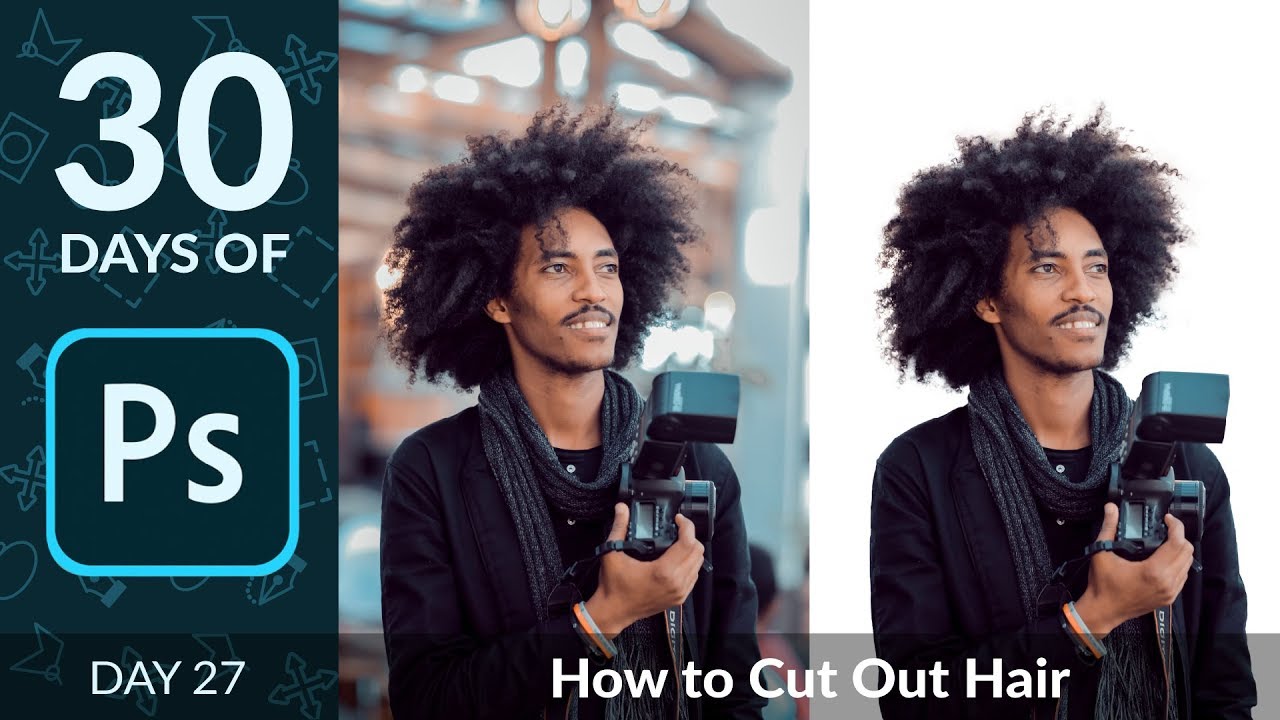

Cutting Out Hair in Photoshop Without Losing Your Mind (or Your Deadline)

Cutting Out Hair in Photoshop Without Losing Your Mind (or Your Deadline)

Hair has humbled me more times than I care to admit. Early in my freelance career I spent the better part of an afternoon trying to manually cut a model’s curly hair from a busy background using the Lasso tool, like some kind of digital caveman chipping away at stone. The result looked like someone had taken hedge clippers to her head. The client was polite about it. I was not polite to myself.

Photoshop 2021's Best New Features for Photographers (And Why You Should Actually Care)

Photoshop 2021's Best New Features for Photographers (And Why You Should Actually Care)

Hair. It’s the thing that has humbled every Photoshop user who ever thought they were good at this. I’ve spent embarrassing amounts of time trying to isolate a subject with flyaway strands against a busy background, painting around individual hairs with a brush like some kind of digital monk. It’s the kind of task that makes you question your career choices around hour two. So when Photoshop 2021 dropped during Adobe Max week in October 2020, I went straight for the selection improvements, because that’s where the pain lives.