Photoshop CC's Scripted Pattern Fills Are Weirder (and More Useful) Than You Think

Photoshop CC's Scripted Pattern Fills Are Weirder (and More Useful) Than You Think

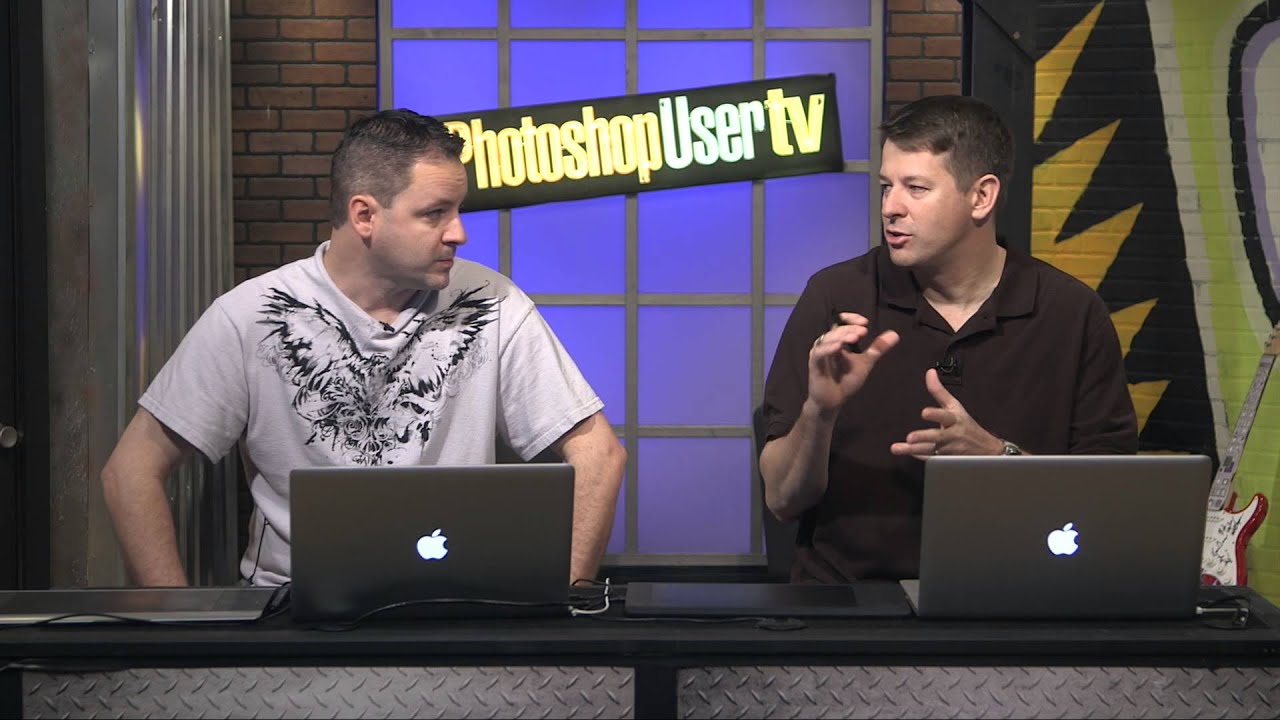
I have a confession: I spent an embarrassing amount of time manually placing repeating elements along curved paths in Photoshop. Like, copy, paste, rotate, nudge, swear, repeat. It was the kind of workflow that makes you question your life choices somewhere around repetition number twelve. So when I stumbled onto this episode of Photoshop User TV from KelbyOne, hosted by Pete Collins and Corey Barker, I felt equal parts relieved and annoyed at myself.

Face-Aware Liquify Is the Retouching Shortcut I Wish I'd Had Years Ago

Face-Aware Liquify Is the Retouching Shortcut I Wish I'd Had Years Ago

Portrait retouching used to eat my afternoons alive. A client sends over headshots, one eye looks slightly more closed than the other, or their expression came out a little flat, and suddenly I’m pushing pixels around with the standard Liquify brush like I’m trying to sculpt clay with a garden hose. Technically possible, consistently frustrating. When Adobe dropped Face-Aware Liquify in the CC 2015.5 update, it solved a problem I’d been brute-forcing for years without realizing a smarter solution existed.

How to Make 3D Text Glow Like a Neon Sign in Photoshop (Using Illumination Materials)

How to Make 3D Text Glow Like a Neon Sign in Photoshop (Using Illumination Materials)

There’s a particular kind of client brief that shows up every few months in my inbox: “We want it to feel retro. Like neon. You know, glowy.” And for a long time, my answer involved stacking a bunch of Gaussian blurs and Outer Glow layer styles and hoping the client didn’t zoom in too close. It worked. Barely. But it never looked like actual light bouncing off a surface, because it wasn’t.