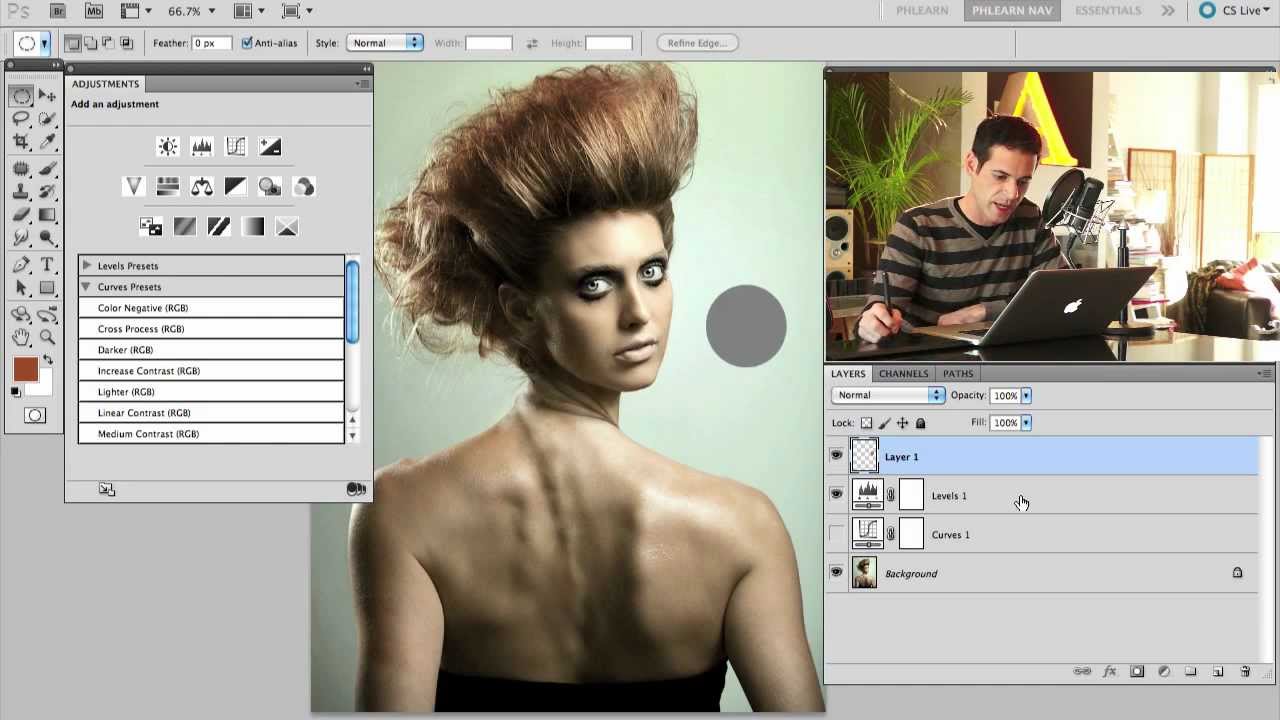
Levels vs. Curves in Photoshop: When to Use Each (And Why You've Probably Been Guessing)

Levels vs. Curves in Photoshop: When to Use Each (And Why You've Probably Been Guessing)

For an embarrassingly long time, I picked between Levels and Curves the same way I pick a parking spot — just grabbed whatever felt right and hoped for the best. Both tools live in the same neighborhood, both mess with tonal values, and neither one comes with a sign that says “use me for THIS.” So I’d open Curves when I felt fancy, open Levels when I felt lazy, and pretend I had a system.
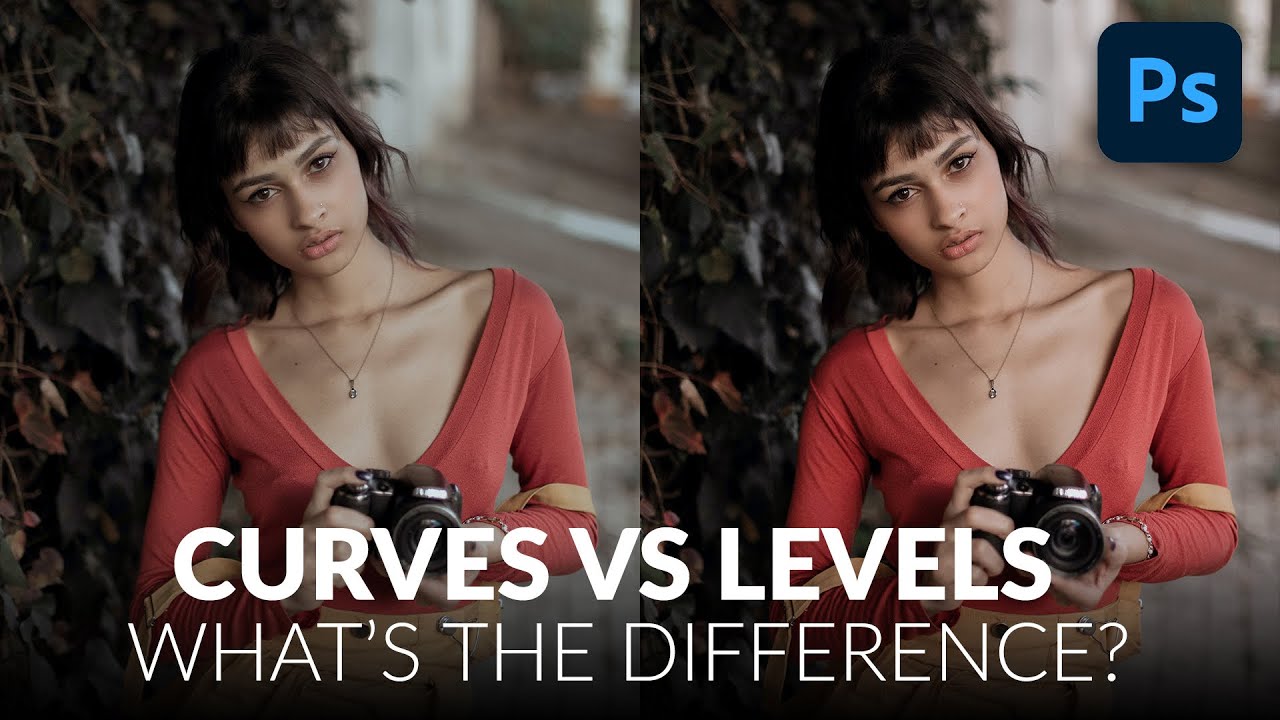

Curves vs. Levels in Photoshop: Which One Should You Actually Be Using?

Curves vs. Levels in Photoshop: Which One Should You Actually Be Using?

For years I used Levels for everything. Exposure fix? Levels. Quick color correction? Levels. Basically anything that required me to not completely ruin a client’s photo? Levels. It felt safe. Predictable. And I won’t lie, part of the reason I avoided Curves was that the interface looked like something out of a seismograph reading and I had no idea what I was supposed to do with it. Then I watched this Aaron Nace tutorial from PHLEARN and it genuinely reframed how I think about both tools.

Lifting the Blacks: How to Nail That Moody Dark Film Look in Photoshop

Lifting the Blacks: How to Nail That Moody Dark Film Look in Photoshop

Client work has a way of forcing you to learn things fast. I spent an embarrassing amount of time trying to fake that moody, washed-out film look by just dragging the exposure slider down and hoping for the best. The result was always the same: muddy, flat, and nothing like the cinematic shadow work I was going for. The problem wasn’t my eye. It was that I was using the wrong tool for the job.