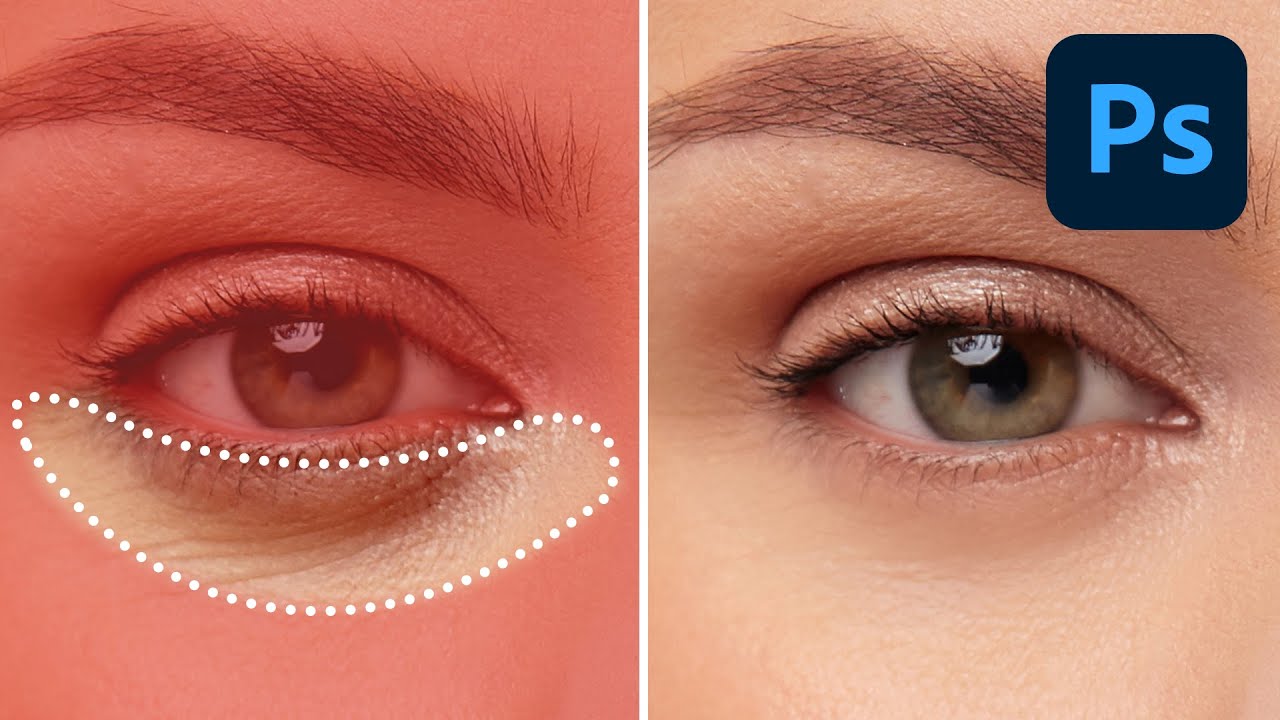
Stop Letting AI Wreck Your Retouching: The Right Way to Lighten Dark Circles in Photoshop

Stop Letting AI Wreck Your Retouching: The Right Way to Lighten Dark Circles in Photoshop

I’ve handed clients back photos where the under-eye area looked so aggressively smoothed it felt like I’d replaced their face with a soap commercial extra. Dark circles, bags, soft wrinkles – these aren’t flaws to be surgically erased. They’re part of someone’s face. The goal is to lighten and brighten, not rebuild the whole structure from scratch. Once I figured that out, my retouching got about ten times more believable.
Stop Guessing Which Selection Tool to Use — Here's the Cheat Sheet You Actually Need

Stop Guessing Which Selection Tool to Use — Here's the Cheat Sheet You Actually Need

If selections aren’t clicking for you in Photoshop, I promise it’s not because you’re bad at software. It’s because there are about a dozen different ways to make a selection and nobody ever explains when to use which one. I spent the better part of my early freelance years defaulting to whatever tool I’d used last, regardless of whether it was the right call. Spoiler: it usually wasn’t. Getting a better grip on selection tools is genuinely one of those skill-ups that changes how fast you work, not just how well.

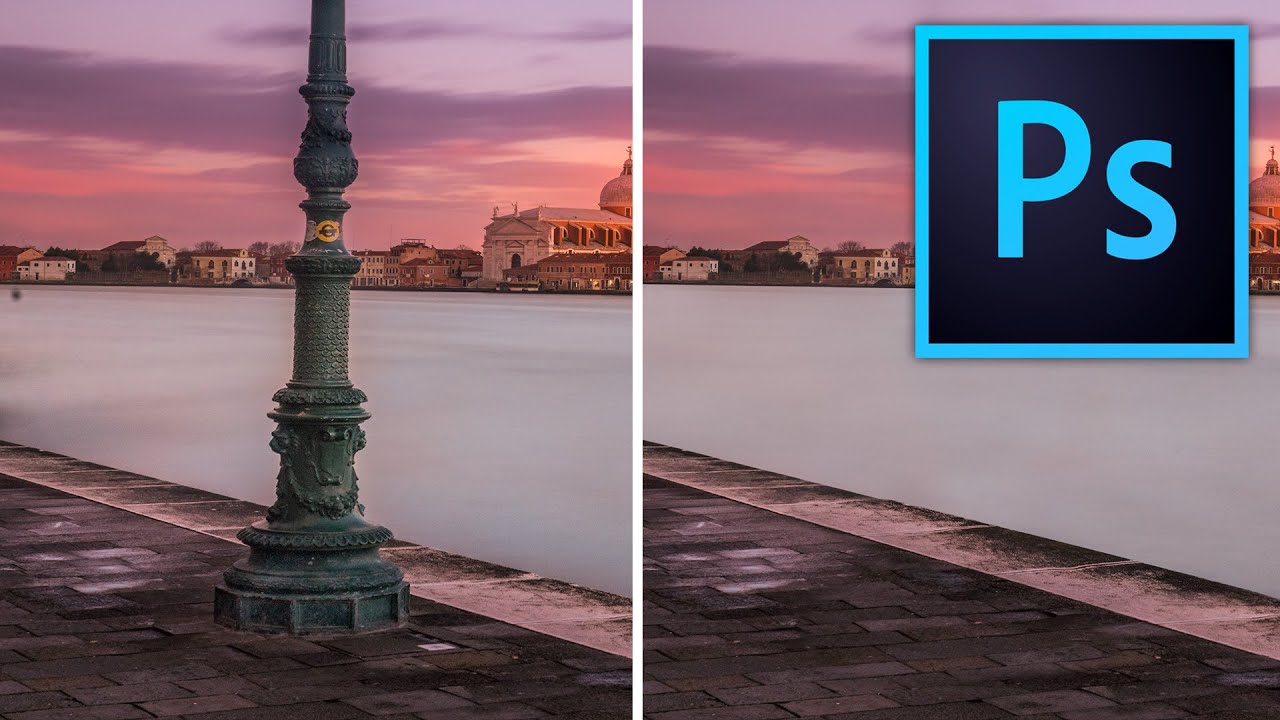
Stop Making Obvious Edits: How to Remove Objects in Photoshop Without the Telltale Clone Stamp Smear

Stop Making Obvious Edits: How to Remove Objects in Photoshop Without the Telltale Clone Stamp Smear

There’s a specific kind of embarrassment that comes from sending a client a retouched photo where you can clearly see where you removed something. The water ripples that suddenly repeat. The brick pattern that tiles like a bad desktop wallpaper from 2003. I know it well. Early in my freelance career I handed off a product shot with a background so obviously cloned that my client asked if the floor was “supposed to look like that.