Blend Two Exposures Into One Perfect Landscape Shot (No Filters Required)

Blend Two Exposures Into One Perfect Landscape Shot (No Filters Required)

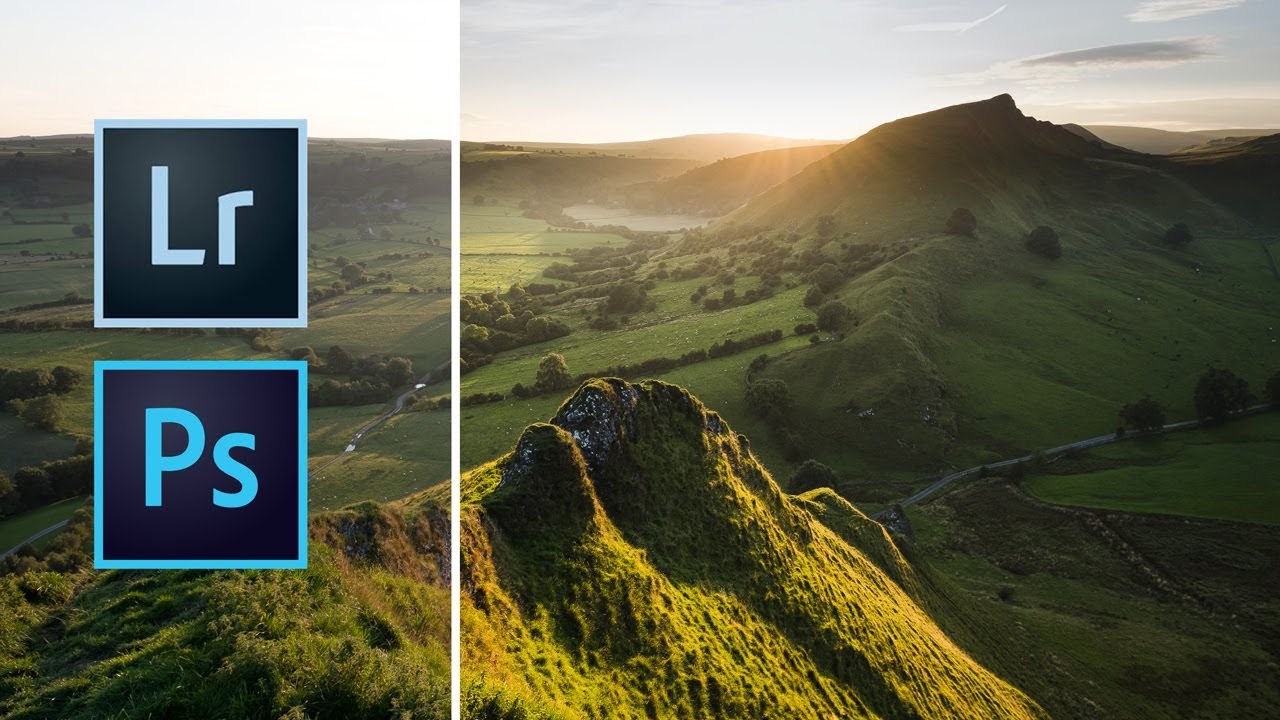
I’m a freelance designer who mostly lives in the land of composites, logos, and whatever a client needs done by Thursday. But landscape photography editing crosses my desk more than you’d think, and the number one problem people bring me is the same every time: the sky looks great but the foreground is a muddy mess, or vice versa. Graduated ND filters solve this in the field, but what happens when you’re halfway up a hill and you left your filters in the car?
Blend If Is the Photoshop Feature I Wish I'd Found Three Years Earlier

Blend If Is the Photoshop Feature I Wish I'd Found Three Years Earlier

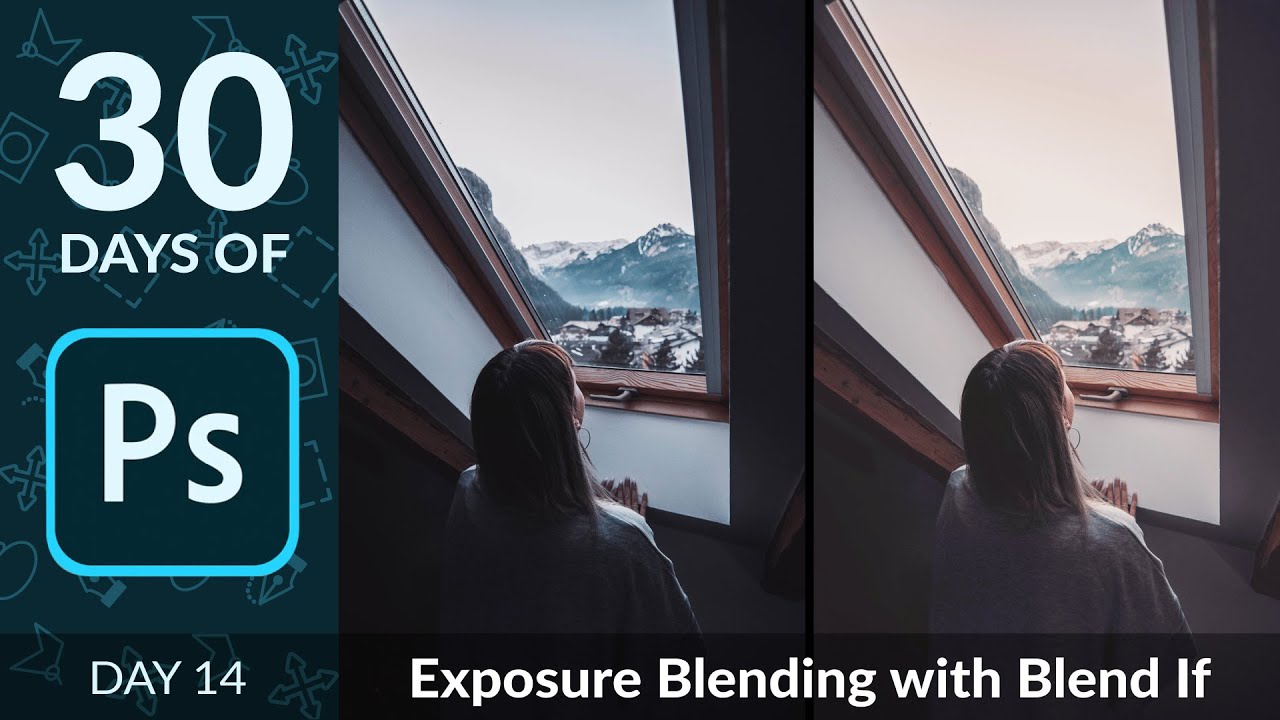
There’s a specific kind of frustration I know really well. You shoot a photo, or a client sends you one, and the sky is gorgeous but the foreground looks like it was taken inside a coal mine. Or the opposite: the subject is perfectly lit and the background is a blown-out white void. I spent an embarrassing amount of time masking around these problems by hand, painting on layer masks pixel by pixel like some kind of digital monk.

Stop Blowing Out Your Skies: How to Blend Exposures in Photoshop Like a Landscape Pro

Stop Blowing Out Your Skies: How to Blend Exposures in Photoshop Like a Landscape Pro

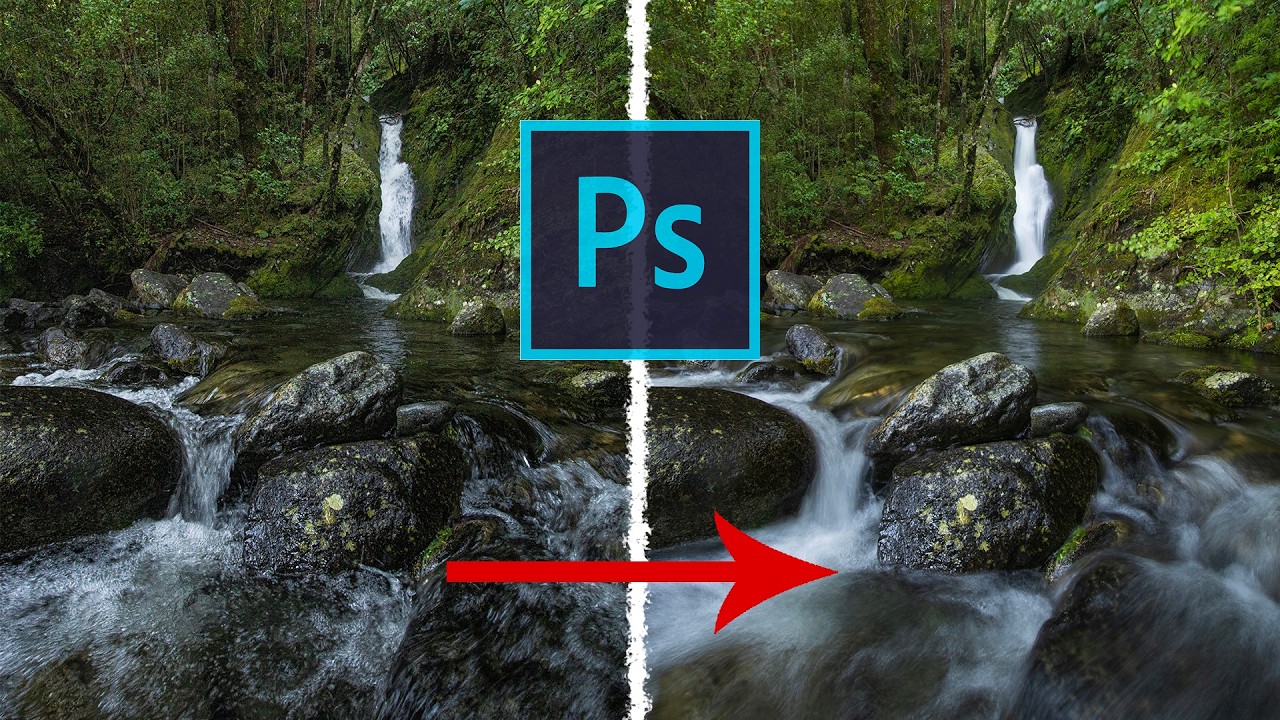
There’s a specific kind of frustration that comes with shooting a waterfall. You either get the water looking like liquid silk with a slow shutter speed, and your rocks and leaves turn into a motion-blurred mess, or you freeze everything sharp and the water looks like it’s made of plastic. For the longest time I thought the only fix was “get better at picking one.” Turns out the real fix is about five minutes of Photoshop work, and I’d been ignoring it because “exposure blending” sounded more complicated than it is.