
Quick Fill vs. Full Control: Getting the Most Out of Content-Aware Fill in Photoshop

Quick Fill vs. Full Control: Getting the Most Out of Content-Aware Fill in Photoshop

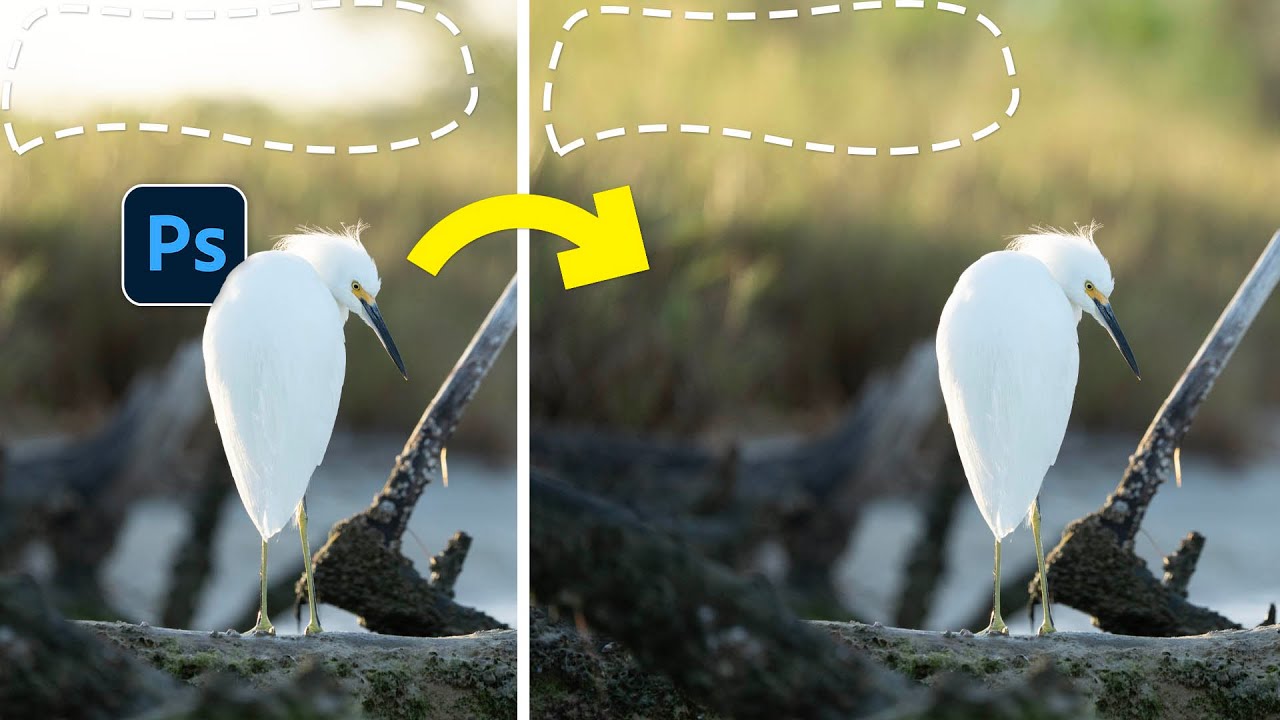
There’s a specific kind of freelance panic that hits when a client photo has a distracting element right in the middle of an otherwise perfect shot. A shadow cutting across a clean background. A trash can lurking at the edge of a landscape. Some random blob that your eye keeps getting snagged on. You need it gone, and you need it gone without spending 45 minutes cloning pixels by hand like it’s 2009.
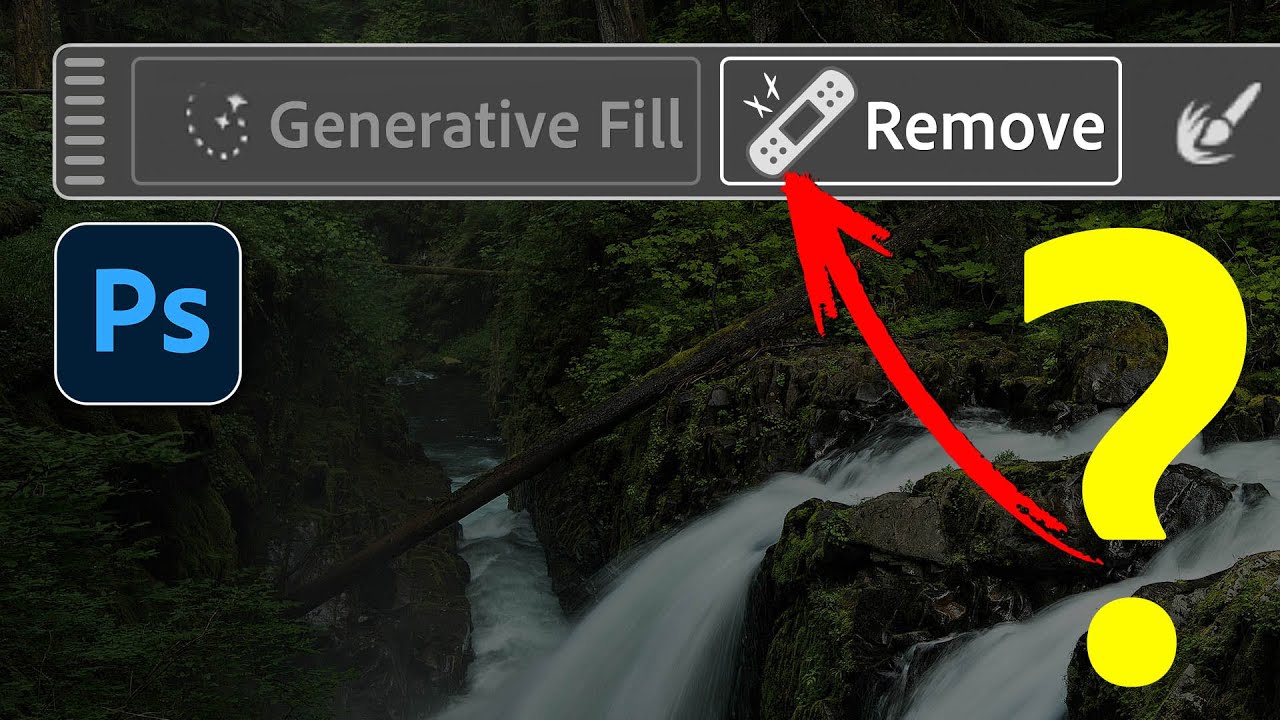
Adobe Finally Added a Remove Button (And It's Better Than What We Had)

Adobe Finally Added a Remove Button (And It's Better Than What We Had)

There’s a specific kind of frustration that lives in the gap between “I just want to delete this thing from my photo” and “Photoshop has added a mysterious object to my photo instead of deleting it.” I’ve burned through generative credits on this exact problem more times than I’d like to admit. You make a selection, leave the prompt blank, click Generate, and instead of a clean background you get… a slightly different version of the thing you were trying to remove.

Content-Aware Fill Isn't Dead — Here's When to Reach for It Over Generative Fill

Content-Aware Fill Isn't Dead — Here's When to Reach for It Over Generative Fill

I’ll be honest with you. For the past year or so, I’ve basically been treating Content-Aware Fill like that one keyboard shortcut you memorized years ago and stopped using once something shinier came along. Generative Fill showed up, I became a convert, and Content-Aware Fill quietly got pushed to the back of the toolbox. Then I watched a tutorial from Matt Kloskowski that made me feel genuinely embarrassed about that decision.