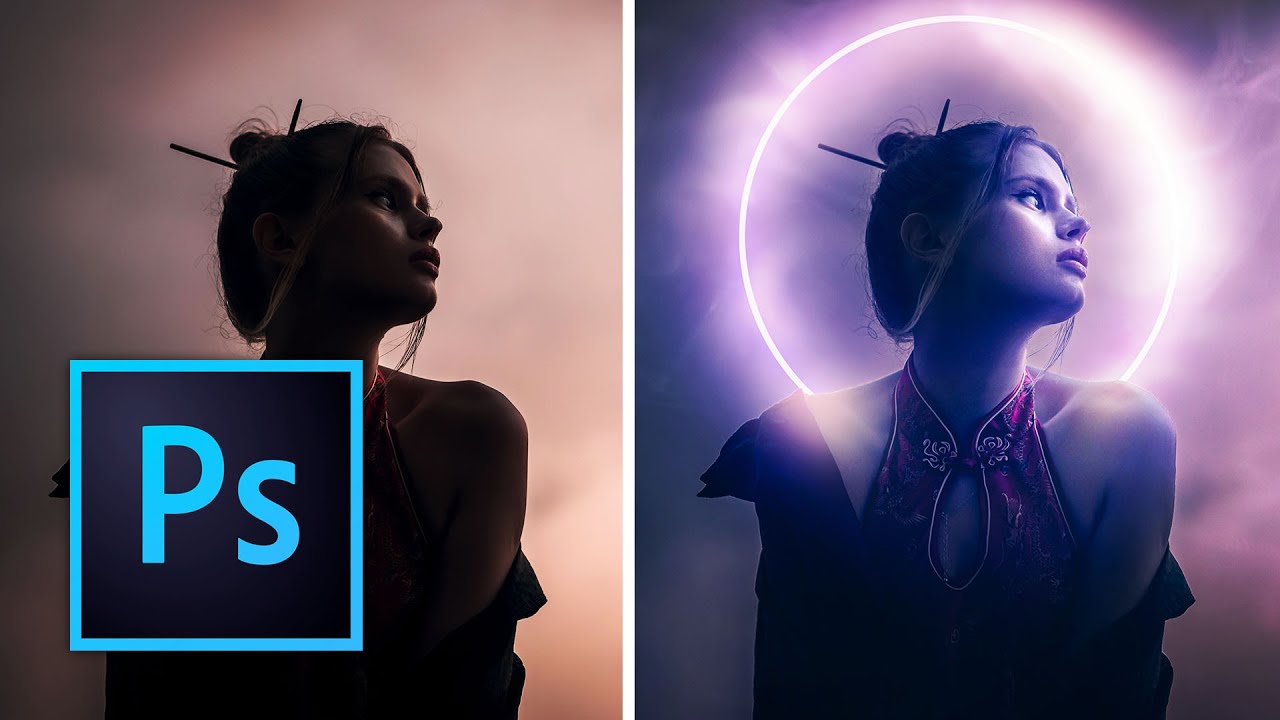
I’ll be honest. For a long time, overlays felt like cheating. Like, real designers build their effects from scratch, right? Then a client asked me for a moody atmospheric composite with about two hours of turnaround time, and suddenly my principles got very flexible very fast. Turns out overlays aren’t a shortcut for lazy people. They’re a tool, and like most tools in Photoshop, the difference between a result that looks cheap and one that looks intentional is knowing what you’re actually doing.
This tutorial from Kelvin Designs is one of the better breakdowns I’ve seen on the subject. He walks through four projects that escalate in complexity, starting with a single overlay drop and building toward composites that use neural filters, depth maps, and displacement. Good stuff across the board.
Getting Your Workspace and Assets Ready
Before touching a single overlay, Kelvin sets up his workspace deliberately, and it’s worth copying. He uses Photoshop Libraries to store and access his overlay assets, which is something a lot of people skip. If you’re grabbing overlays from a folder on your desktop every single time, you’re burning friction. Drop your overlays into a Library once, and they’re accessible across any project without hunting through Finder or Explorer.
You can download the overlays he uses to follow along at kelvindesigns.com/how-to-use-overlays. Grab those before you start.
His workspace setup comes in around the 2:30 mark and it’s quick, but don’t skip it. Having your panels organized before you’re mid-composite saves the kind of frustration that makes people give up and go make coffee instead.
Applying Your First Overlay (and Why Blending Modes Are the Whole Game)
The first project is intentionally simple. One subject. One overlay. The goal is understanding the mechanics before stacking complexity on top.
The core move: place your overlay above your subject layer, then cycle through blending modes until something clicks. Screen and Lighten are your go-to starting points for light-based overlays like bokeh, fog, or lens flares. They drop out the dark pixels and let the light elements bleed through. Multiply works in reverse and is better for shadow or grunge textures that need to darken the image underneath.
At the 7:09 mark, Kelvin adds a second overlay and the lesson gets more useful. Multiple overlays compound, so you need to watch your highlights carefully. Stack two Screen-mode overlays on a bright image and you’ll blow out your subject fast. Scale back opacity on individual layers rather than trying to fix it globally at the end.
Free Transform (Command+T on Mac, Control+T on Windows) comes in at 7:46. This isn’t just for resizing. Flip your overlay horizontally or rotate it to break the symmetry. The same overlay used twice at different rotations reads as two different elements. That’s free texture variation without downloading anything new.
Cutting Out What Doesn’t Belong
At the 8:25 mark, Kelvin gets into masking, and this is where beginner overlay work either elevates or falls apart.
The problem with overlays is they don’t care where your subject is. A fog overlay will sit right on top of a person’s face and look immediately fake. The fix is masking the overlay so it only affects the background, or at least the parts of the image where it makes physical sense.
His method uses the Quick Selection tool to select the subject, then applies that selection as a mask on the overlay layer. Once you have your subject selected, go to Select > Inverse to flip the selection so you’re masking the person out of the overlay rather than masking the overlay off the person. Refine your edge if your subject has hair or soft edges, the Refine Edge Brush in Select and Mask handles that without too much pain.
The principle here is environmental logic. Fog sits in front of some things and behind others. Light wraps around subjects. Shadows fall based on a light source. If your overlay ignores physics, viewers feel it even if they can’t name it.
Neural Filters and Depth Map Displacement
The fourth project is where the tutorial earns its runtime. Kelvin uses Photoshop’s neural filters alongside a depth map to apply displacement to a shadow overlay, making it conform to the surface of the image rather than floating flat on top.
Depth maps are grayscale images where brightness represents distance. Lighter areas are closer to the camera, darker areas are farther back. You can generate one using Neural Filters > Depth Blur, which produces a depth map as a separate output. Once you have that map, apply it as a displacement map to your shadow overlay layer (Filter > Distort > Displace), and the shadow will warp to match the contours of your scene.
The settings Kelvin uses are relatively modest on the displacement scale. Too high and the effect becomes obvious and weird. The goal is subtle distortion that makes the shadow read as part of the environment, not a layer sitting on top of it.
Where This Technique Breaks Down
One caveat from my own work: overlays sourced from packs are often shot with a particular color temperature, usually tungsten or daylight, and they’ll fight your image if the temperatures don’t match. I had a project recently where a beautiful fog overlay kept making the whole composite look greenish and wrong. The fix was a Hue/Saturation adjustment clipped directly to the overlay layer, desaturating it almost entirely before shifting the hue slightly warm. Problem solved, but it cost me time I wouldn’t have lost if I’d checked the overlay’s color profile first.
Clip your color corrections to the overlay layer, not the whole document. Keep the rest of your image clean.
The real lesson from this whole tutorial is that overlays aren’t magic, they’re geometry and light logic applied through blending modes and masks. Get those two things right and the result looks built, not slapped together.
Watch the full Kelvin Designs tutorial to see all four projects in motion, especially that depth map displacement section, because reading about displacement and watching it happen are genuinely different experiences: https://www.youtube.com/watch?v=I_gMOvIHPjk
Comments (2)
The tip about overlays in photoshop are easi was the missing piece for me. Thank you.
Great article! I actually covered something related on my site — the workflows angle is really complementary to this.
Leave a Comment