
Add Realistic Water Reflections to Any Photo with the Flood Plugin (Plus a Puppet Warp Trick)

Add Realistic Water Reflections to Any Photo with the Flood Plugin (Plus a Puppet Warp Trick)

I’ve wasted embarrassing amounts of time trying to fake water reflections in Photoshop. Flip the layer, blur it, drop the opacity, add a wave distortion, cry a little. The result always looked like someone spilled dish soap on a photograph. It never looked like water. So when I came across this episode of Photoshop User TV from the KelbyOne crew, specifically the segment where Pete Collins walks through a plugin called Flood by Flaming Pear, I stopped what I was doing (drinking my third coffee of the morning, obviously) and paid attention.
Puppet Warp for Retouching: The Tool I Wrote Off That Changed How I Work

Puppet Warp for Retouching: The Tool I Wrote Off That Changed How I Work

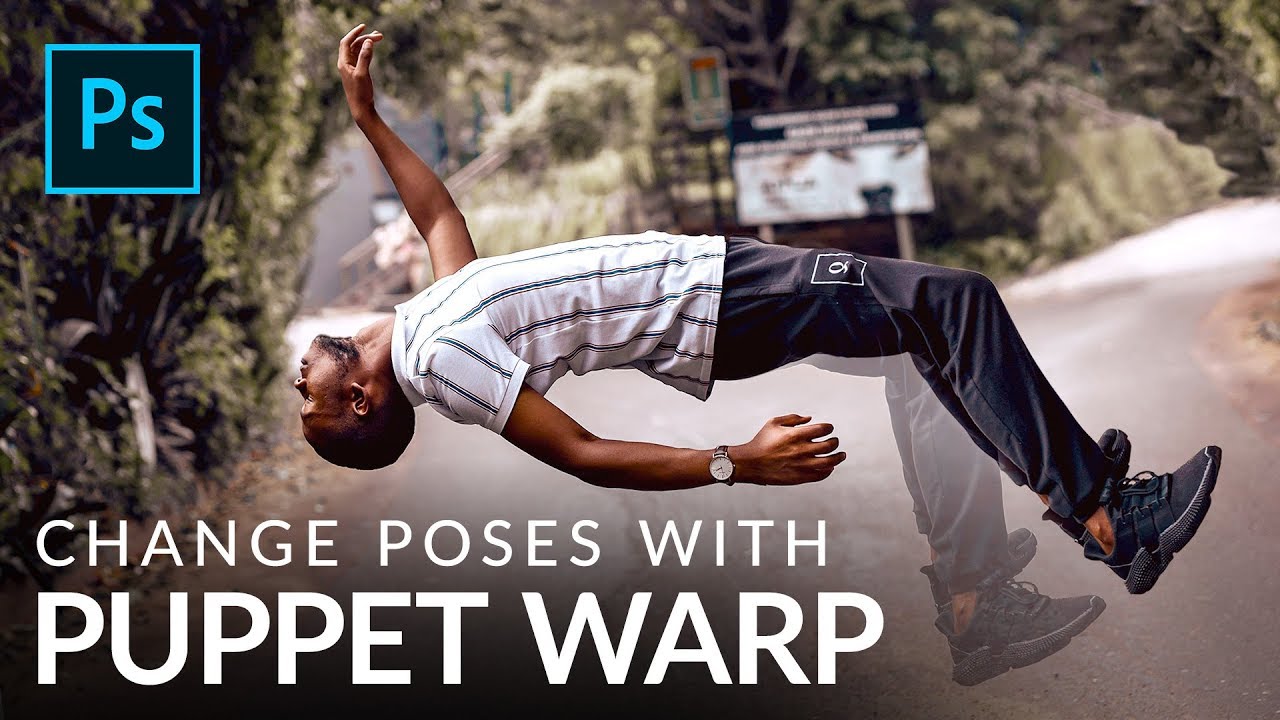
I’ll be honest with you. When I first heard about Puppet Warp, I did what a lot of people did: I watched someone use it to contort a cartoon character, thought “that’s a gimmick,” and went back to my liquify-everything workflow. It sat in my menu like a piece of gym equipment I kept promising myself I’d use. Then I watched a segment from a KelbyOne tutorial, specifically episode 282 of Photoshop User TV hosted by Scott Kelby and his crew, and one throwaway comment stopped me cold.

Puppet Warp in Photoshop: How to Repose Subjects Without a Reshoot

Puppet Warp in Photoshop: How to Repose Subjects Without a Reshoot

There’s a specific kind of client pain that every retoucher knows. The shoot went great, everyone’s happy, and then someone in the approval chain asks why the subject’s arms look “a little stiff” or why the legs don’t quite read as dynamic. You stare at the photo. They’re not wrong. But going back for a reshoot isn’t happening, and liquify feels like the wrong tool for anything beyond a gentle nudge.