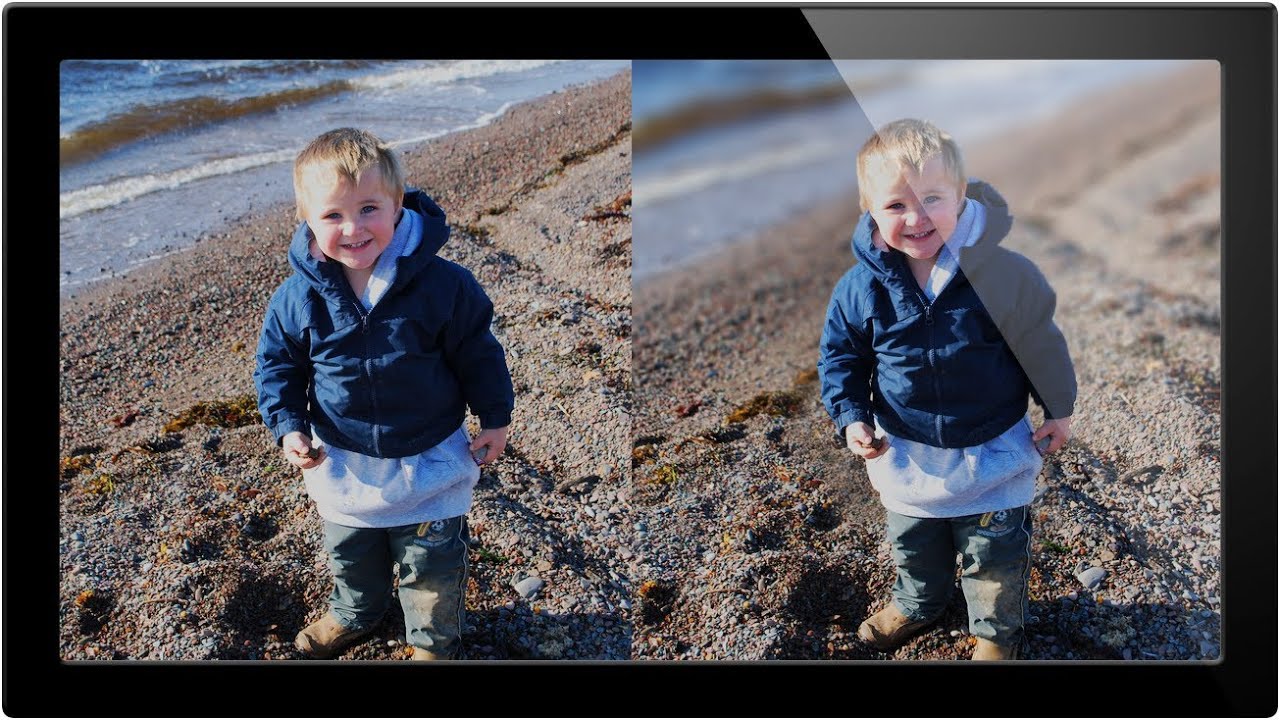
Fake It Till You Make It: Simulating Shallow Depth of Field in Photoshop

Fake It Till You Make It: Simulating Shallow Depth of Field in Photoshop

Client sends you a photo. Great moment, decent light, totally flat background. No separation between the subject and everything behind them because whoever shot it was working with a kit lens at f/8. Now they want that creamy, subject-pops-off-the-frame look that costs about $1,500 in glass to achieve in-camera. This is a situation I’ve been in more times than I care to count, and it’s exactly why I keep coming back to this kind of Photoshop trickery.

Stop Settling for Flat Backgrounds: How to Fake Depth of Field in Photoshop Like a Pro

Stop Settling for Flat Backgrounds: How to Fake Depth of Field in Photoshop Like a Pro

I shoot a lot of product and portrait work on whatever camera is available, which sometimes means a phone, sometimes means a borrowed DSLR set to completely wrong settings, and occasionally means something that was technically fine but came out looking like a passport photo. The background is sharp. The subject is sharp. Everything is equally, brutally sharp. It looks like a surveillance photo, not a portfolio piece. Blurring that background in post is one of those techniques I kept putting off learning properly because I assumed it would look fake.

Filters in Photoshop: Stop Making Them Look Like You Used Filters

Filters in Photoshop: Stop Making Them Look Like You Used Filters

Filters in Photoshop: Stop Making Them Look Like You Used Filters Listen, I’ve seen a lot of Photoshop disasters in my time. And you know what they all have in common? Someone discovered the Filters menu and treated it like a kid in a candy store. The goal today is to make sure you’re not that person. Here’s the truth: filters are powerful tools, but they’re not meant to be blasted at full intensity like you’re seasoning a steak at the end of a long shift.