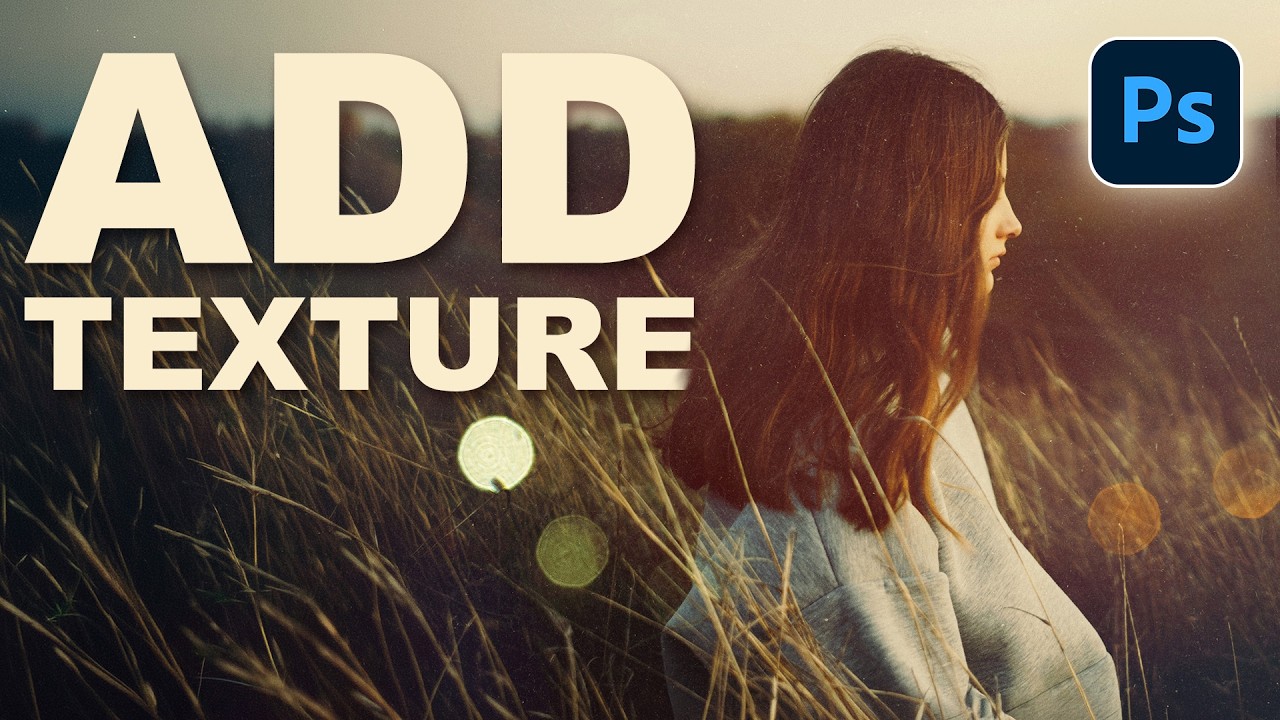
I’ve been using Photoshop for way too long, and I can tell you that texture overlays are one of those techniques that looks intimidating until you actually do it—then you realize it’s almost comically simple. In this excellent tutorial, Aaron Nace (PHLEARN) walks through the fundamentals of adding textures to any photograph, and honestly, it’s a game-changer for anyone looking to add depth and visual interest to their work.
The beauty of this technique is that it’s completely non-destructive, infinitely adjustable, and requires absolutely zero artistic talent. You just need to understand how layers talk to each other.
What You’ll Actually Learn Here
This isn’t some pretentious art theory lesson. You’re learning three concrete skills:
- How to import and scale texture files into your composition
- How blending modes dramatically change how textures interact with your photo
- How opacity lets you dial in exactly how strong the effect should be
That’s it. Three things. Master those, and you’ve got a technique that works on literally any image.
The Setup: Getting Your Texture Into Photoshop
First things first—open your photograph in Photoshop. Nothing revolutionary here. Once that’s loaded, you’ll grab your texture file (Aaron provides free sample textures in the tutorial download, which is clutch).
Here’s the key part: instead of going through the import dialog like some kind of peasant, just drag and drop your texture file directly into your open Photoshop document. Seriously, just drag it in. Photoshop will automatically create a new layer with your texture.
Once the texture is in there, you’ll see it’s probably way too small or positioned weirdly. That’s fine. Click on the layer and then use the transform handles to scale it up. Aaron shows you can use the width (W) and height (H) fields to dial in the exact size you want. I usually just grab a corner handle and drag until it covers the entire image, but the numerical approach works if you’re a precision nerd.
Pro tip from me: Don’t commit to the transformation yet. Leave it flexible until you see how it looks with different blending modes. Sometimes what looks awkward at first turns gorgeous once you blend it properly.
The Magic Ingredient: Blending Modes
This is where the actual alchemy happens. Your texture is currently sitting on top of your photo looking like a bad Instagram filter, right? That’s because it’s set to “Normal” blending mode, which just means “stack it on top like a pancake.”
Click on that dropdown that says “Normal” in your Layers panel. You’re about to see about 27 different blending modes. Don’t panic. Most of them are garbage for this particular task, but a few of them are absolute money.
Aaron cycles through a bunch and settles on “Lighten” for the example, which does exactly what it sounds like—it only shows the lighter parts of your texture, blending it beautifully with the photograph. Other modes that work great for textures include:
- Overlay - Creates nice contrast and dimension
- Soft Light - Subtle and elegant (my personal favorite)
- Linear Dodge - Bright and dreamy
- Multiply - For darker, moodier textures
The trick is experimenting. There’s no “correct” blending mode—it depends entirely on your texture and your photo. Spend 30 seconds clicking through a few options. You’ll know when it looks right because you’ll stop and go “Oh, that’s nice.”
Fine-Tuning With Opacity
Here’s where people mess up: they find a blending mode they like, commit to it at 100% opacity, and wonder why it looks like they Instagram-filtered their grandma.
Opacity is your friend. Even when you’ve found the perfect blending mode, the effect is probably too strong. Click on that opacity slider (usually at the top right of your Layers panel) and drag it to the left. You’re aiming for something subtle—something that enhances the photo without making people say “Why does this look so weird?”
I usually land somewhere between 30-60% opacity. That sweet spot where people notice something is different about the image without being able to pinpoint exactly what. It’s sophisticated. It’s professional. It’s not screaming “I added a texture!”
Bonus: Adjusting Colors on the Fly
If your texture has color (which most do), you’re not locked into that color forever. Aaron mentions using Hue/Saturation adjustments to shift the color of your texture layer. This is huge because it means you can take one texture and make it work with completely different photos just by adjusting the hue.
Add a Hue/Saturation adjustment layer on top of your texture, and now you can shift the color, adjust saturation, or even desaturate it completely if you want a purely tonal texture. It’s another layer of customization that makes this technique absurdly flexible.
The Real Takeaway
Textures aren’t about making your photos look “artsy” or “vintage.” They’re about adding depth, interest, and subtle visual complexity to your work. Done right, people won’t consciously notice the texture—they’ll just feel like your image has more dimension than it did before.
This is the kind of technique that takes ten minutes to learn and a lifetime to master because there are infinite variations and approaches. But the fundamentals? They’re simple enough that you’ll probably nail it on your first try.
Watch the full tutorial above to see Aaron walk through the entire process with different textures and show you some additional tricks I haven’t covered here. Plus, you get access to the free sample textures and PSD file, which honestly saves you hours of texture hunting.
Now go forth and texture everything. Your photos will thank you.
Comments (3)
This saved me so much time on my last edit. Wish I'd found this sooner.
I keep coming back to this article. It's that useful.
Couldn't agree more. I've seen this make a huge difference in photography work specifically.
Leave a Comment