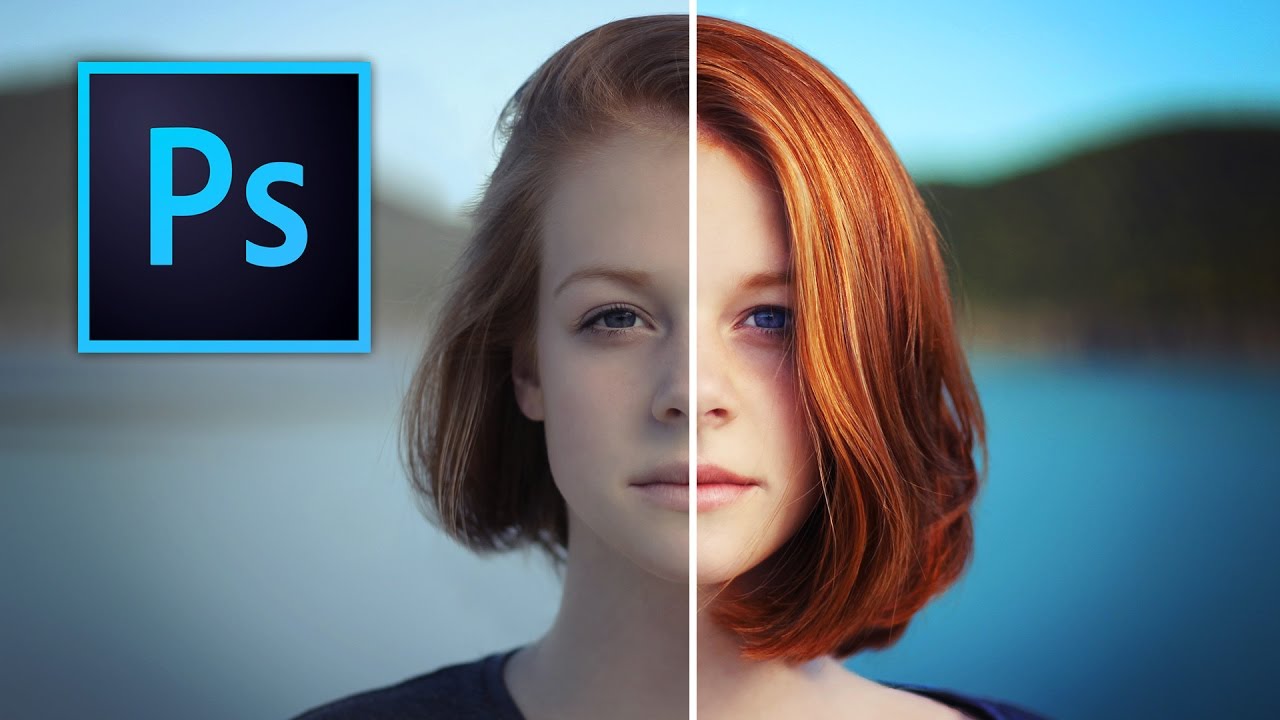
Stop Boring Photos: The Ultimate Guide to Making Colors Pop in Photoshop
I’m gonna be honest with you—there’s nothing worse than spending time on a photo shoot only to open your files and find them looking about as exciting as beige paint. The good news? Photoshop has some seriously powerful tools to fix that problem, and in this excellent tutorial, Kelvin Designs shows us how to make colors absolutely sing using selective color and contrast adjustments.
The best part? This isn’t about slapping a preset on everything and hoping for the best. We’re talking surgical precision—adjusting specific areas to punch up contrast and saturation exactly where it matters.
Why Local Adjustments Beat Global Edits
Before we dive into the how-to, let me explain why this technique is such a game-changer. When you adjust colors globally—meaning across the entire image—you often end up with that overdone, processed look that screams “Instagram filter from 2012.”
Local adjustments, on the other hand, let you target specific elements. Want that red flower to really grab attention? Boost just that area. Need the sky to look more dramatic? Work only on the sky. This selective approach is what separates professional-looking edits from amateur hour.
Step 1: Start With Your Selections
The foundation of this technique is accurate selection work. In Kelvin’s tutorial, he walks through using Photoshop’s selection tools to isolate specific areas of your image that need the color-popping treatment.
Here’s my take: don’t overthink your selection method. Whether you’re using the Quick Selection tool, the Lasso, or—if you’re feeling fancy—the Select and Mask workspace, the goal is the same: isolate what you want to edit. I usually grab the Quick Selection tool because it’s fast and, honestly, close enough for most work.
Pro tip from me: Feather your selections slightly (I usually go with 20-30 pixels) so you don’t get harsh halos around your adjustments. Nothing says “I don’t know what I’m doing” like a glowing outline around your edited area.
Step 2: Make Local Color Adjustments
Once you’ve got your selection, it’s time to make those colors sing. Kelvin shows how to use adjustment layers—and this is crucial—to boost saturation and adjust specific color ranges within your selected area.
Here’s the workflow:
- Create a Hue/Saturation adjustment layer
- Target specific colors (reds, blues, greens, etc.) rather than hitting the Master channel
- Increase saturation on those targeted colors
- Don’t go nuts—I usually stay between +15 to +35 depending on the image
The beauty of using adjustment layers is that they’re non-destructive, meaning you can always dial it back if you overdo it. And trust me, it’s easy to overdo it. I’ve created some genuinely hideous color corrections in my time, and being able to undo them without destroying my work has saved me more than once.
Step 3: Boost Contrast in Your Selected Areas
Color saturation is only half the battle. Contrast is what really makes things pop. After adjusting your colors, add a Curves or Levels adjustment layer and tighten up that contrast in your selected area.
For contrast work, I usually:
- Create a slight S-curve (darken shadows slightly, brighten highlights)
- Keep it subtle—we’re enhancing, not creating an HDR nightmare
- Adjust opacity if needed (sometimes 70-80% intensity looks more natural than 100%)
The combination of increased saturation plus boosted contrast is what transforms a dull element into something that genuinely grabs your eye.
Step 4: Rinse and Repeat for Multiple Elements
If your image has several areas that need attention—and honestly, most do—repeat this process for each element. Maybe your main subject needs one treatment, the background needs another, and accent colors need their own adjustment.
Yes, this takes a bit longer than using a one-click preset. But the results? Absolutely worth it. You get a cohesive, professionally edited image that doesn’t look like it was processed by a robot.
My Personal Workflow Tips
Check your work at 100% zoom. Screen zoom can be deceiving. A color adjustment that looks great at 50% zoom might look cartoonish when you’re viewing the actual pixels.
Use layer masks for refinement. If your selection wasn’t perfect, you can always paint on the adjustment layer’s mask to fine-tune what’s being affected. This saves you from having to start over.
Go easy on the saturation. The temptation to crank saturation to maximum is real, but it’s also how you end up with that plastic-looking, over-processed vibe. Restraint is your friend.
Compare before and after. Toggle your adjustment layers on and off frequently. Sometimes we get so deep in the edit that we lose perspective on what we’ve changed.
The Bottom Line
Making colors pop in Photoshop isn’t magic—it’s just a combination of smart selections and targeted adjustments. It takes a little more time than throwing a preset at your photo, but the difference in quality is night and day.
Want to see exactly how Kelvin breaks this down? Watch the full tutorial above. He walks through a real image and shows the exact adjustments, and honestly, seeing it in action is worth way more than my typed-out description. Plus, you can grab the free source files to practice with the same image.
The next time you open a photo that looks flat and uninspiring, don’t settle for it. Give these techniques a shot. Your photos—and your audience—will thank you.