The Composite That Broke My Confidence
A while back I spent the better part of a week on a cityscape composite. Client wanted drama. Moody sky, golden hour, the works. I delivered it, felt good about it, and then saw another designer’s version of basically the same brief pop up on Behance. Their image had a foreground water reflection that made the whole thing sing. Mine looked like a postcard. Flat, static, forgettable.
The maddening part? The technique they used wasn’t some secret buried in a $400 masterclass. It was straightforward. I just hadn’t built it into my workflow yet.
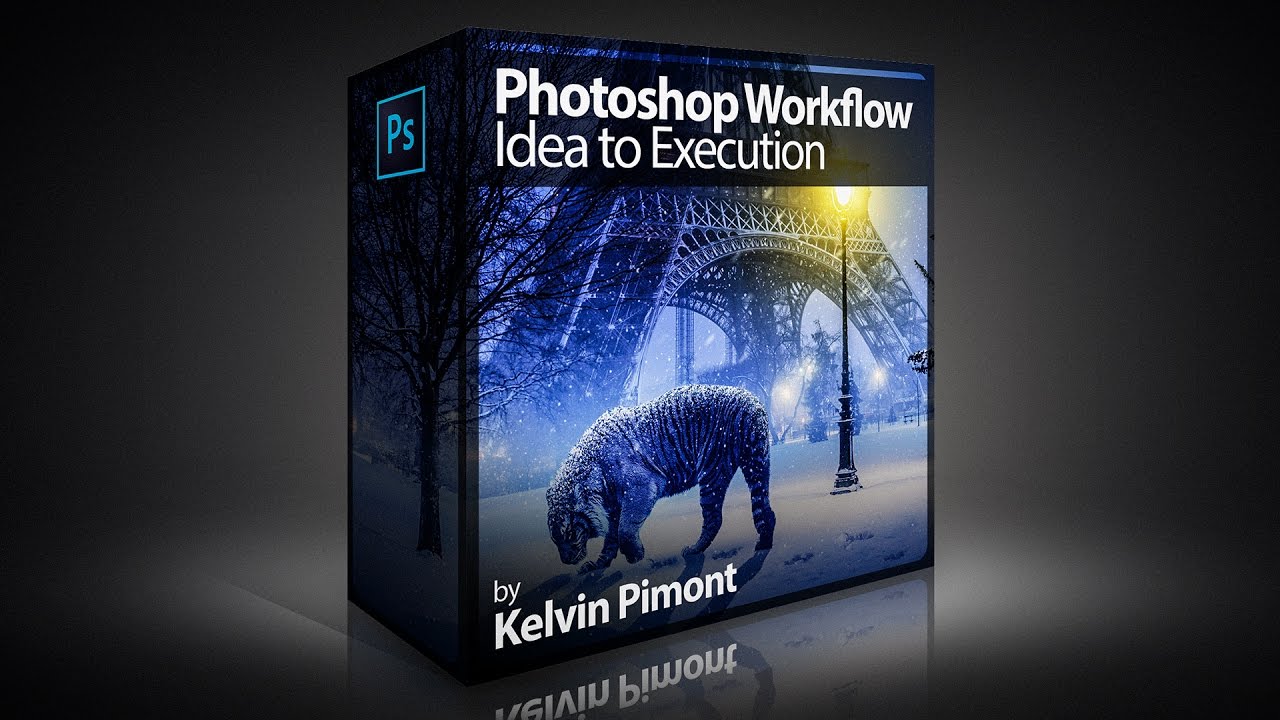
That’s what pushed me toward this free lesson from Kelvin Designs, part of the intro to his new Photoshop Workflow Course. The lesson covers how to create dramatic water reflections that look genuinely convincing, and the technique is fast enough to actually use on deadline.
What Makes This Reflection Method Work
The core idea is to take your existing image, flip it, distort it, and blend it in a way that reads as real water rather than a cheap mirror effect. The difference between a bad reflection and a good one usually comes down to three things: edge softness, vertical compression, and ripple distortion. Kelvin’s method hits all three in a logical sequence.
You start by duplicating your base layer, then flipping it vertically using Edit > Transform > Flip Vertical. That gives you the raw mirror. At this point it looks exactly like what it is, a clumsy flip, so don’t panic. The next steps are where the realism gets built.
Position the flipped layer so it sits directly beneath your original image, butting up against the horizon line. Then use Free Transform to compress the reflection vertically. You’re not going to want a 1:1 ratio here. Real water reflections are foreshortened. Squishing the height down to roughly 60-70% of the original feels closer to how physics actually behaves, and it immediately starts reading as ground-level water rather than a mirror tile.
The Distortion Pass That Sells the Whole Thing
Once the reflection is positioned and scaled, the next step is applying distortion to break up that too-perfect mirror look. Kelvin uses the Wave filter (Filter > Distort > Wave) to introduce horizontal rippling. The settings matter here. You want a high number of generators (around 5 or so), short wavelengths, and low amplitude. Big wave settings will make it look like your subject is reflected in a swimming pool during an earthquake. Subtle settings make it look like calm water with just enough movement to be believable.
After the Wave filter, a slight motion blur applied vertically (Filter > Blur > Motion Blur, angle set to 90 degrees) softens the reflection in the direction water would naturally diffuse light. Keep the distance value low, somewhere in the range of 10-20 pixels depending on your canvas size, just enough to lose the sharp edges without making everything look smeared.
Then comes the blending. Drop the reflection layer’s opacity down, somewhere between 60 and 80 percent works for most images, and experiment with layer blend modes. Kelvin favors a standard opacity reduction over a blend mode change for the cleanest result, but Screen or Soft Light can punch up the reflection if you’re working with a brighter scene.
Finally, add a layer mask to the reflection layer and drag a gradient on it, black at the bottom fading to white at the top, so the reflection fades out naturally as it extends away from the horizon. This is the step most people skip, and it’s the step that makes or breaks the whole effect.
Where I’d Push This Further (and Where It Falls Apart)
For static images this workflow is nearly bulletproof. Where I’ve run into trouble is when the source photo has a strong foreground element that would logically break the water surface, rocks, grass, a road. The reflection will happily appear on top of those elements and immediately give the game away.
My workaround is to mask the reflection layer carefully around any foreground geometry before I do the gradient fade. It adds maybe five minutes to the process but it keeps things from looking obviously composited. If the foreground is complex, I’ll sometimes add a separate ripple texture layer in Overlay mode, pulled from a stock water surface photo, to reinforce the illusion.
The other limitation is that this technique assumes a relatively flat horizon. Curved or dramatic perspective shots need more manual warping to get the reflection to sit convincingly. Free Transform and the Warp tool become your friends at that point, but it’s no longer a quick pass.
One Setting Most Tutorials Get Wrong
The vertical compression ratio gets glossed over in a lot of reflection tutorials, people either skip it or guess. The reason it matters is that the angle of incidence changes how much of a scene is visible in a reflection, and a 1:1 flip doesn’t account for that. Compressing to around 60-70% is a useful default, but if you’re working with a low camera angle or a very wide shot, you may want to push closer to 50%. Getting this wrong is usually why a reflection looks “off” even when everything else is technically correct.
It’s one of those details that seems minor until you see two versions side by side, and then you can’t unsee it.
The Real Value of Baking This Into a Workflow
The reflection trick itself isn’t complicated. The value in Kelvin’s lesson is that it’s framed as a repeatable, decision-based process rather than a one-off tutorial you follow once and forget. Knowing the why behind each step, the compression, the distortion settings, the gradient fade, means you can adapt it fast when the source image doesn’t cooperate.
If you want to see the visual side of all this in action, watch the full free lesson at the link below. Some things are just easier to absorb when you can see the layers moving.
Watch the tutorial here: https://www.youtube.com/watch?v=esDT8NP-wOA
Source files are available free through Kelvin Designs at https://www.kelvindesigns.com/offers/ozPFreDP.
Comments
Leave a Comment