
Stop Losing Assets Between Projects: How Photoshop Libraries Actually Work

Stop Losing Assets Between Projects: How Photoshop Libraries Actually Work

I used to email myself PSDs. Not proud of it. We’re talking dragging files into Gmail like some kind of digital cave person, because I had no reliable system for moving assets between machines or sharing them with collaborators. Fonts would go missing, logo files would live in seventeen different folders named “final,” “final_v2,” and “ACTUAL_FINAL,” and every new project started with a twenty-minute archaeological dig through my desktop. Turns out, Photoshop had been quietly solving this problem for years and I just wasn’t paying attention.
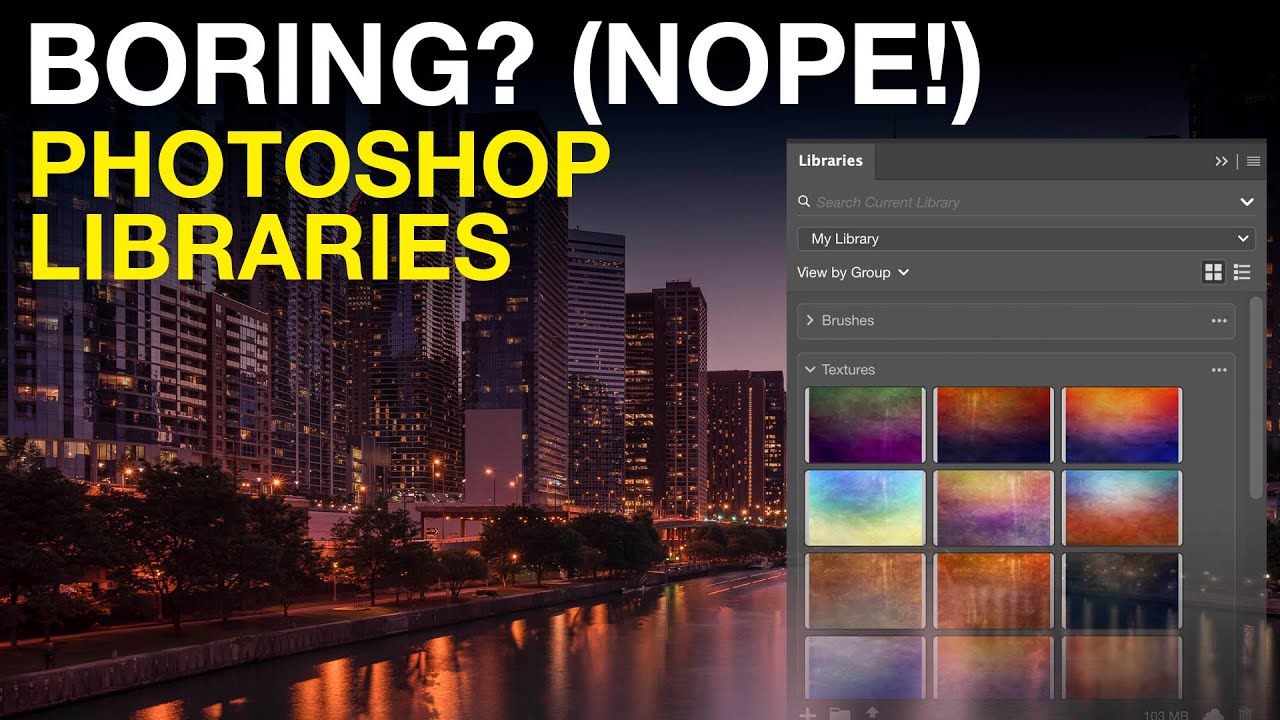
Photoshop Libraries: The Feature I Ignored for Years (And Now Use Every Single Day)

Photoshop Libraries: The Feature I Ignored for Years (And Now Use Every Single Day)

Here is a scenario I have lived more times than I care to admit: I need to drop my watermark onto a finished photo, and I spend five minutes hunting through folders trying to find the right PSD file, then another two minutes opening it, copying the layers, switching back, pasting, and resizing. For something I do on nearly every client deliverable. That is embarrassing. It took me way too long to realize Photoshop had already solved this problem and I had been walking past the solution every single day without clicking on it.