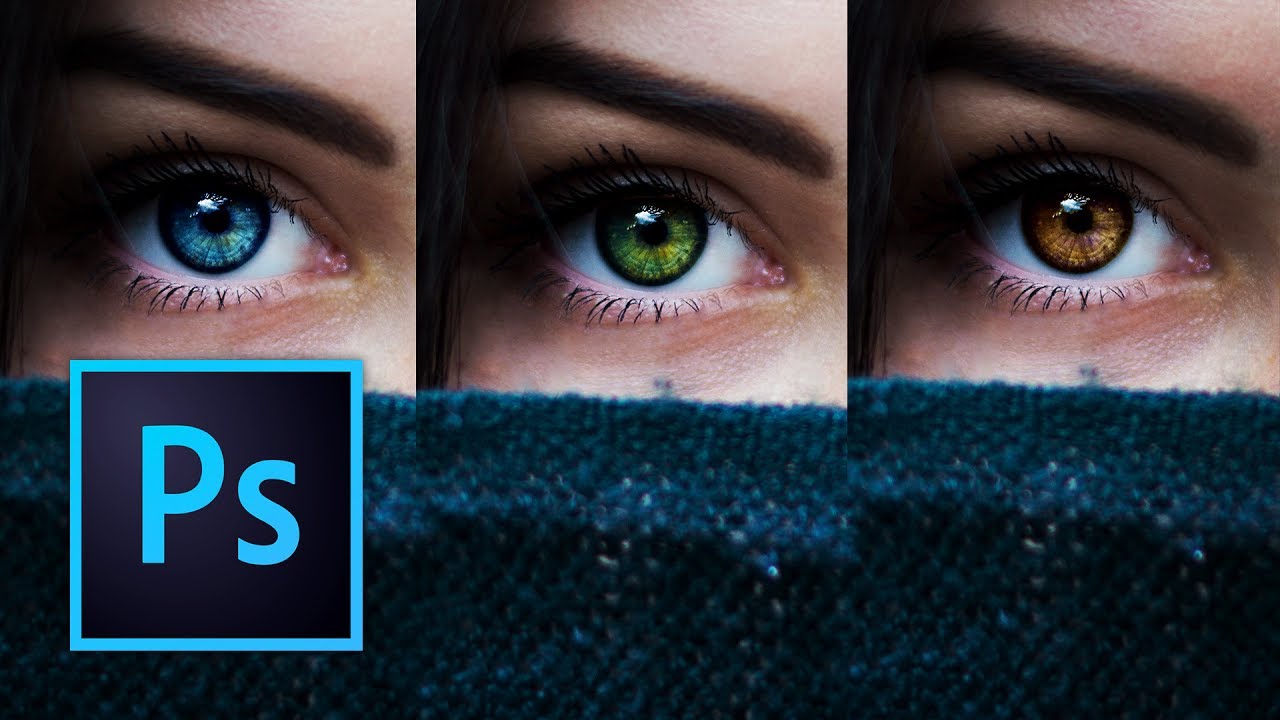
Look, I’ve seen a lot of eye color changes in my time, and most of them look like someone dumped a bucket of paint on a portrait. Flat. Lifeless. Like the person’s eyes got replaced by a couple of angry M&Ms.
The problem? Everyone reaches for the Hue/Saturation slider and calls it a day. Sure, it changes the color. But it also obliterates all the subtle variations, the specular highlights, and the natural depth that makes eyes, well, eyes.
In this excellent tutorial, Kelvin Designs shows us a smarter approach using a combination of adjustment layers that actually preserves the detail and dimension of the original eye. It’s the difference between a quick edit and something that looks like it belongs in a professional retouching portfolio.
Let me break down exactly how to pull this off.
Why Your Current Method Sucks
Before we dive into the good stuff, let’s acknowledge why the nuclear option fails. When you blast Hue/Saturation or slap a colorize layer on an eye, you’re treating it like a flat object. But eyes aren’t flat—they’re three-dimensional with multiple tonal values, highlights, shadows, and color information all working together.
The moment you turn that saturation slider to 11, you’re compressing all of that complexity into a single flat tone. It’s like taking a Rembrandt and painting over it with house paint. Tragic.
The Setup: Duplicate and Prepare
First things first—open your portrait and make sure you’re working non-destructively. Create a duplicate of your layer (Ctrl+J on Windows, Cmd+J on Mac). This is your safety net, and honestly, if you’re not doing this, we need to have a different conversation.
Now you’ve got a clean copy to work with. Everything we do from here on out can be undone or refined without touching the original. Good practice? Absolutely. Necessary for not screwing up your work at midnight? Also yes.
Step One: Make Your Selection
Here’s where precision matters. You need to isolate just the eye—the iris, specifically. Use whatever selection tool makes you happiest. The lasso tool works fine if you’ve got a steady hand. The quick selection tool is faster if the contrast is there. Me? I’m usually grabbing the elliptical marquee tool and making a circular selection around the iris.
Don’t stress about being pixel-perfect here. You can feather your selection afterward (Select > Modify > Feather, usually around 2-3 pixels) to make the transition smooth and natural. Trust me—a hard edge here and your eye color change will scream “I edited this.”
Repeat for the second eye. Yes, I know it’s tedious. Beauty usually is.
Step Two: Color Balance for the Foundation
Here’s where Kelvin’s method gets clever. Add a Color Balance adjustment layer (Layer > New Adjustment Layer > Color Balance).
With your eye selection still active, this adjustment layer will automatically mask itself to just that area. Perfect.
Now, instead of going crazy, make subtle shifts. Think about what color you’re trying to achieve. Want blue eyes? Push the Cyan slider slightly, maybe a tiny touch of blue. Want green? Bump the green and maybe a hair of yellow. The key word here is subtle. You’re building color, not painting a kindergarten art project.
I usually make two or three small adjustments across the shadows, midtones, and highlights separately. This creates natural color variation that actually looks like eyes, not a Snapchat filter.
Step Three: Hue/Saturation for Control
Once you’ve got your base color dialed in with Color Balance, add a Hue/Saturation adjustment layer on top of it.
Here’s the trick: don’t max out the saturation. That’s how you get that artificial, over-processed look. Boost it maybe 20-30 points. Just enough to make the color pop without making it look like the person has been staring at a highlighter.
You can also use the Hue slider here to fine-tune the exact shade of your target color. A few degrees left or right can be the difference between “looks real” and “looks weird.”
Step Four: Levels for Dimension
Now add a Levels adjustment layer. This is where you protect those beautiful highlights and shadows that make eyes look three-dimensional.
Adjust the middle slider (gamma) slightly to brighten or darken as needed, but leave the white and black points mostly alone. The white point—that little specular reflection in the eye—is sacred. Keep it bright and sharp. That’s what sells the effect.
Step Five: Selective Color (The Secret Weapon)
If you want to get really fancy, add a Selective Color adjustment layer. This lets you target specific color ranges within your selection.
In the Yellows or Reds (depending on your new eye color), you can dial in additional adjustments that feel more natural than a blanket approach. It’s subtle, but it’s the difference between “nice edit” and “how did you do that?”
The Universal Application
Here’s the beautiful part—this exact technique works for changing the color of anything. Shirt color? Same method. Car paint? You got it. Flower petals? Absolutely. Once you understand how to layer these adjustments without destroying underlying detail, you’ve got a transferable skill.
Watch the Full Tutorial
While I’ve given you the roadmap, Kelvin’s video includes the actual process in motion, which honestly makes it click faster than reading my verbose explanation. Watch the full video here to see each step executed with proper technique and timing.
The source files are available through Kelvin’s newsletter if you want to practice on the exact same image—no shame in that game.
Final Thoughts
The next time someone shows you their eye color change and it looks like their eyes got replaced by alien orbs, you’ll know exactly why. And more importantly, you’ll know how to do it right.
Stop nuking your colors. Your portraits will thank you.