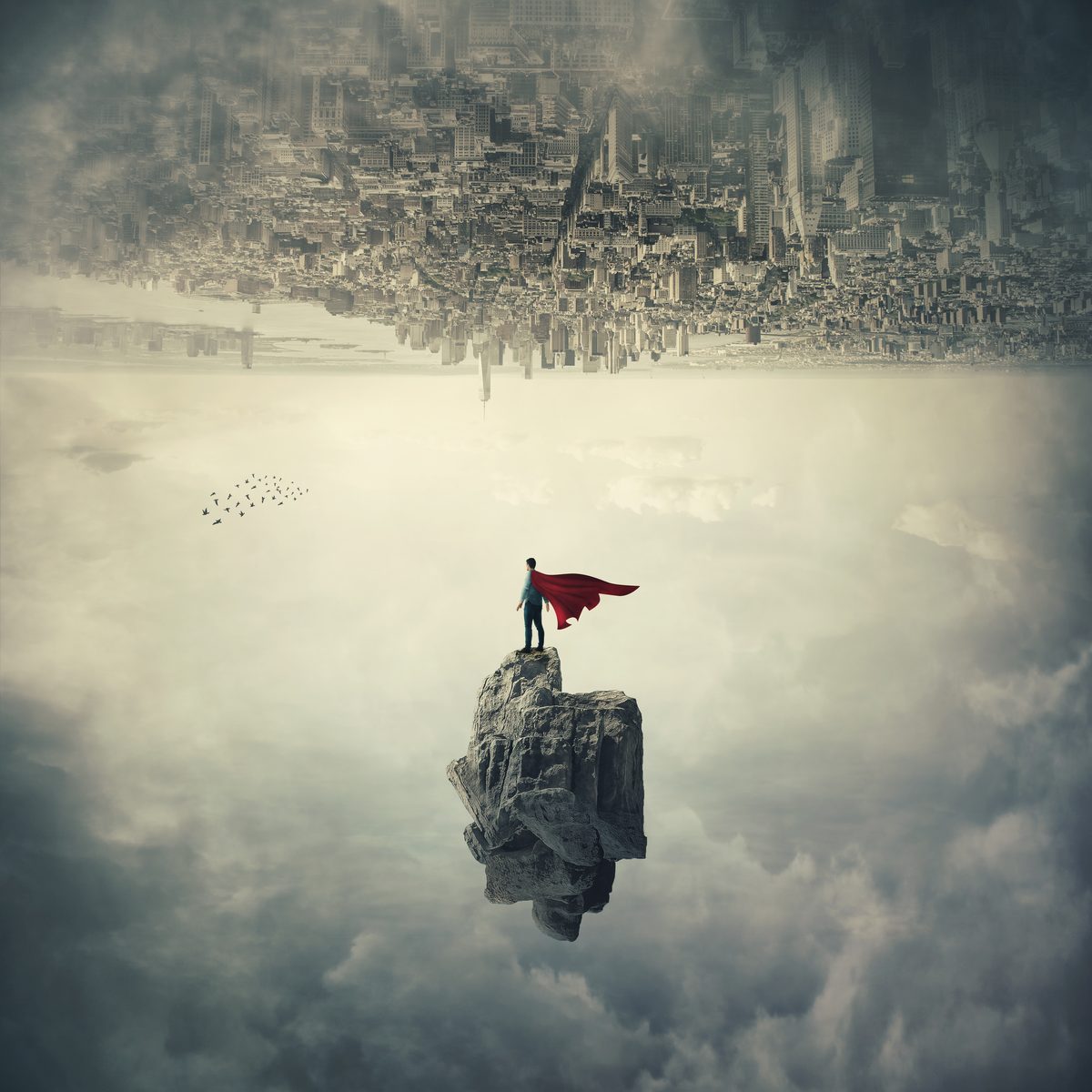
Double exposure effects have that magical quality where two completely different images somehow feel like they were always meant to be together. There’s something almost alchemical about it. The good news? Creating one isn’t nearly as mysterious as it looks. In this excellent tutorial, Aaron Nace (PHLEARN) walks through the process with the kind of clarity that makes you wonder why you didn’t try this sooner.
I’m going to break down exactly what Aaron covers, add some of my own thoughts on where this technique shines, and show you how to pull this off yourself—even if you’re not a Photoshop wizard.
What Is Double Exposure, Anyway?
Before we dive into the mechanics, let’s clarify what we’re actually doing here. A double exposure effect blends two images so seamlessly that they seem to occupy the same space. Typically, you’ll see a detailed texture or landscape merged into a portrait, creating this dreamy, ethereal look that screams “artistic.”
The traditional darkroom technique involved exposing film twice, hence the name. But we’re doing it digitally, which means you get infinite undo buttons and don’t have to buy expensive film. Win-win.
Step 1: Set Up Your Layers
Start with your base image—usually a portrait or subject you want to be the star of the show. Place your second image (the texture or landscape you want to blend in) on a layer above it. Nothing fancy here; just basic layer stacking.
The key insight Aaron emphasizes is that layer order matters. Your “hero” image should be your foundation layer. Everything else builds on top of that.
Step 2: The Magic of Screen Blending Mode
Here’s where the actual wizardry happens. With your top layer selected, change the blending mode from “Normal” to “Screen.”
This is the bread and butter of the double exposure effect. Screen mode inverts the layer, multiplies it with the layer below, and inverts again. In English: it lightens the underlying image and creates that ethereal, glowing blend. It’s particularly effective with high-contrast images because it naturally emphasizes the bright areas while letting darker areas show through.
One thing Aaron doesn’t belabor but I’ll emphasize: not every combination of images works equally well with Screen mode. You’ll get the best results when your texture layer has strong blacks (which become transparent) and bright highlights (which blend beautifully). If your blend looks muddy, your source images might just be low-contrast to begin with.
Step 3: Opacity Is Your Friend
After applying Screen mode, your texture layer might look too intense. This is completely normal. Lower the opacity of your blended layer until the effect feels balanced. Aaron typically demonstrates this anywhere from 40-80% opacity, depending on how aggressive you want the blend.
This is where your artistic judgment takes over. There’s no “correct” opacity—it’s about what feels right for your specific images. I usually start at 50% and adjust from there.
Step 4: Using Generative Expand for Perfect Fit
Here’s where Photoshop 2026’s new tools come into play. If your texture layer doesn’t quite fit the dimensions of your base layer, Generative Expand lets you intelligently expand and fill those missing areas.
Select your texture layer, then use Generative Expand (found in Edit > Generative Expand) to automatically fill in the gaps. This uses Photoshop’s AI to create plausible content that matches the surrounding area. It’s not perfect every time, but it’s a massive timesaver compared to manually content-aware filling or cloning.
The beauty of this approach is that it preserves the integrity of your double exposure effect while solving a practical problem. You’re not struggling with layer masks and edge blending—the software does the heavy lifting.
Step 5: Fine-Tuning Your Blend
Once your layers are properly sized and positioned, you might need to adjust the actual image placement. Move your texture layer around using the Move tool until you find a composition that feels intentional. In portraiture, it’s common to have the texture flow through the subject’s face or body in a way that adds meaning.
If you want more control over which areas blend and which remain crisp, add a layer mask to your texture layer and paint with black to hide certain sections. This gives you surgical precision over your effect.
Why Screen Mode Works (And When It Might Not)
Screen mode works for double exposure specifically because it’s one of the few blending modes that truly merges two images rather than replacing one with the other. But here’s the catch: it works best with images that have natural contrast. A flat, low-contrast image will produce a washed-out result that looks more like a watermark than a deliberate artistic choice.
Test your source images first. If you’re not getting the effect you want, try switching to Lighten or Color Dodge mode as alternatives, though Screen remains the gold standard for most situations.
A Personal Note on Choosing Source Images
Aaron’s tutorial uses professionally shot material, which definitely helps. But I’ve found that the double exposure technique works on virtually any images if you’re intentional about your choices. The key is contrast and relevance. Your texture should relate to your subject in some meaningful way—otherwise, you’re just layering random stuff and hoping it works.
Nature textures almost always look good: forests, mountains, water, clouds. The organic, flowing nature of these elements complements human subjects beautifully.
Watch the Full Tutorial
Aaron’s seven-minute breakdown is packed with practical demonstrations that will cement these concepts far better than my written explanation ever could. Grab the tutorial assets from the PHLEARN website, follow along in real-time, and see exactly how the effect comes together.
You’ll be creating stunning double exposures in minutes, not hours.
If you want to go deeper into Photoshop’s advanced features and tackle more complex compositing work, Aaron’s PRO learning path covers everything from foundational concepts to professional-level techniques. The investment pays for itself the first time you successfully pull off a double exposure that makes your audience say, “How did you do that?”
Now stop reading and go create something beautiful.
Watch the full video below:
Comments (2)
Wow, I had no idea you could do this. Mind blown.
Love this. I referenced a similar technique in one of my recent posts. Always good to see other perspectives.
Leave a Comment