
I’ve lost count of how many times I’ve saved a file, closed Photoshop, gone hunting for it in my project folder, and come up completely empty. For the longest time I blamed myself. Bad naming conventions, wrong folder, classic me. Then I started blaming the coffee shop WiFi, which honestly tracks. But the real culprit was a default setting Adobe quietly changed in 2022 that redirected my saves to Creative Cloud instead of my local drive, without ever making that particularly obvious.
In this Matt Kloskowski tutorial, Watch the full tutorial on YouTube, Matt walks through two separate but related preference fixes that together bring Photoshop’s save behavior back to something that actually makes sense for people who work locally. Both fixes live in the same preferences panel, both take about 30 seconds, and both will immediately stop the low-grade frustration that’s been quietly eating your productivity.
If you’ve ever clicked Save As and wondered why JPEG wasn’t in the format dropdown anymore, that’s the second fix. Both problems have the same solution: Adobe changed the defaults, buried the old behavior in preferences, and left a lot of us scratching our heads. Here’s how to sort it out.
Step 1: Understand What Changed and Why It’s Annoying
 Save dialog defaulting to Creative Cloud instead of local computer
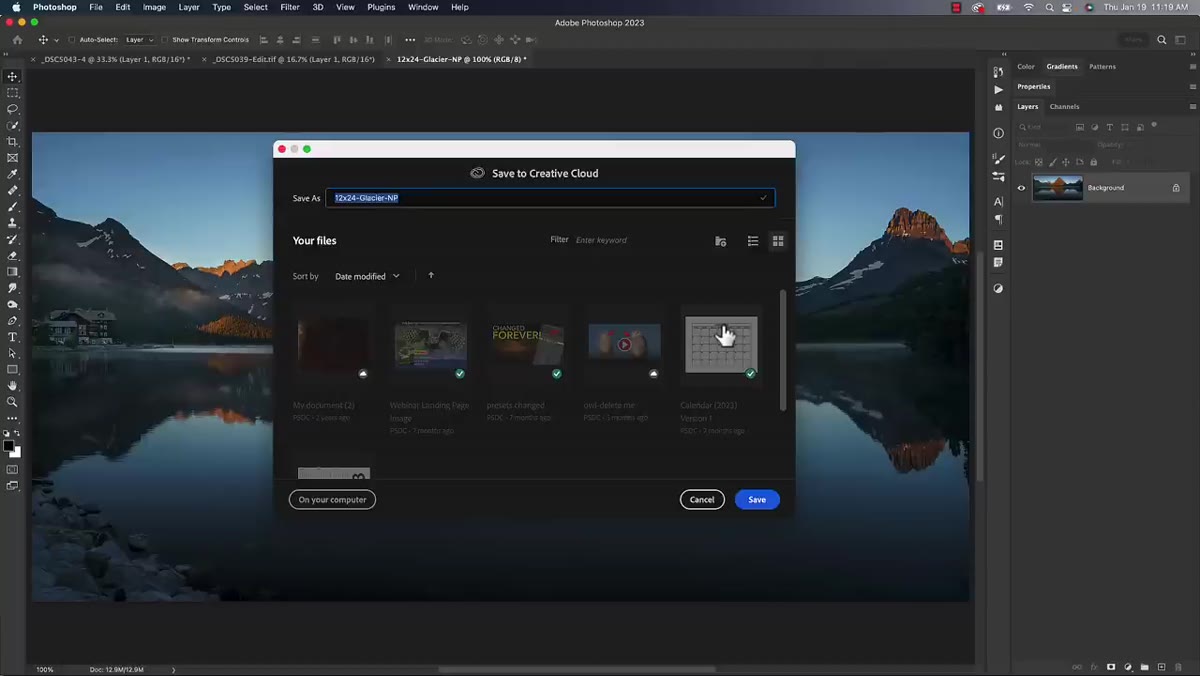
When you go to File and hit Save As on a file that hasn’t been saved yet, Photoshop opens a dialog that defaults to saving up to Creative Cloud. If you’re not paying close attention, you click Save, think you’re done, and your file ends up in the cloud instead of your project folder on your machine. Matt puts it plainly: either you miss the warning at the top and lose the file to the cloud, or you catch it every single time and have to manually click “On your computer” before you can actually save. Neither option is great. Neither option is what any of us signed up for.
Save dialog defaulting to Creative Cloud instead of local computer
When you go to File and hit Save As on a file that hasn’t been saved yet, Photoshop opens a dialog that defaults to saving up to Creative Cloud. If you’re not paying close attention, you click Save, think you’re done, and your file ends up in the cloud instead of your project folder on your machine. Matt puts it plainly: either you miss the warning at the top and lose the file to the cloud, or you catch it every single time and have to manually click “On your computer” before you can actually save. Neither option is great. Neither option is what any of us signed up for.
This isn’t a bug, it’s an intentional default, which is arguably worse. Adobe wants you living in the Creative Cloud ecosystem. That’s fine for some workflows, but if you’re a freelancer delivering files to clients from a local folder structure, cloud-first saving is a daily inconvenience.
Step 2: Open Photoshop Preferences and Navigate to File Handling
 Preferences menu open, File Handling option highlighted
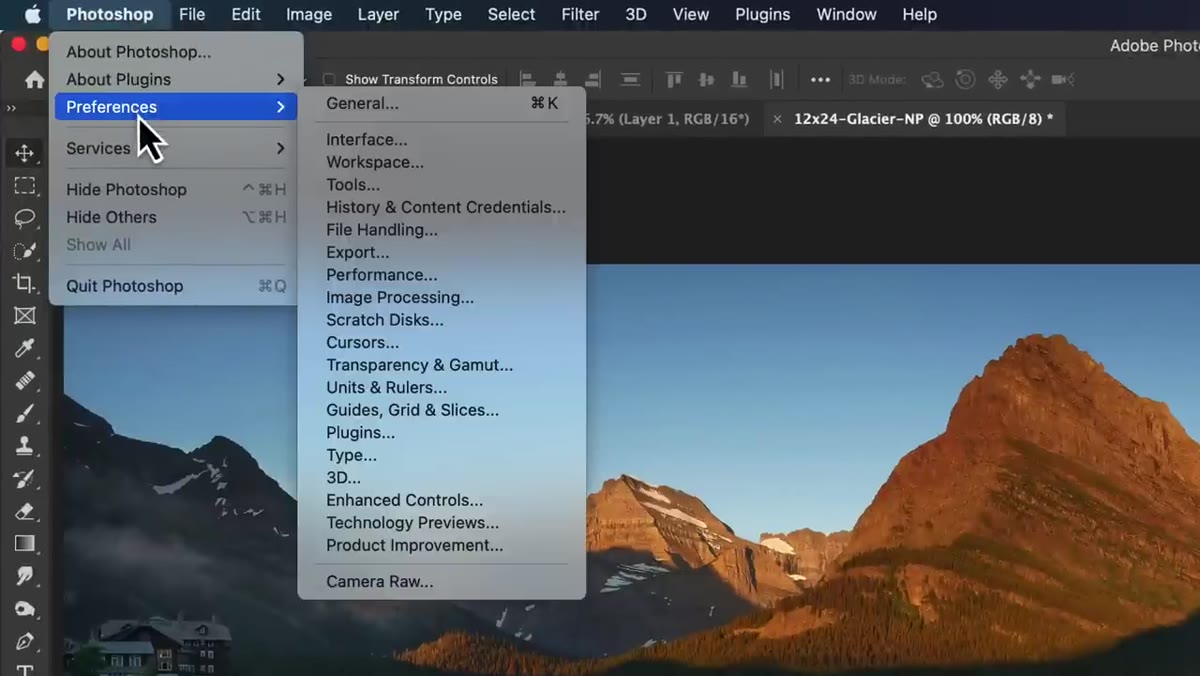
On a Mac, go to Photoshop in the top menu bar and select Preferences, then File Handling. On a PC, it’s under Edit, then Preferences, then File Handling. This is where both fixes live, so you only need to find this panel once. It’s worth bookmarking mentally because File Handling is one of those preference sections that doesn’t get visited often, but it has some genuinely impactful settings tucked inside.
Preferences menu open, File Handling option highlighted
On a Mac, go to Photoshop in the top menu bar and select Preferences, then File Handling. On a PC, it’s under Edit, then Preferences, then File Handling. This is where both fixes live, so you only need to find this panel once. It’s worth bookmarking mentally because File Handling is one of those preference sections that doesn’t get visited often, but it has some genuinely impactful settings tucked inside.
Step 3: Change the Default File Location from Creative Cloud to Your Computer
 File Handling preferences showing Default File Location set to Creative Cloud
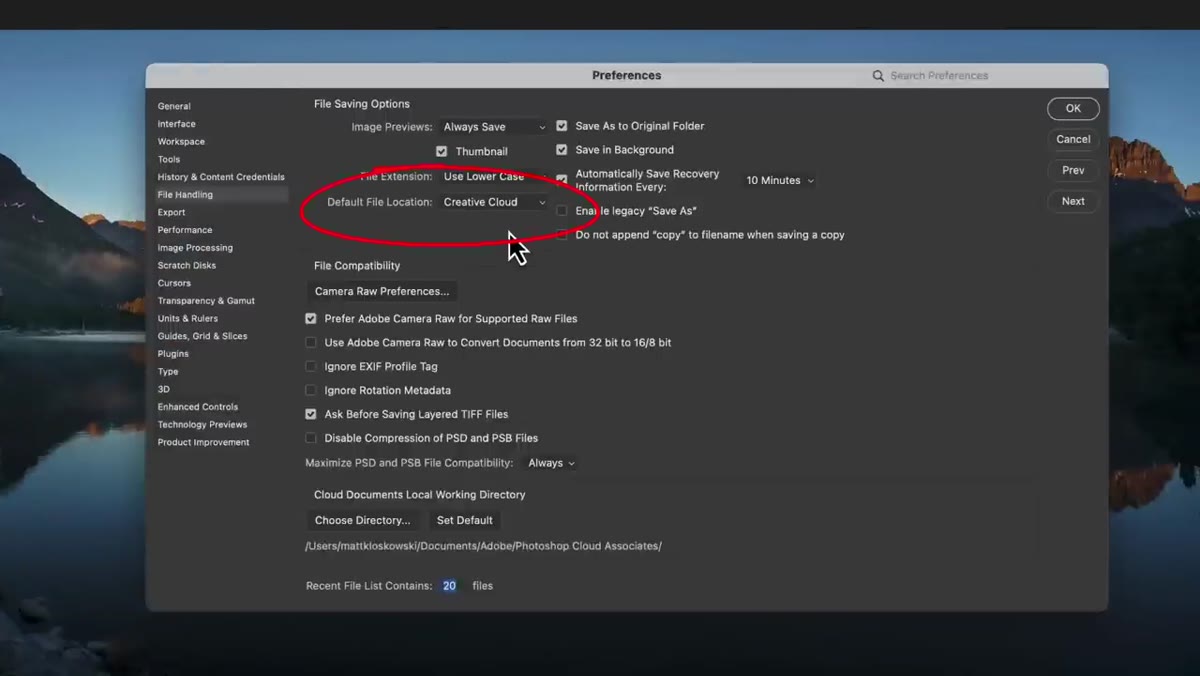
Inside File Handling, look for the setting labeled “Default File Location.” Out of the box, it’s set to Creative Cloud. Click the dropdown and change it to “On your Computer.” Hit OK. That’s literally it. From this point forward, when you go to save a file, Photoshop will open the standard local file browser instead of the Creative Cloud dialog. Your saves go where you tell them to go, into your actual folder structure, where you can find them like a normal person.
File Handling preferences showing Default File Location set to Creative Cloud
Inside File Handling, look for the setting labeled “Default File Location.” Out of the box, it’s set to Creative Cloud. Click the dropdown and change it to “On your Computer.” Hit OK. That’s literally it. From this point forward, when you go to save a file, Photoshop will open the standard local file browser instead of the Creative Cloud dialog. Your saves go where you tell them to go, into your actual folder structure, where you can find them like a normal person.
This one change alone is worth five minutes of your day. If you’ve been dealing with mystery missing files or clicking an extra button on every single save, this is your fix.
Step 4: Understand Why Save As Lost the JPEG Option
 Save As dialog showing missing JPEG format option
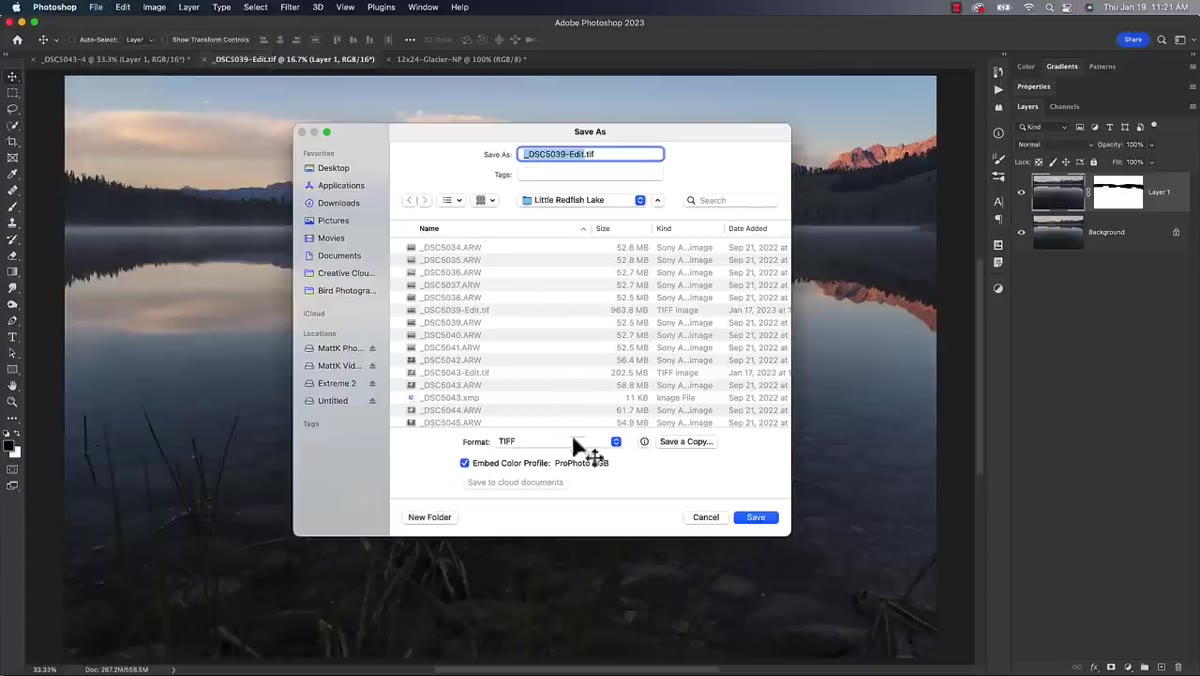
Here’s the second problem Matt covers, and it’s a separate change Adobe made that trips people up constantly. If you open an image that you’ve already saved once as a layered PSD and go to File, Save As, you’ll notice that JPEG and a bunch of other formats are just gone from the format dropdown. You’re only seeing Photoshop-native formats. This confused me for longer than I’d like to admit.
Save As dialog showing missing JPEG format option
Here’s the second problem Matt covers, and it’s a separate change Adobe made that trips people up constantly. If you open an image that you’ve already saved once as a layered PSD and go to File, Save As, you’ll notice that JPEG and a bunch of other formats are just gone from the format dropdown. You’re only seeing Photoshop-native formats. This confused me for longer than I’d like to admit.
Adobe’s reasoning was actually somewhat logical. People were accidentally saving a flat JPEG over their layered PSD source file and destroying hours of work. So Adobe separated the behavior. Save As now keeps you in lossless, layered-friendly formats, while “Save a Copy” handles flattened exports like JPEG. It’s a safer workflow, but it’s a jarring departure from what everyone had been doing for years.
Step 5: Re-Enable Legacy Save As in Preferences
 File Handling preferences showing Enable Legacy Save As checkbox
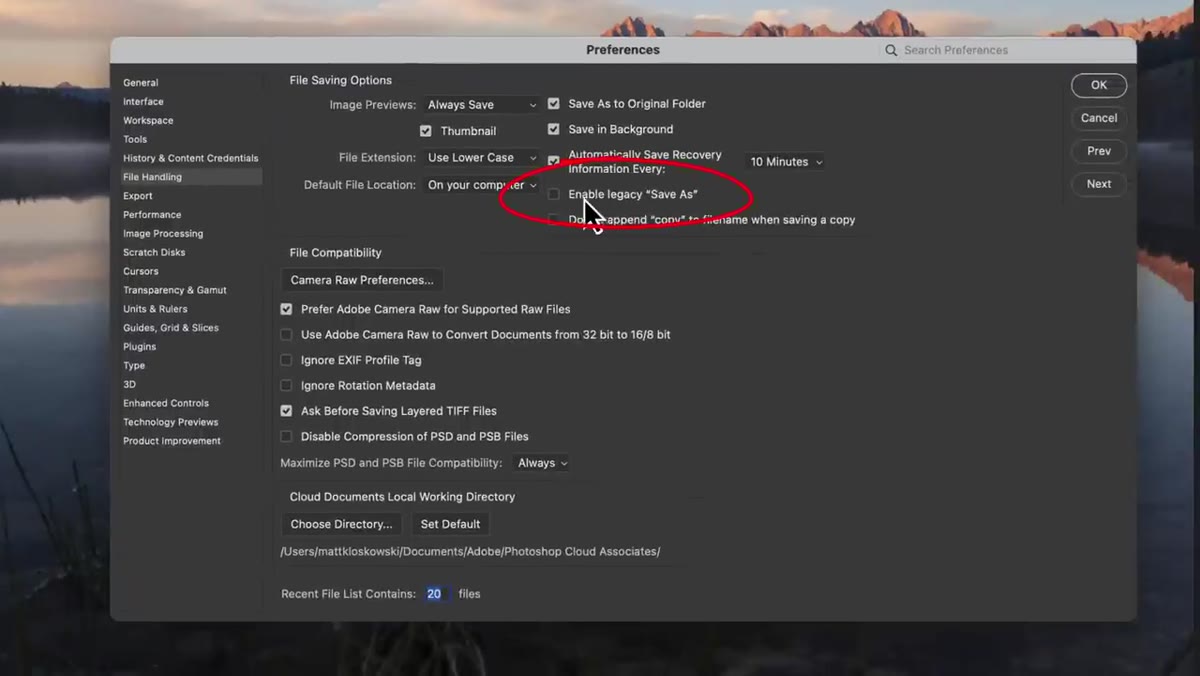
Go back to Preferences, File Handling, same panel as before. You’ll see a checkbox labeled “Enable Legacy Save As.” Check it. Photoshop will throw up a warning reminding you that you could accidentally overwrite files with this turned on. Click OK to acknowledge it and move on. Now when you go to File, Save As, you’ll see the full format list again, including JPEG, PNG, TIFF, and everything else you were used to before the change.
File Handling preferences showing Enable Legacy Save As checkbox
Go back to Preferences, File Handling, same panel as before. You’ll see a checkbox labeled “Enable Legacy Save As.” Check it. Photoshop will throw up a warning reminding you that you could accidentally overwrite files with this turned on. Click OK to acknowledge it and move on. Now when you go to File, Save As, you’ll see the full format list again, including JPEG, PNG, TIFF, and everything else you were used to before the change.
Is there a risk of overwriting a source file? Sure, technically. But if you’ve been working in Photoshop for more than a year, you already know to watch what you’re saving and where. The training wheels aren’t necessary for most working designers.
Step 6: Check Your Creative Cloud App for Files That Got Away
 Creative Cloud app Files section showing previously cloud-saved files
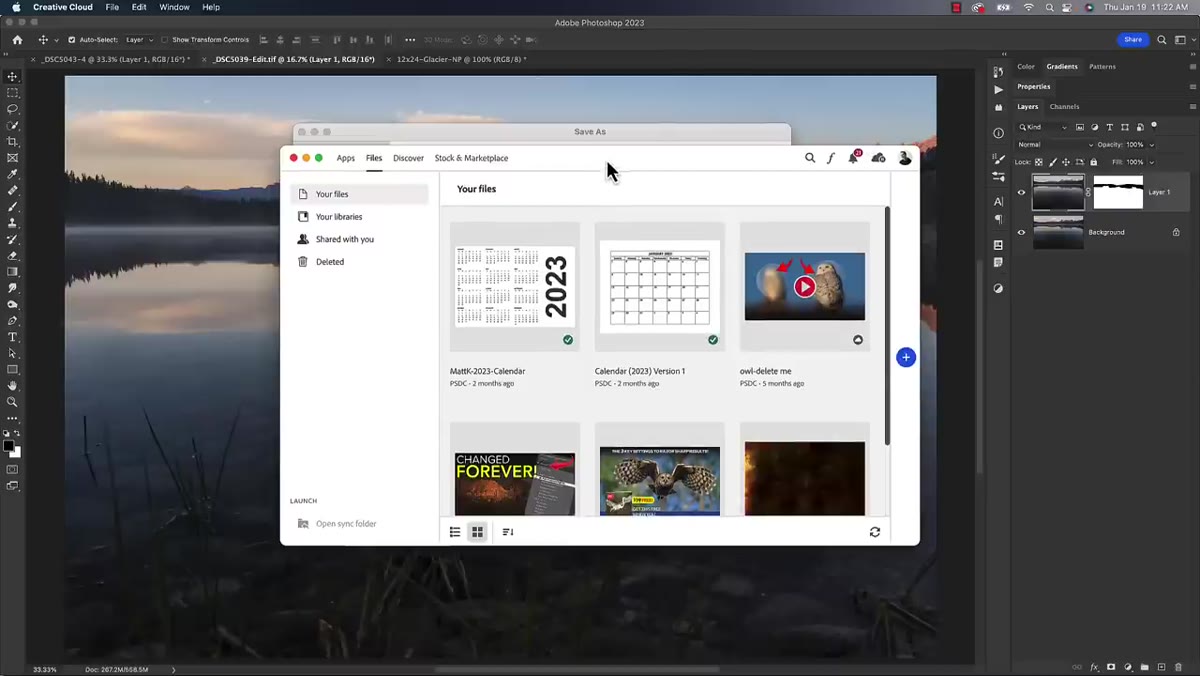
Before you move on, open your Creative Cloud desktop app and click over to the Files section. If you’ve been saving to the cloud without realizing it, those files are probably sitting there. Matt points this out as a recovery step for anyone who’s been running the default setting for a while and has files unaccounted for. It’s not the most exciting part of the tutorial, but it’s worth a two-minute check before you assume a file is gone forever.
Creative Cloud app Files section showing previously cloud-saved files
Before you move on, open your Creative Cloud desktop app and click over to the Files section. If you’ve been saving to the cloud without realizing it, those files are probably sitting there. Matt points this out as a recovery step for anyone who’s been running the default setting for a while and has files unaccounted for. It’s not the most exciting part of the tutorial, but it’s worth a two-minute check before you assume a file is gone forever.
What I’d Add: Do a Test Save Before You Trust It
After changing these settings, I always do one quick sanity check: save a throwaway file, navigate to where I expect it to land, and confirm it’s actually there. Preferences don’t always apply instantly to files that are already open, and the last thing you want is to change the setting, feel confident, and then lose something real because the change didn’t take the way you expected. Close Photoshop, reopen it, and run one test save. Takes 60 seconds and removes all doubt.
Also worth noting: if you’re on a team or sharing a machine, these are per-user preferences. You’ll need to set them on every account, and anyone else using the machine will still have the defaults unless they go in and change them too.
Both of these fixes come down to the same principle: Adobe changed defaults in the name of protecting users from themselves, and in doing so made the experience worse for people who already know what they’re doing. Two checkboxes in File Handling give you full control back. Go set them right now, before you lose another file to the Creative Cloud void.
Watch the full tutorial on YouTube to see Matt walk through both fixes in real time. It’s under five minutes and you’ll wonder how you put up with the defaults for this long.
Comments (3)
This is going in my reference folder. Incredibly useful.
Excellent tutorial. I'd add that from a workflows standpoint, this technique is incredibly versatile.
I've watched a dozen tutorials on this and yours is the clearest by far.
Leave a Comment