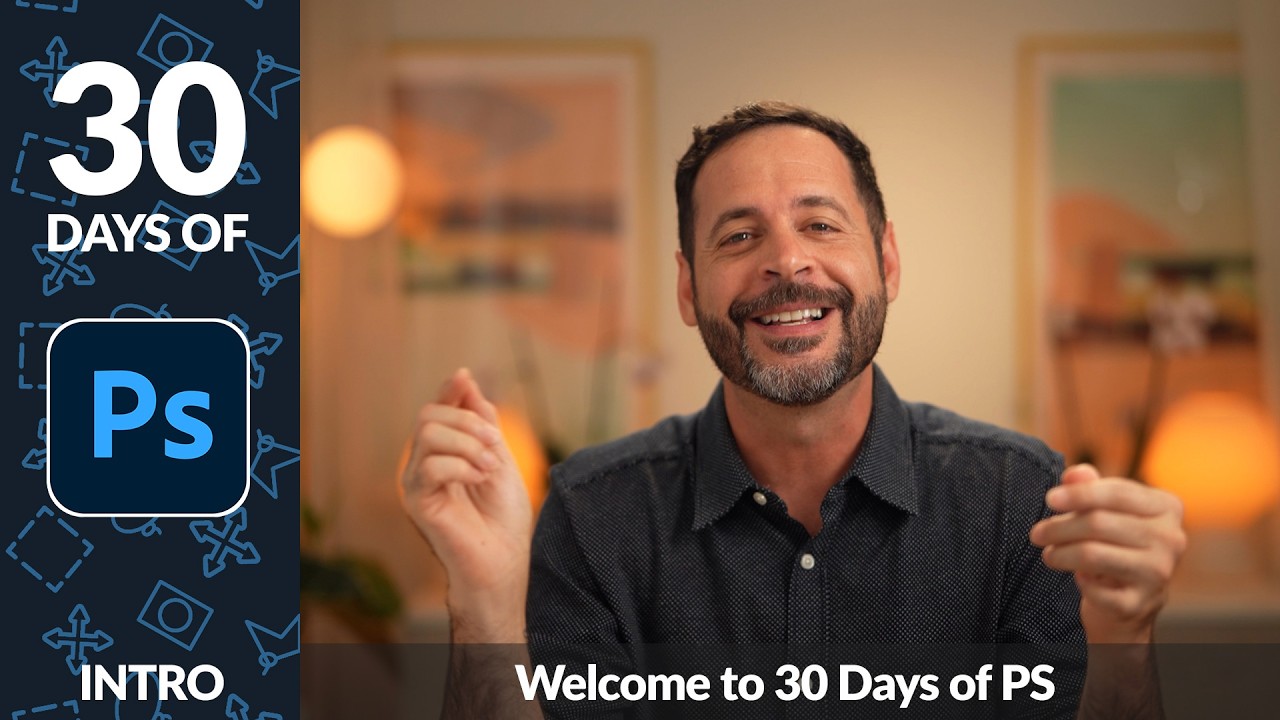
I’ll be honest with you. Every few months I see someone in a design forum ask “is Photoshop still worth learning?” and every time I have to resist the urge to close my laptop and go stare at the wall for a while. Yes. It’s still worth learning. It has always been worth learning. But I do understand the hesitation, because Photoshop in 2025 is a genuinely different piece of software than it was even three years ago. The AI tools alone have rewritten what a typical editing session looks like, and if your mental model of Photoshop was formed watching tutorials from 2018, you’re probably doing things the long way around.
That’s exactly what makes this new series land at the right moment. In this Aaron Nace (PHLEARN) tutorial series, the entire 30 Days of Photoshop curriculum has been rebuilt from scratch for 2025 - not patched, not updated with a few new videos tacked on, but genuinely reconstructed to match how the software actually works today. Watch the full tutorial on YouTube. The intro video is short, but it maps out the full 30-day structure and tells you exactly what you’re signing up for. Here’s how to get the most out of it.
Step 1: Understand What This Series Actually Is
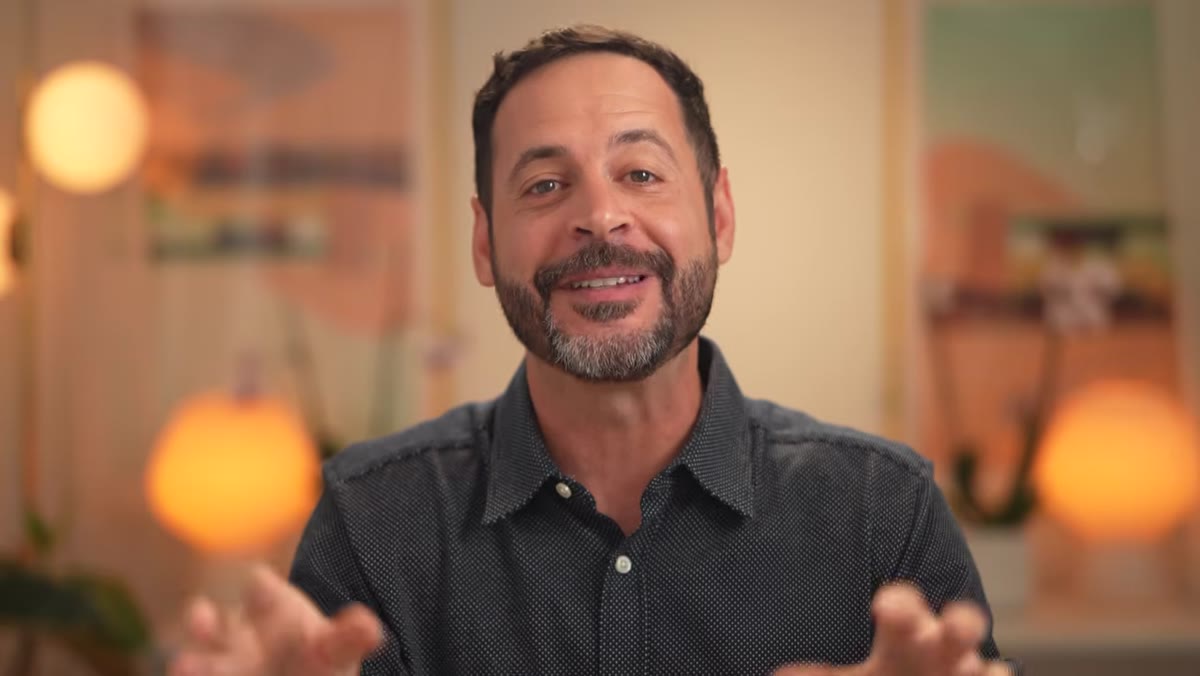 Aaron Nace introducing the 30 Days of Photoshop 2025 series
This isn’t a single tutorial - it’s a structured 30-day challenge where each day delivers one focused lesson. The format is deliberate. One concept per day means you’re not trying to absorb layers, masks, retouching, and compositing all in the same sitting. You build on what you learned yesterday, which sounds obvious but is genuinely rare in the “watch a 4-hour YouTube video and call yourself an expert” era of online learning.
Aaron Nace introducing the 30 Days of Photoshop 2025 series
This isn’t a single tutorial - it’s a structured 30-day challenge where each day delivers one focused lesson. The format is deliberate. One concept per day means you’re not trying to absorb layers, masks, retouching, and compositing all in the same sitting. You build on what you learned yesterday, which sounds obvious but is genuinely rare in the “watch a 4-hour YouTube video and call yourself an expert” era of online learning.
If you’ve attempted to learn Photoshop before and bounced off it, this structure is probably what you were missing. It’s the difference between reading a dictionary and taking a language class.
Step 2: Sign Up for the Newsletter and Get the Schedule
 Call to action for joining the PHLEARN newsletter and free printable calendar
Aaron makes a point of directing viewers to the PHLEARN newsletter before Day 1 even starts. This isn’t just a mailing list plug. When you sign up, you get a printable 30-day calendar and a daily email schedule delivered to your inbox. The whole thing is free.
Call to action for joining the PHLEARN newsletter and free printable calendar
Aaron makes a point of directing viewers to the PHLEARN newsletter before Day 1 even starts. This isn’t just a mailing list plug. When you sign up, you get a printable 30-day calendar and a daily email schedule delivered to your inbox. The whole thing is free.
That calendar matters more than it sounds. Having a physical or pinned-to-your-desktop schedule turns a passive “I’ll watch when I have time” situation into something with actual structure. Treat it like a class. Block the time. The series only works if you show up consistently, and the calendar is the accountability tool that makes that easier.
Step 3: Start with the Workspace Before Touching Any Images
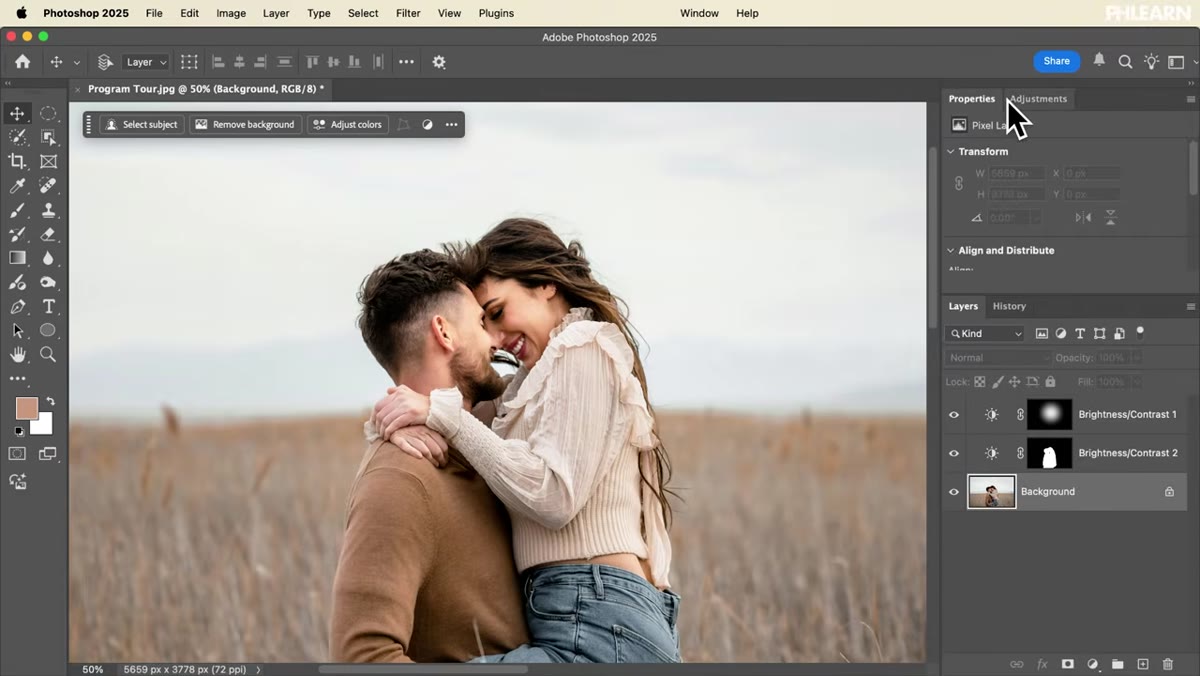 Overview of mastering Photoshop’s workspace and customizing the interface
The series opens with Photoshop’s workspace - how to navigate the interface, where everything lives, and how to customize the layout to suit the way you actually work. This is usually the part people skip because it feels like reading the instruction manual before playing a video game. Don’t skip it.
Overview of mastering Photoshop’s workspace and customizing the interface
The series opens with Photoshop’s workspace - how to navigate the interface, where everything lives, and how to customize the layout to suit the way you actually work. This is usually the part people skip because it feels like reading the instruction manual before playing a video game. Don’t skip it.
A customized workspace isn’t a luxury. It’s a real time-saver. Knowing which panels you use constantly and getting them docked where your eyes already go means less friction on every single project that follows. I spent my first two years in Photoshop hunting for tools I used every day because I never bothered to set up my workspace properly. Learn from my pain.
Step 4: Build a Non-Destructive Workflow from Day One
 Explanation of non-destructive editing using layers and masks
The series puts layers and masks near the top of the curriculum, and for good reason. Working non-destructively means every change you make can be undone, revisited, or adjusted without starting over. No flattened layers. No “save as a copy just in case.” No panic when a client comes back three weeks later wanting a different crop.
Explanation of non-destructive editing using layers and masks
The series puts layers and masks near the top of the curriculum, and for good reason. Working non-destructively means every change you make can be undone, revisited, or adjusted without starting over. No flattened layers. No “save as a copy just in case.” No panic when a client comes back three weeks later wanting a different crop.
The core of this approach is using adjustment layers and layer masks instead of editing pixels directly. An adjustment layer sits above your image and applies changes without touching the original data. A mask on that layer lets you paint those changes in or out with precision. If you internalize nothing else from this series, internalize this workflow. It will save you from disasters that I, personally, have experienced in ways I prefer not to discuss.
Step 5: Learn the New AI Tools - Generative Fill and Generative Expand
 Demonstrating Photoshop’s AI generative fill and expand capabilities
This is the part of the series that reflects how much Photoshop has actually changed. Generative Fill lets you select any area of a photo, type a text prompt, and have Photoshop generate new image content that blends into the scene. Remove an object, add one, change a background - all from a text description.
Demonstrating Photoshop’s AI generative fill and expand capabilities
This is the part of the series that reflects how much Photoshop has actually changed. Generative Fill lets you select any area of a photo, type a text prompt, and have Photoshop generate new image content that blends into the scene. Remove an object, add one, change a background - all from a text description.
Generative Expand takes that further. If your composition is too tight - subject too close to the edge, not enough sky, whatever - you extend the canvas and let Photoshop generate the surrounding content to fill the new space. These aren’t gimmicks. They’re tools that have legitimately changed how fast certain jobs get done. The series covers both, which means you’ll actually know how to use them in context rather than just knowing they exist.
Step 6: Get Into Retouching and Compositing
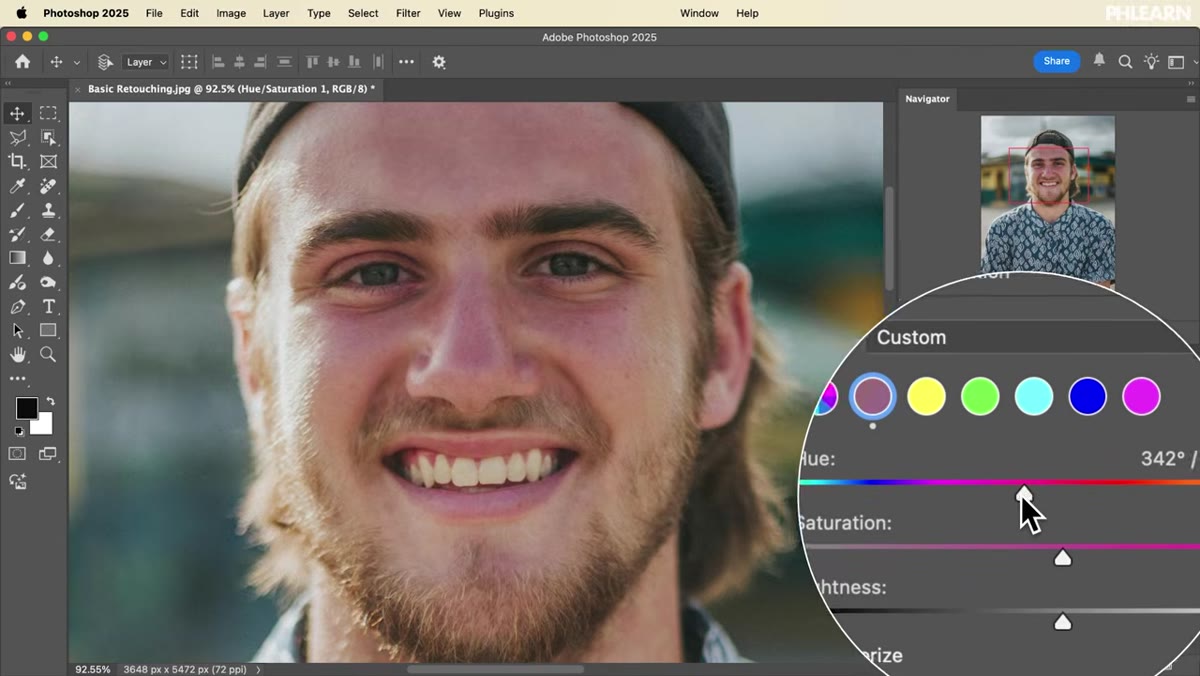 Introduction to retouching techniques and photo compositing projects
The back half of the 30 days moves into more advanced territory: retouching techniques for portraits, using Select Subject to automatically isolate the main element in a photograph, dynamic text effects for design work, and full photo compositing - combining multiple images into a single believable scene.
Introduction to retouching techniques and photo compositing projects
The back half of the 30 days moves into more advanced territory: retouching techniques for portraits, using Select Subject to automatically isolate the main element in a photograph, dynamic text effects for design work, and full photo compositing - combining multiple images into a single believable scene.
Compositing in particular is where Photoshop separates itself from every other editing tool. It’s also where most self-taught users hit a wall because it requires you to hold a lot of skills at once: masking, color matching, light direction, perspective. The series builds toward it gradually, which means by the time you get there, you’ll have the foundational skills to actually follow along.
My Take: The “One Skill Per Day” Format Is Underrated
I’ve tried to learn new software by throwing myself into complex projects on day one. I have a four-hour Blender livestream archived somewhere that I will never speak of again. The stacked, sequential format that PHLEARN uses here is genuinely the smarter approach, especially for a tool as deep as Photoshop.
If I were redesigning how I learned Photoshop originally, this is roughly the order I’d want to learn it in. Workspace first. Non-destructive workflow second. Core tools third. Then AI features - because you need to understand what the AI is doing to know when to trust it and when to override it. The series respects that sequence.
The biggest thing you’ll take away from committing to these 30 days isn’t any single technique. It’s the shift from treating Photoshop like a confusing black box to treating it like a set of logical tools you actually understand. That shift changes everything about how fast you work and how confident you feel when a project gets complicated.
Watch the full tutorial on YouTube and sign up through the PHLEARN link in the description to get your free calendar and daily email schedule before Day 1 kicks off.
Comments
Leave a Comment